


Assign shifts — every method
Put shifts on the roster: one day, bulk by date or month, duplicate weeks, the mobile app, and change requests.
On this page
Who is this lesson for?
- HR manager or supervisor: puts each person’s shift on the calendar from the shift roster.
- System admin: defines shift types first in attendance settings, then picks the assignment method that fits the team size.
- The employee: sees their days, and can request a shift change if you allow it.
Before you start
- Employees and roles are added. Empty teams do not show rows on the roster.
- Define shift types (morning, evening, day off) under Attendance settings → Employee shifts.
- Permission to manage employee shifts.
Define shift types
In Attendance settings open the Employee shifts tab. The default shift appears with start, break, and end times.
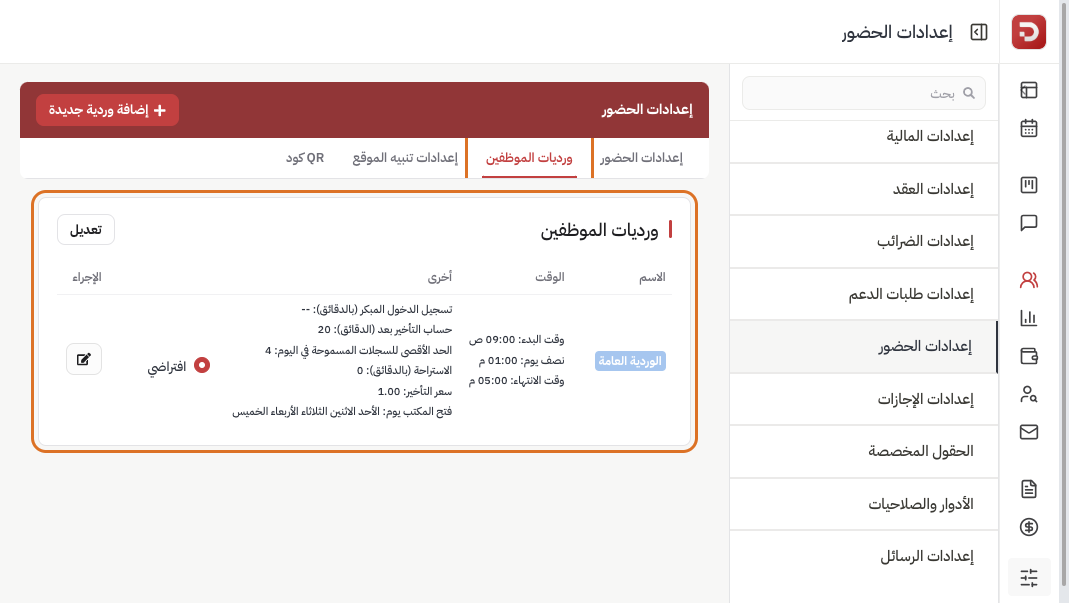
Add a shift for each working pattern you use. The assignment steps below pick from this list — only the AI path can create a new shift type while importing.
Open the shift roster
From the menu: HR management system → HR → Shift roster.
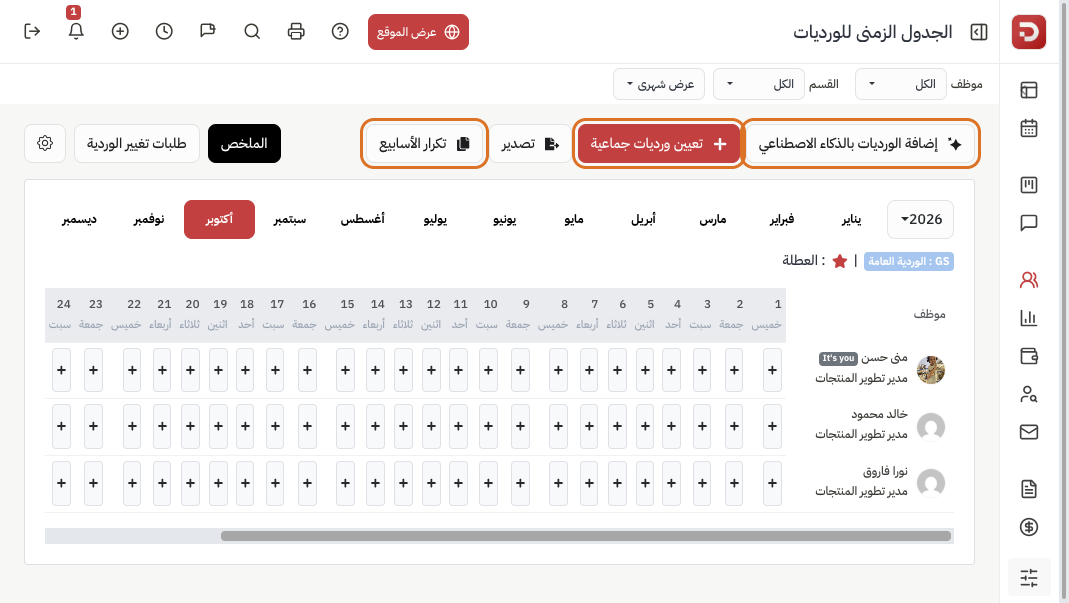
Each row is an employee, each column a day. An empty cell shows +. At the top:
- Import shifts with AI: from a file or text — a separate lesson.
- Assign bulk shifts: several people on a date, a range, or a month.
- Duplicate weeks: copy a finished week to later weeks.
- Shift change requests: review employee requests.
Switch Month view and Week view above the grid. Filter by employee or department if needed.
Assign one day from a cell
Click + at the employee and day. The Update status window opens.
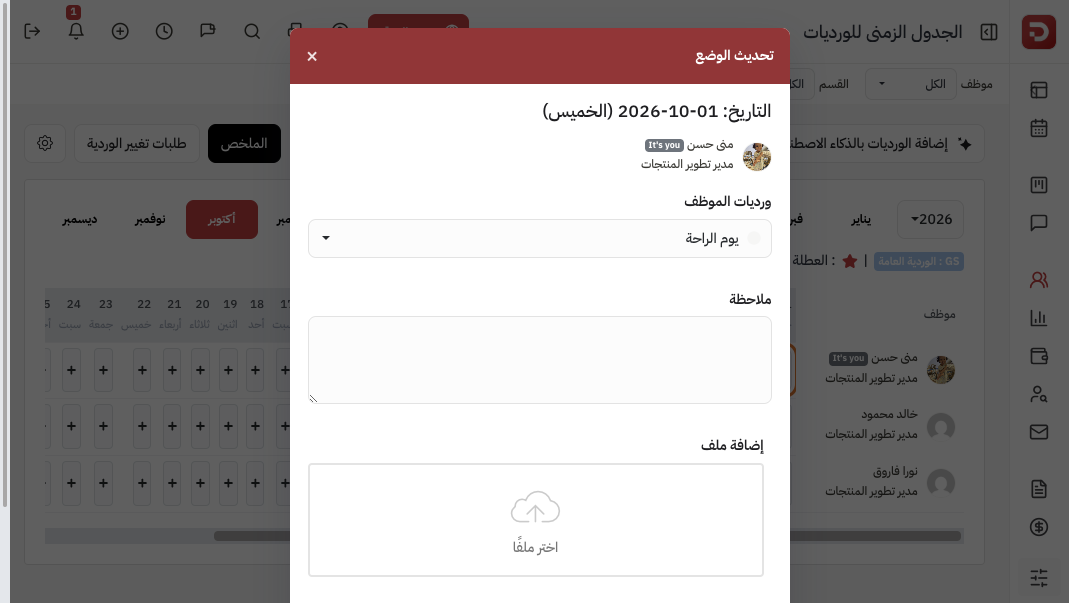
- Choose the shift under Employee shifts (or day off).
- Optional: a note or a file.
- Click Save.
Repeat for odd days. For many days or a whole team, use bulk assign.
Assign bulk shifts
Click Assign bulk shifts. Choose a department (optional), the employees, then the shift.
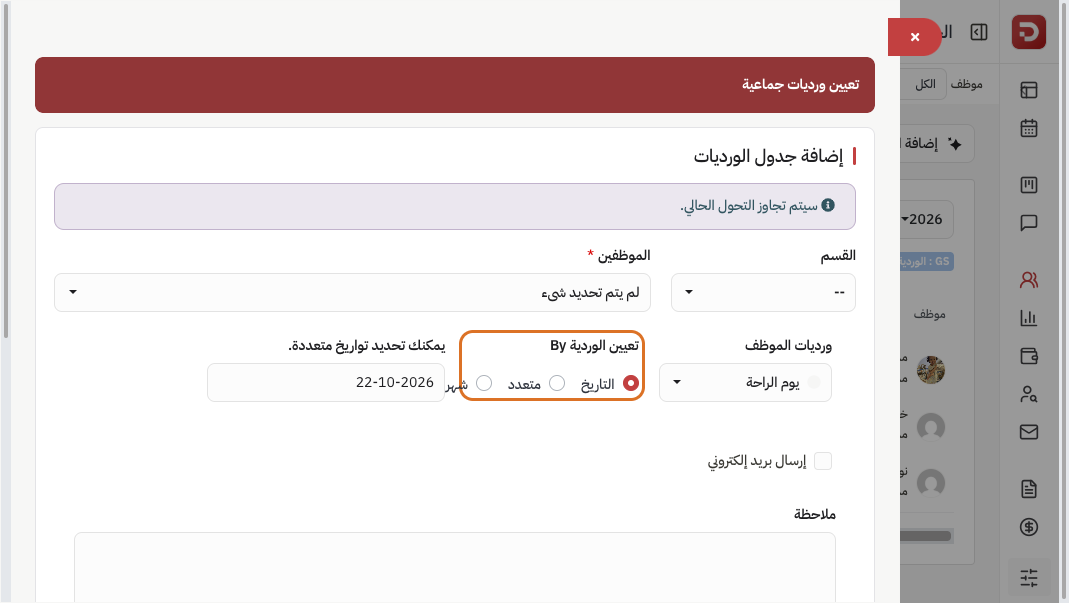
Choose how dates are picked:
- Date: one day, or several dates from the date field.
- Multiple: a from–to range.
- Month: a full year and month.
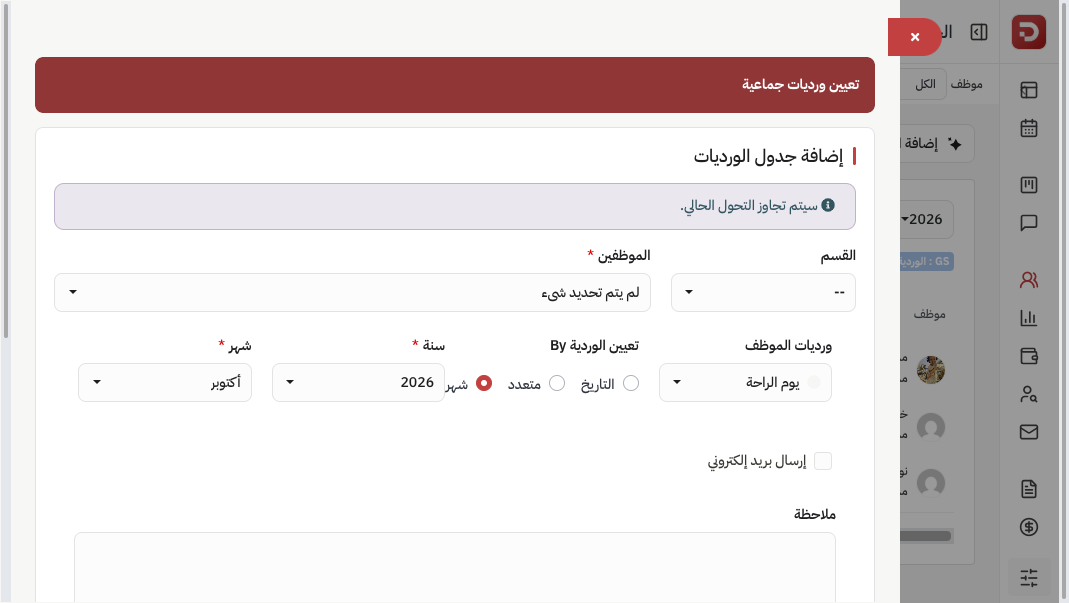
Optional: email the employees, and a note. Then save. An existing shift on the same day is replaced, unless more than one shift per day is allowed in attendance settings.
Duplicate a finished week
When a week looks right, click Duplicate weeks instead of assigning again.
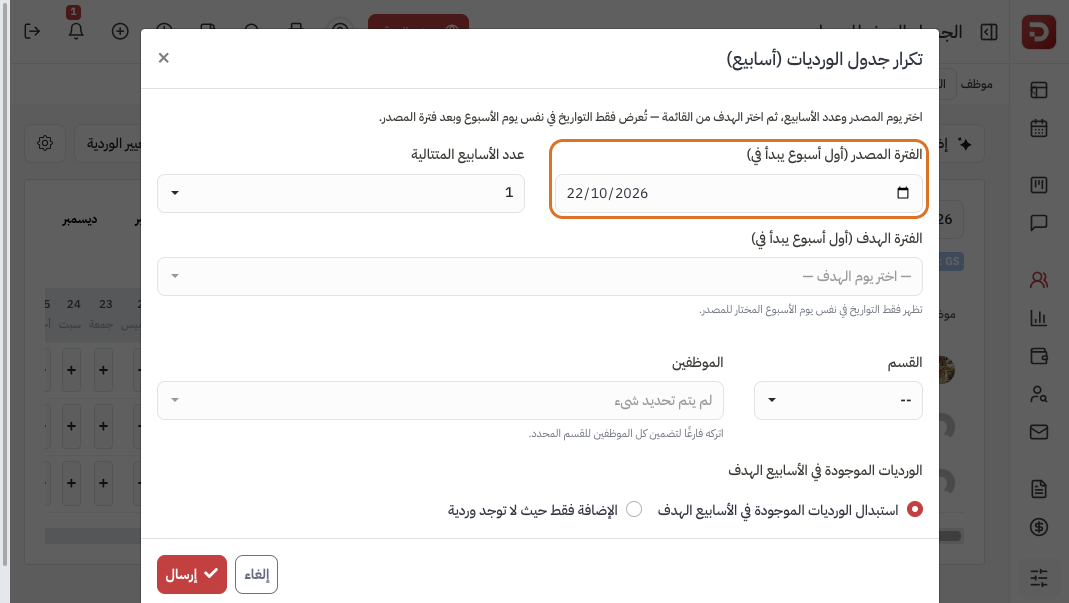
- Choose the source period (first day of the week you copy) and how many consecutive weeks.
- Choose the target period from the list — only later dates on the same weekday appear.
- Optional: limit by department or people. Leave employees empty to copy everyone in the selected department.
- If the target weeks already have shifts: Replace or Add only where there is no shift.
- Click Submit.
You can also turn on automatic weekly copy in Attendance settings.
Employee shifts in the app
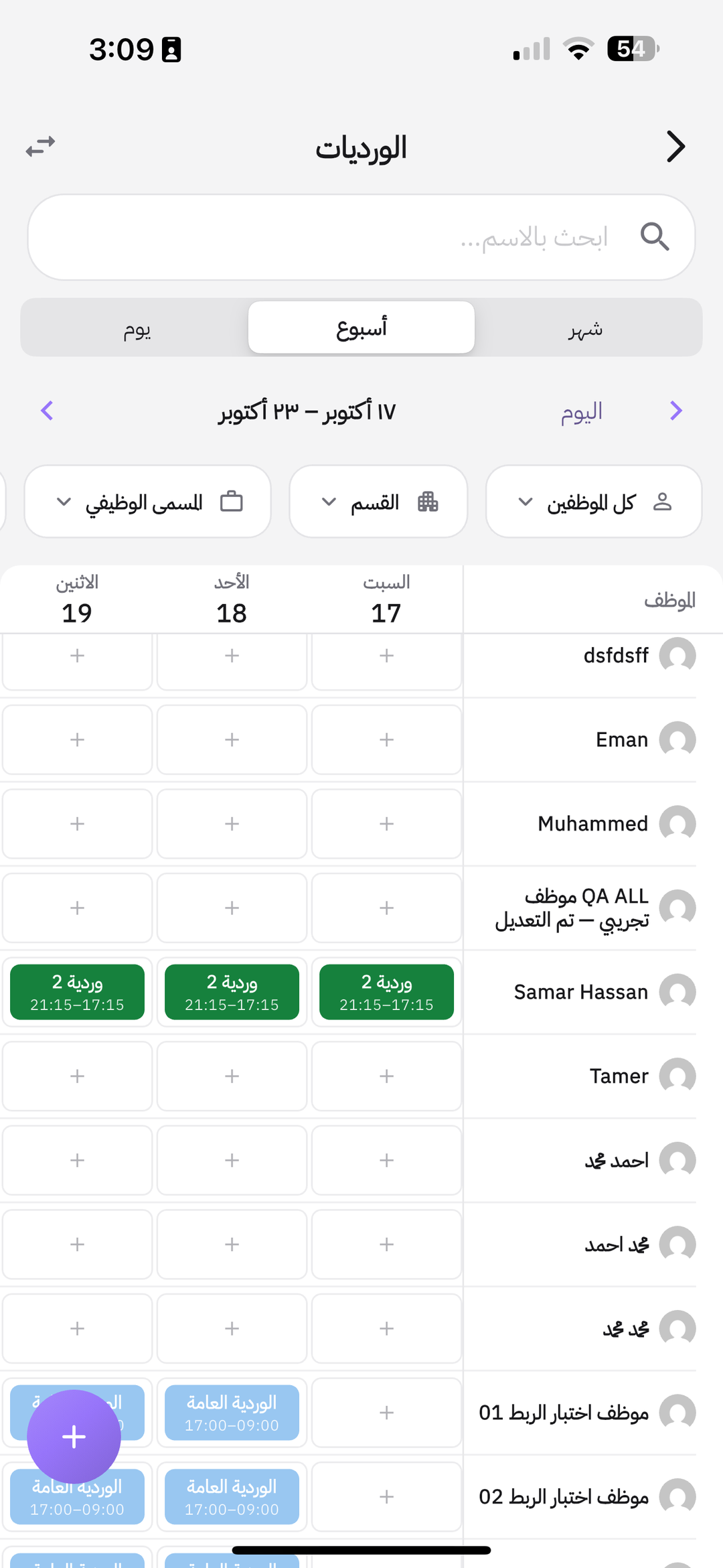
On Home, under HR services, tap Shift schedules. The Shifts screen opens — the same roster as on the web.
- Each row is an employee, each column a day. An empty cell is + — tap it to assign the shift.
- Switch Day / Week / Month, or Today to jump back.
- Filter by people, department, or job title, or search by name.
- The purple + at the bottom adds a shift quickly.
Shift change requests
If Allow employee to request a shift change is on in attendance settings, the employee sends a request from their day. The shift does not change until you approve.
From the roster open Shift change requests. Approve or decline each request. Nothing is applied on its own.
What happens after you assign?
- The cell shows the shift instead of +.
- The employee sees their days in the app daily schedule and calendar. Clock-in: Clock in from the app.
- Managers follow attendance from the site, the app, and the map.
- Attendance is compared with these hours (late, early leave) using attendance settings.
To assign a large batch from a file or text: Add and assign shifts with AI.
Common questions
An employee is missing from the roster?
Check the employee and department filters at the top, and that their account is active.
The shift is not in the list?
Add it first under Attendance settings → Employee shifts, then return to the roster.
Cell, bulk, duplicate, or AI?
A cell is one day or an exception. Bulk is a team or a month. Duplicate is a repeating week. AI is a file or a long description.
The employee requested a change and nothing moved?
Open Shift change requests and approve. The request stays waiting until you decide.