


Set how employees clock in and out
Pin each branch on the map, then choose self clock-in, GPS radius, reminders, and employee shifts.
On this page
Who is this lesson for?
- HR manager or system admin: sets how people clock in and out before daily attendance starts.
- Supervisor: knows whether clock-in is limited to the branch, and whether more than one shift per day is allowed.
- The employee: clocks in from the app or the web using the options you turn on here.
Before you start
- Permission to manage attendance settings, and the attendance module enabled for the company.
- Employees added with roles. These settings apply to people who clock in themselves.
- To limit clock-in by GPS: pin every branch on the map under Business address before you turn the check on. A written address is not enough.
Open the page
From the menu: HR management system → HR → Attendance settings. Or from Settings: Attendance settings.
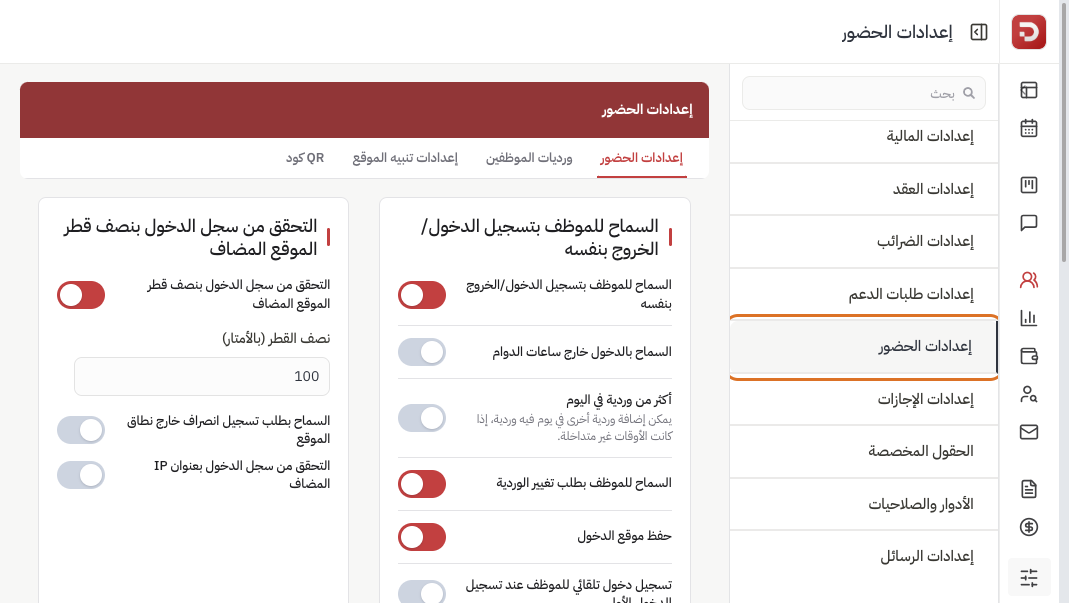
The tabs used here: Attendance settings, Employee shifts, Location alert settings. Save each tab with Save at the bottom before you leave it.
How the employee clocks in
First tab, the clock-in panel.
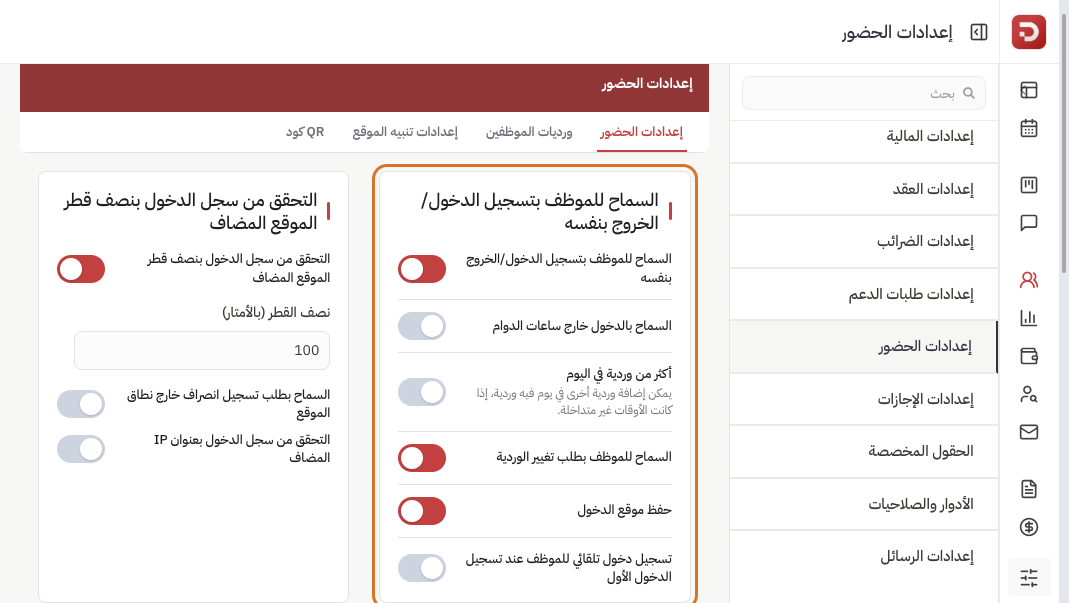
- Allow employee to clock in/out: shows the attendance button on their account. Off means only a supervisor can mark them.
- Allow clock-in outside shift hours: they can clock even before the shift starts or after it ends.
- More than one shift per day: a second shift on the same day if the times do not overlap.
- Allow employee to request a shift change: they send a request for review. The shift does not change by itself.
- Save clock-in location: stores where they clocked with the attendance record.
- Auto clock-in on first sign-in: opening the account for the first time that day marks attendance. If you turn it on, choose office or home as the default place.
Pin every branch on the map
Do not turn on “Clock-in check with added location radius” before this step. The system compares the employee’s phone location with the map pin of each branch. Without a pin, clock-in is rejected even if they are standing in the shop.
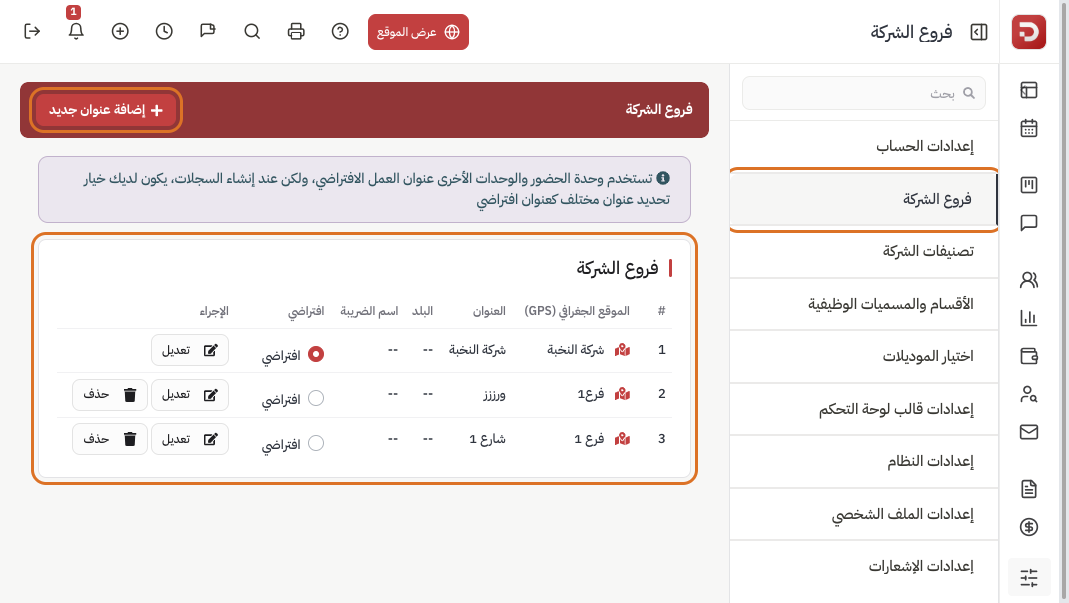
From Settings open Business address. A map icon next to the name means GPS is set.
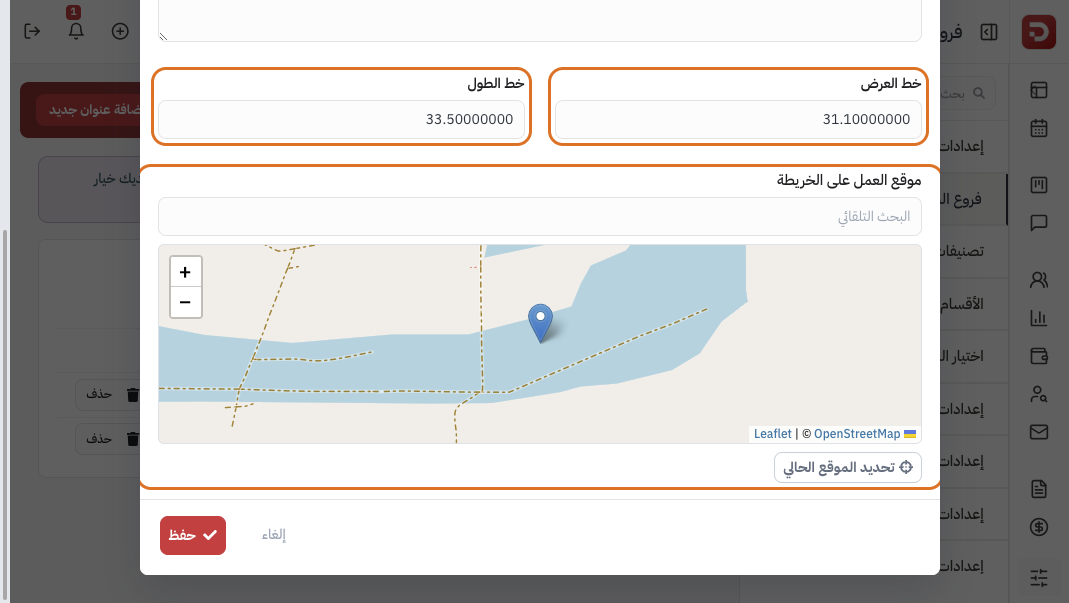
Add a branch or click Edit. Search for the address, drag the pin on the map, or click Set current location while you are at the branch. Latitude and Longitude fill in automatically. Then click Save.
Do this for every branch where people clock in. On the employee card, the Branch field: if you choose a branch, clock-in is accepted only there. If you leave it empty, any branch with a pin is accepted.
Turn on location or network checks
The other panel on the Attendance settings tab. It works only if employees can clock in themselves, and after every branch is pinned on the map.
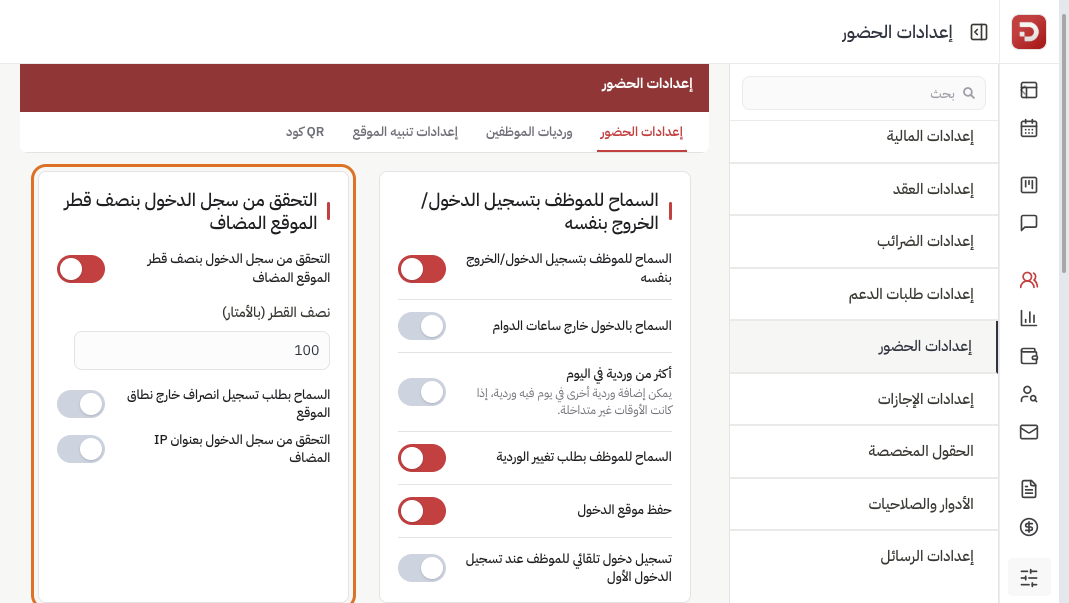
- Radius check: clock-in is accepted only within the distance you set from the branch map pin — not from the written address. In the example: 100 metres. If the branch has no pin, everyone is rejected.
- Allow a clock-out request outside the area: if they leave the radius they can request clock-out for review instead of an immediate rejection.
- IP address check: clock-in only from the networks you add (for example the office network).
Use one or both. Location fits field work. Network address fits a fixed office.
Report, overtime, and repeating the roster
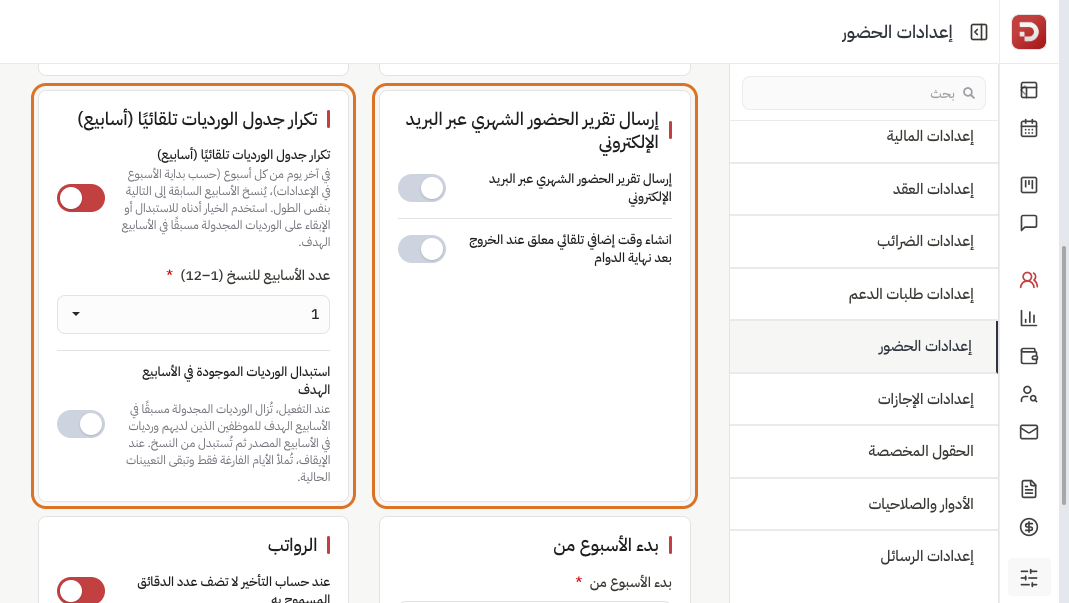
- Monthly attendance report by email: sent to a role you choose after you turn it on.
- Auto overtime when they clock out after shift end: creates overtime if they stay beyond a number of minutes you set.
- Automatically duplicate shift weeks: on the last day of the week (from the week-start setting below) previous weeks are copied forward. Choose 1 to 12 weeks. Overwrite removes shifts already planned in the new weeks; off fills empty days only.
Week start and lateness
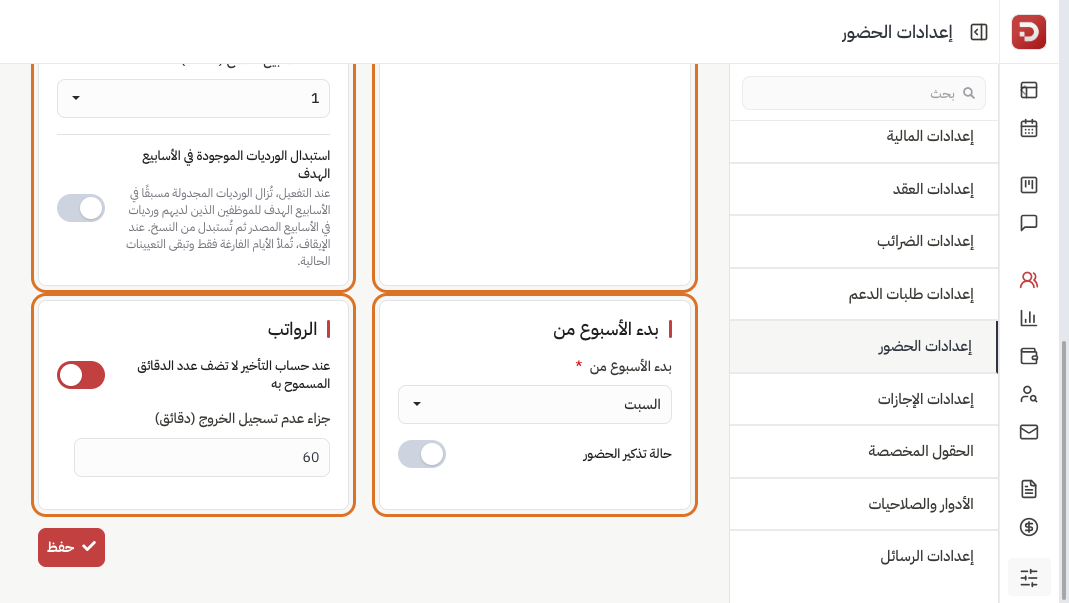
- Week starts from: the first day of the week in rosters and reports. In the example: Saturday.
- Attendance reminder: notifies the employee if they have not clocked in after the minutes you set.
- Payroll (if payroll is enabled): when counting late minutes you can exclude the allowed grace. Missing clock-out penalty adds minutes if they never clock out.
Click Save at the bottom of the tab.
Location alert
The Location alert settings tab. When you ask the team to share where they are now, this message appears for the time you set.
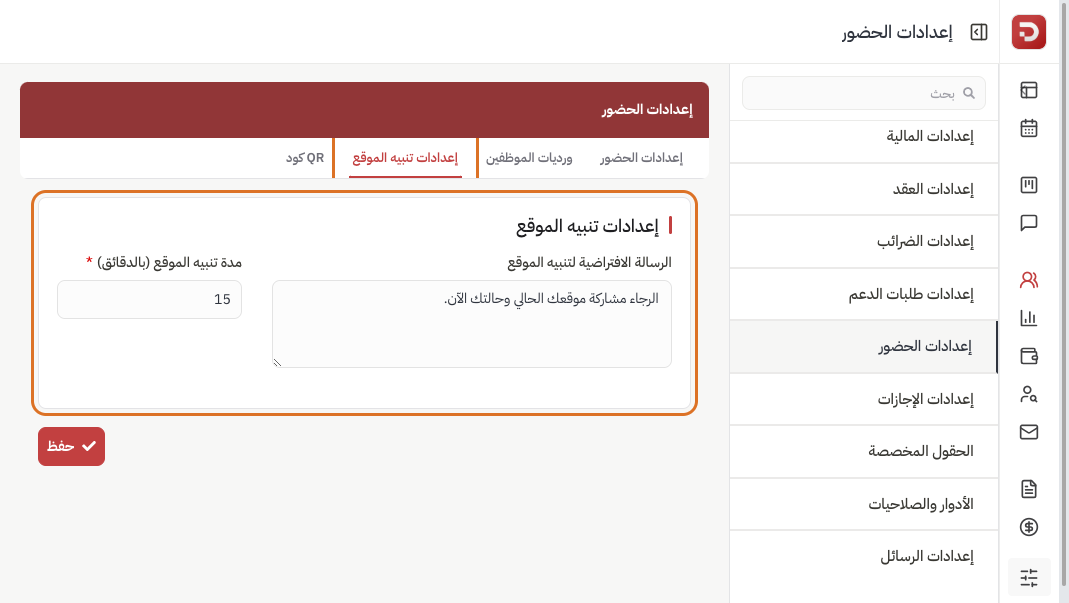
Write the message (for example “Please share your current location”). Duration is in minutes — 15 in the example. Click Save.
Employee shifts
The Employee shifts tab defines working hours (for example the default shift). You see start, break, and end times.
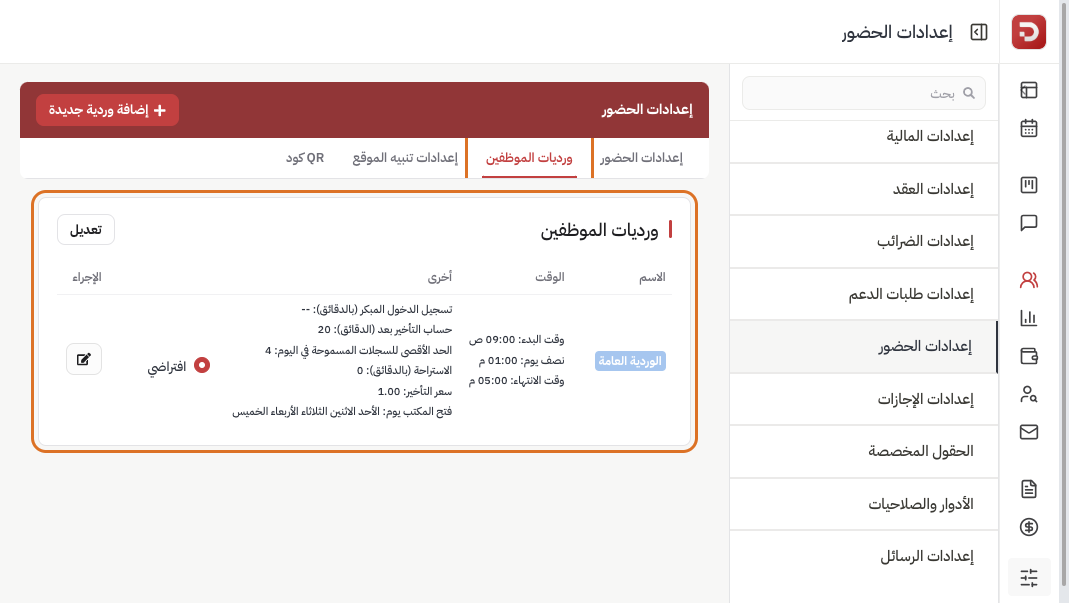
Add more shifts here if you need them (morning, evening). To put them on the calendar, use Assign shifts — every method or Add and assign shifts with AI. Do not delete the default shift while people still use it.
What happens after you save?
- Clock buttons on the employee account follow these settings after you save. How to clock in from the app: Clock in from the app.
- Managers follow the team each day from the site, the app, and the map.
- Location limits apply only to branches that have a map pin. Without a pin, clock-in is rejected.
- The web app and the mobile app use the same settings.
Common questions
The employee cannot see the clock button?
Turn on “Allow employee to clock in/out”, then save. Check that their role can view attendance.
Clock-in is rejected while they are standing in the branch?
First: is there a map icon next to the branch in Business address? If not, pin it and save. Second: does the Branch field on the employee card match that branch? Third: increase the radius if the pin is far from the door.
I turned on the location check without pinning branches?
Everyone will be rejected. Pin every branch, then try again. The written address is not used for the check.
Can I use location and IP together?
Yes. Most companies need only one.
Save clock-in location vs location alert?
Save location stores where each clock-in happened. A location alert is a message you send now so the team shares where they are for a limited time.