


Clock in from the app
Clock in and out from Home, then check today’s shift.
On this page
Who is this lesson for?
For the employee: clock in and out from the app.
Before you start
- Install the app and sign in.
- If the app asks for location: allow it while you are at the branch.
Tap Start attendance
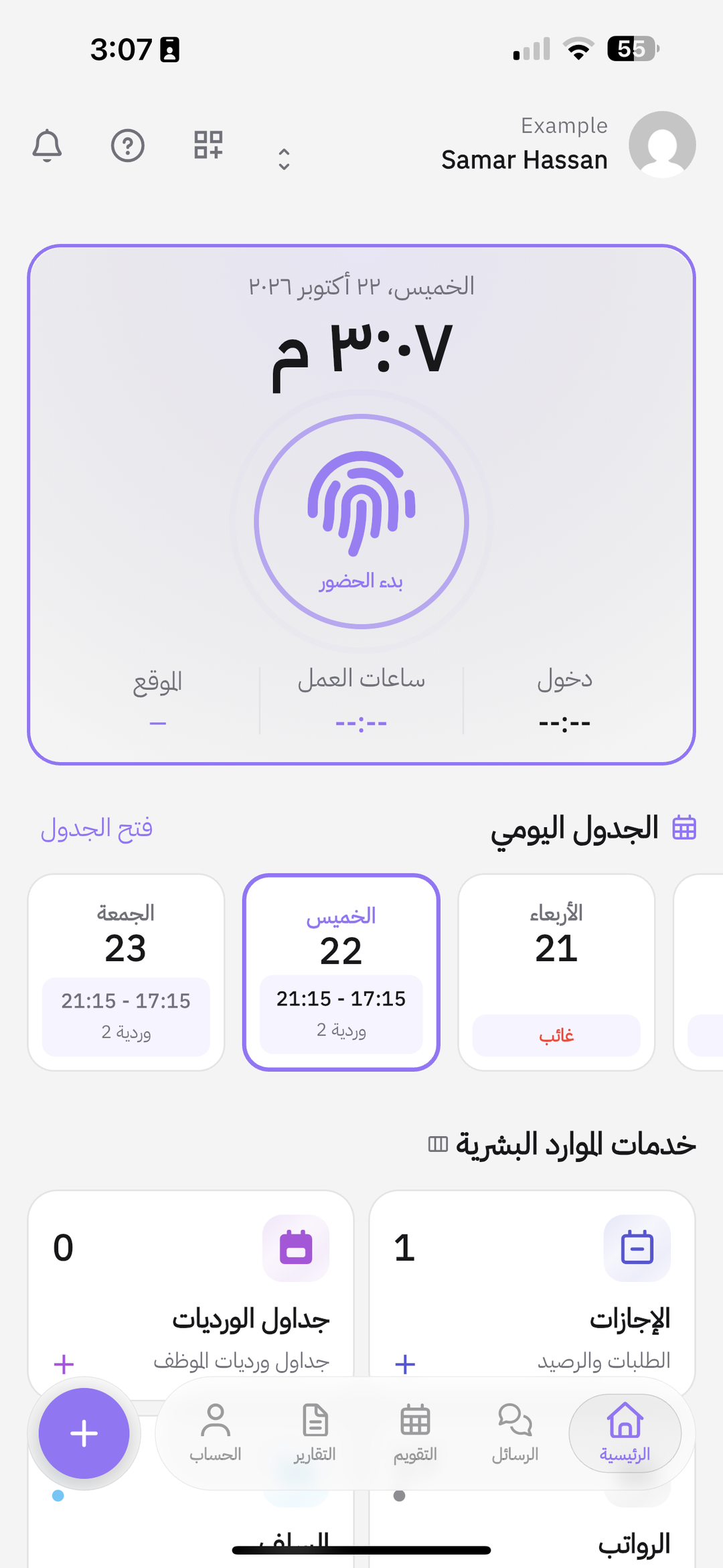
On Home, tap the Start attendance fingerprint.
Clock out at the end of the day
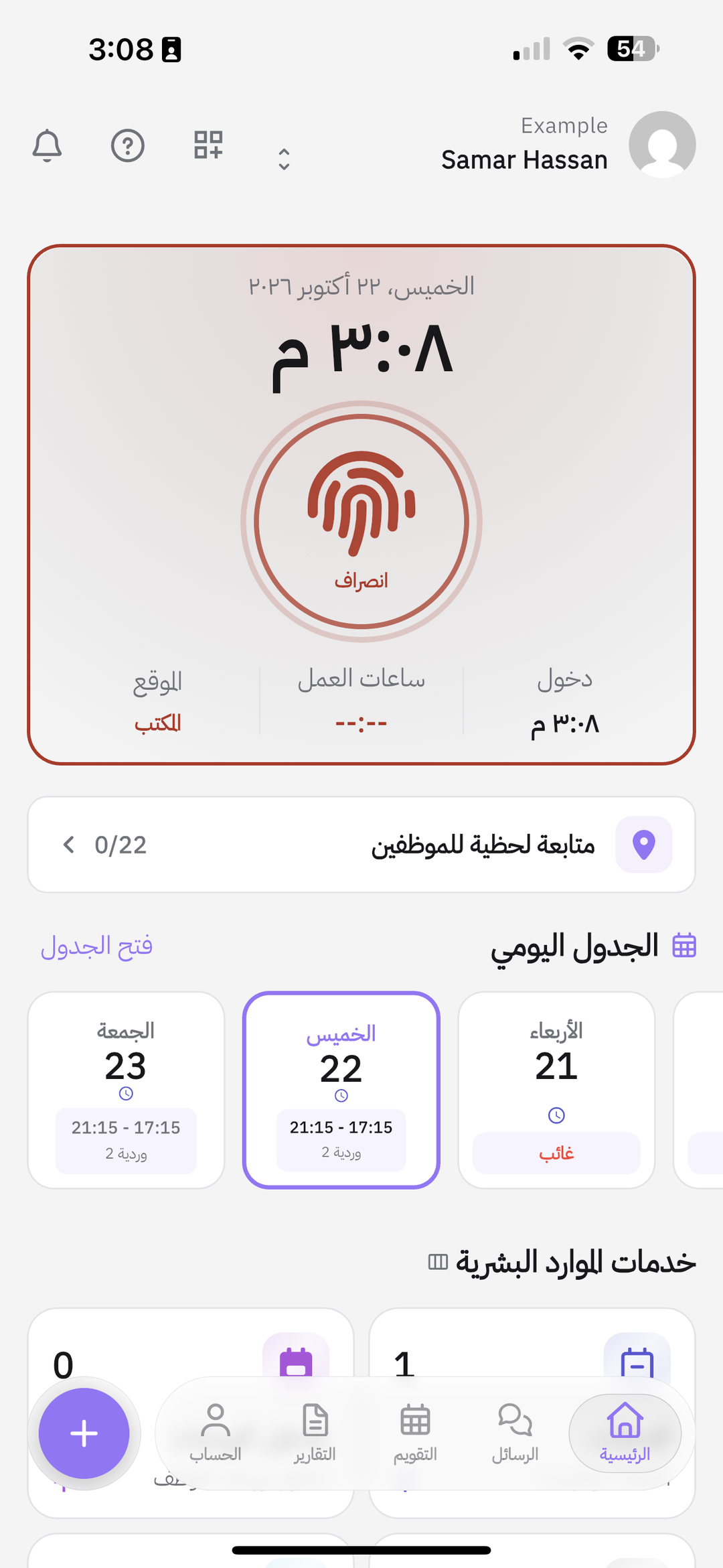
After clock-in the card becomes Clock out. Tap it when the shift ends.
Today’s shift
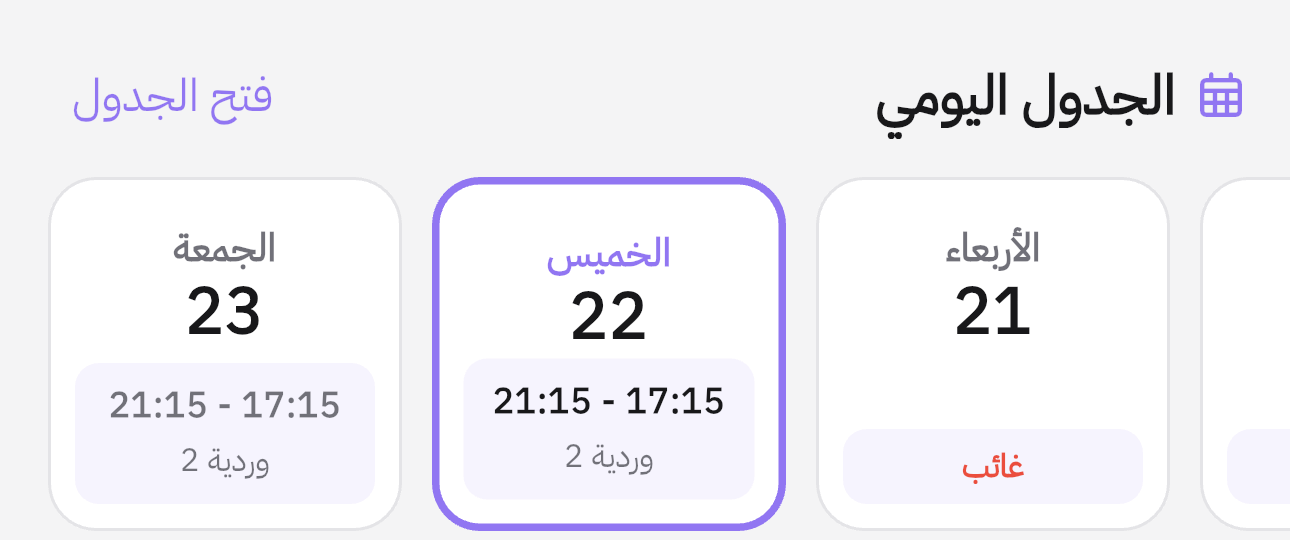
Below the card, the Daily schedule shows today’s shift and hours, or Absent.
What happens after you clock in?
- Clock-in time is stored. After clock-out, hours worked are counted.
- Lateness is measured against today’s shift.
Common questions
I cannot see Start attendance?
Ask an admin to turn on self clock-in in attendance settings.
Clock-in is rejected while I am at the branch?
Allow location. If it still fails, ask an admin to check the branch map pin.
I forgot to clock out?
Return to Home and tap Clock out, or ask a supervisor to edit the record.
The shift is wrong?
An admin sets it on the shift roster.