


Add and assign shifts with AI
Create shift types and fill the roster from a file or pasted text, review shifts then schedules, and save.
On this page
Who is this lesson for?
- HR manager: adds shift types and puts people on days in one pass from a file or text, instead of one cell at a time.
- Supervisor: reviews the preview before save so an existing roster is not overwritten by mistake.
- The employee: does not import. After you save they see their days and clock in on them.
Before you start
- Employees already exist. Import matches names to current accounts and does not create people.
- Permission to manage employee shifts.
- Have the roster ready: Excel or CSV, or a description you type in the box.
- For one day or one week by hand: Assign shifts — every method.
Open AI import
From the menu: HR management system → HR → Shift roster, then Import shifts with AI.
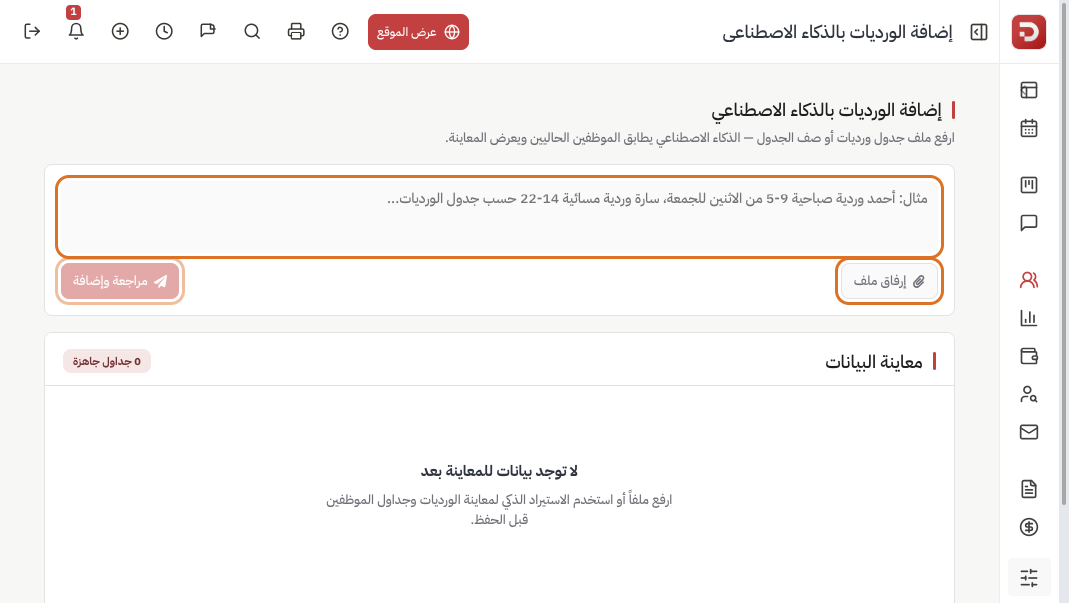
One box supports two methods. You can use either, or both:
- Attach a file: upload the roster as it is.
- Type or paste text: describe shifts and who works when, or add instructions on top of a file.
Accepted files: Excel (.xlsx / .xls), CSV, PDF, Word, text, and images. Maximum 10 MB.
Data preview stays empty until you click Send and review. Nothing is written to the roster until you approve and save in the preview.
Example from text
Type or paste a clear description: define the shifts first, then who works which days.
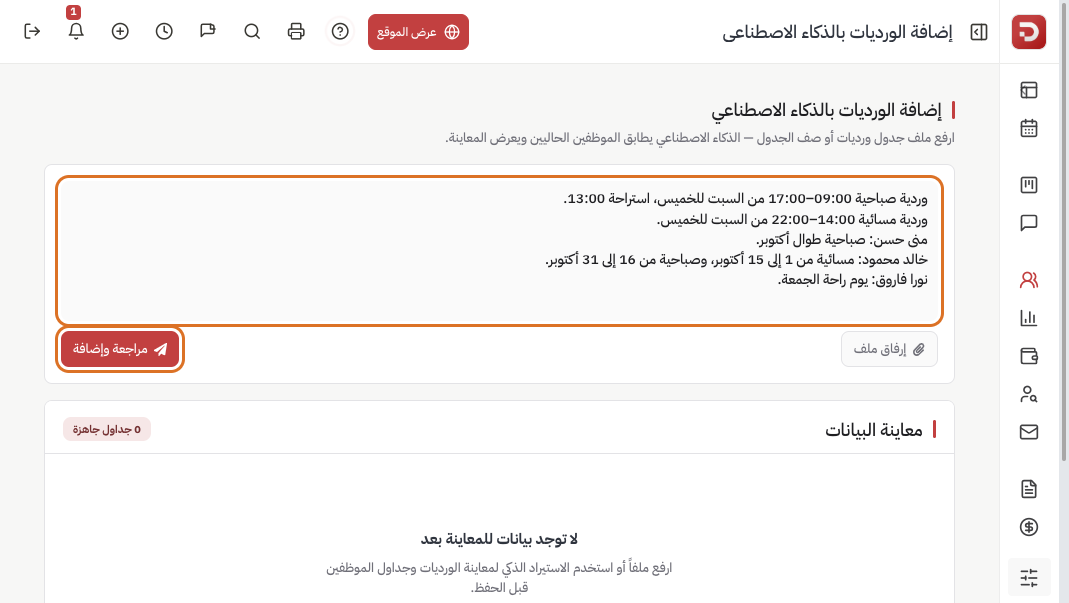
Example:
Morning shift 09:00–17:00 Saturday to Thursday, break 13:00.
Evening shift 14:00–22:00 Saturday to Thursday.
Mona Hassan: morning all of October.
Khaled Mahmoud: evening 1–15 October, morning 16–31 October.
Nora Farouk: Friday off.
You can include hours, weekdays, a period (a month or from–to), and a day off. Click Send and review. Enter in the box does the same. Shift+Enter is a new line.
Example from a file
Any clear table works. No fixed template. Example columns:
Employee | Shift | Days | From | To
Mona Hassan | Morning | Sat–Thu | 09:00 | 17:00
Khaled Mahmoud | Evening | Sat–Thu | 14:00 | 22:00
Nora Farouk | Day off | Friday | |
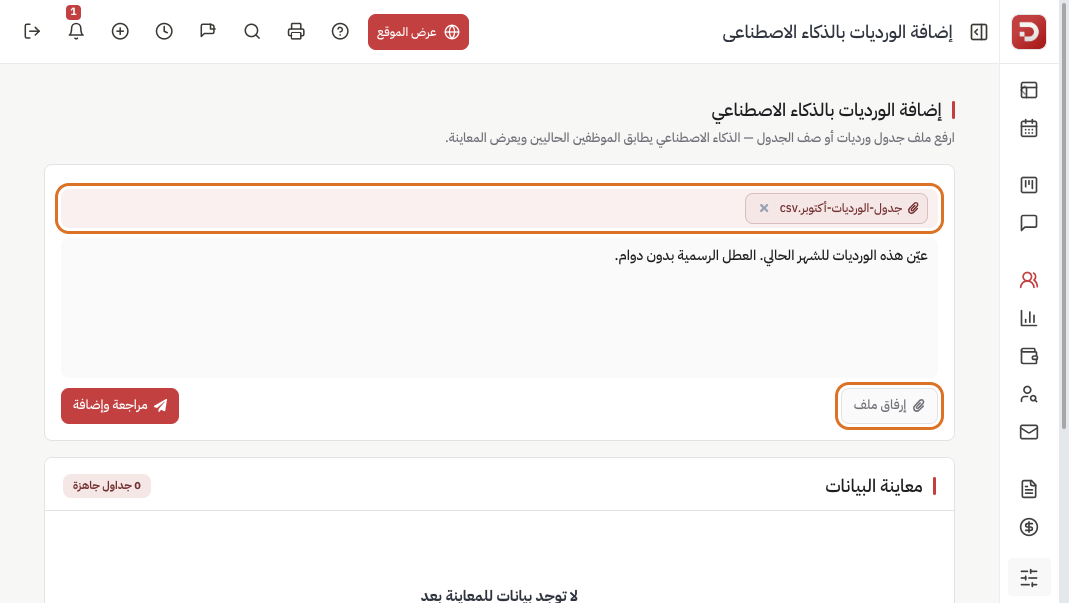
- Click Attach a file or drop the file on the box. The name appears on a chip; × removes it.
- Optional: add an instruction such as “Assign these shifts for the current month. Official holidays have no work.”
- Click Send and review.
Review the preview, then save
After analysis, two steps appear. Review them from top to bottom. Nothing is written to the company roster until the buttons below.
- Shifts: name, short code, start and end, break, working days, colour. New or existing. Edit cells if needed, then click Approve shifts. The schedules step stays closed until this click.
- Schedules: each row is an employee, a shift, working days, and a period (or a single date). If a name did not match, pick the person from the list. Add or delete a row. Official holidays are skipped. The default period is the current month, up to 3 months, and not more than 3 months from today.
Overwrite existing shift assignments on the same dates: on replaces shifts already on those days. Off fills empty days only.
When the table is correct, click Save schedules. That is the real save.
If you are asked to approve shifts first, go back to the first preview step. Do not leave the page before Save schedules if you want the preview applied.
What happens after you save?
- The days appear on the Shift roster.
- A new shift type is added to Employee shifts if you approved it.
- The employee sees their days in the app. Clock-in: from the app.
Common questions
What does the file need?
The employee name as in the system, the shift or the hours, and the days or period. Column order does not matter.
A name did not match?
Pick the employee on that schedule row before you save.
The shift already exists?
It shows as existing. Check the times, then approve. A duplicate is not created if the name matches.
I only need one day?
Put the date in the text or a column, or use one cell on the roster.
The file was not read?
Try a clearer file, or paste the table in the box with one instruction line.