


Add a new employee
Register a new employee step by step, set their department, designation and access, so they get their login and can start right away.
On this page
Who is this lesson for?
- HR manager or system admin: follows the steps to add the employee.
- Management: gets one record per employee that attendance, leave, payroll and reports are built on.
- The employee: receives a welcome email with login details for the web and the mobile app.
Before you start
- You need permission to add employees (system admin, or a role with "Add employee").
- Prepare departments and designations from HR → Departments and designations, or add them from inside the form with the "Add" button.
- A valid email for the employee. It is the username they sign in with.
Three ways to add employees
- Add employee manually: you enter the details yourself. This lesson covers it.
- Invite employee: send an invite and the employee completes their own details.
- AI import: add many employees at once from a file.
Open the employees page
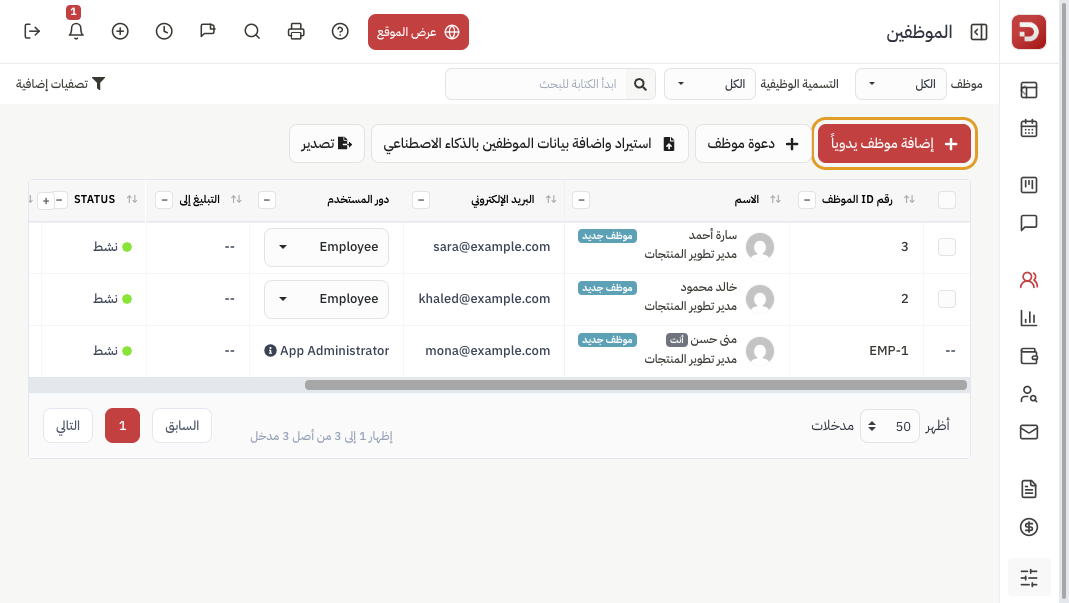
From the sidebar choose HR management system → HR → Employees, then click Add employee manually.
Account details
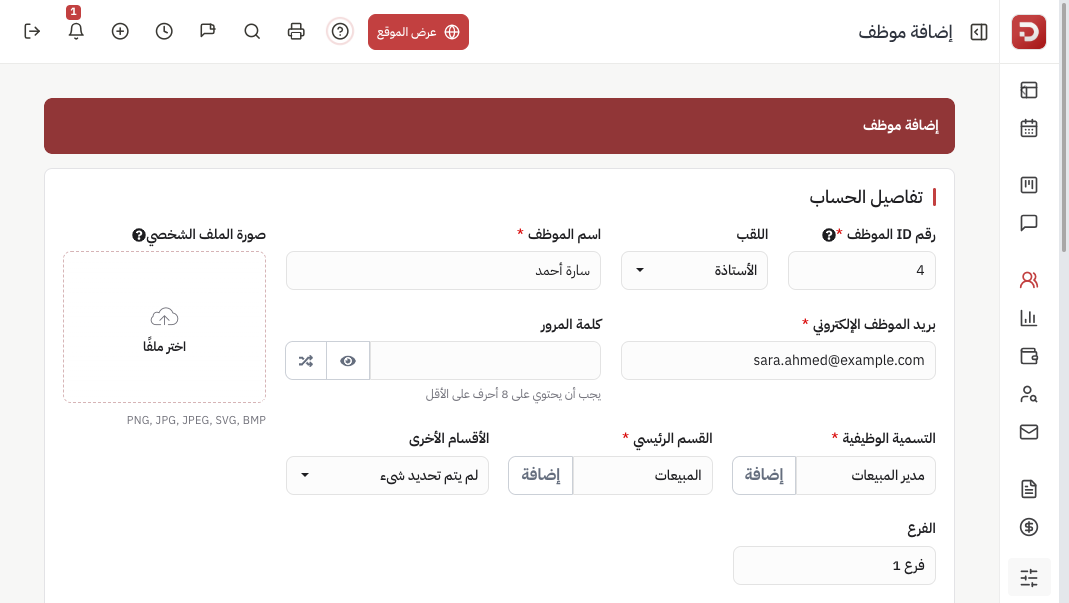
- Employee ID: suggested automatically. Change it to your official staff number if you have one. It must be unique.
- Salutation and name: the name shown in attendance, payroll and letters.
- Email: the login username. It can't be used for two employees in the company.
- Password: optional. Leave it empty and the system creates one and sends it to the employee, or click the generate button. At least 8 characters.
- Designation and main department: required. Not in the list? Click "Add" next to the field.
- Other departments: when the employee works in more than one department.
- Branch: the branch the employee belongs to.
- Profile picture: optional.
Personal and work details
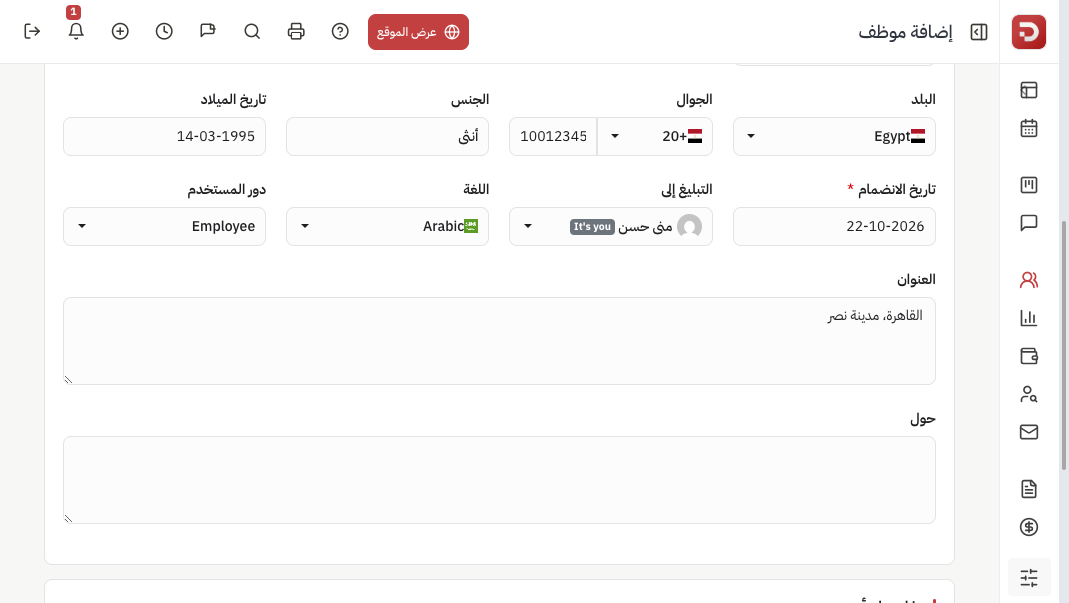
- Country and mobile: to reach the employee.
- Gender and date of birth: optional.
- Joining date: required. The day the employee started working for the company.
- Reporting to: the employee's direct manager.
- Language: the language the employee sees the system in.
- User role: controls what the employee can see and do. Choose Employee for regular staff. Give App Administrator only to people who run the system.
- Address and about: optional.
Other details
Show more fields
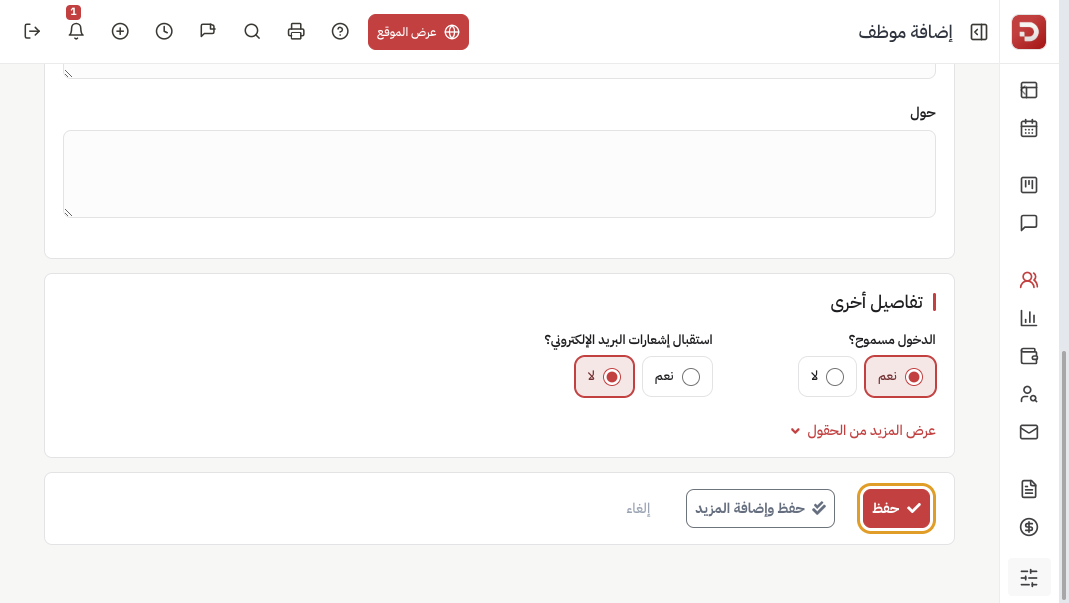
- Login allowed? "Yes" lets the employee sign in. "No" keeps them on record without a login.
- Receive email notifications? "Yes" sends them an email for every update that concerns them.
Click Show more fields for extra details:
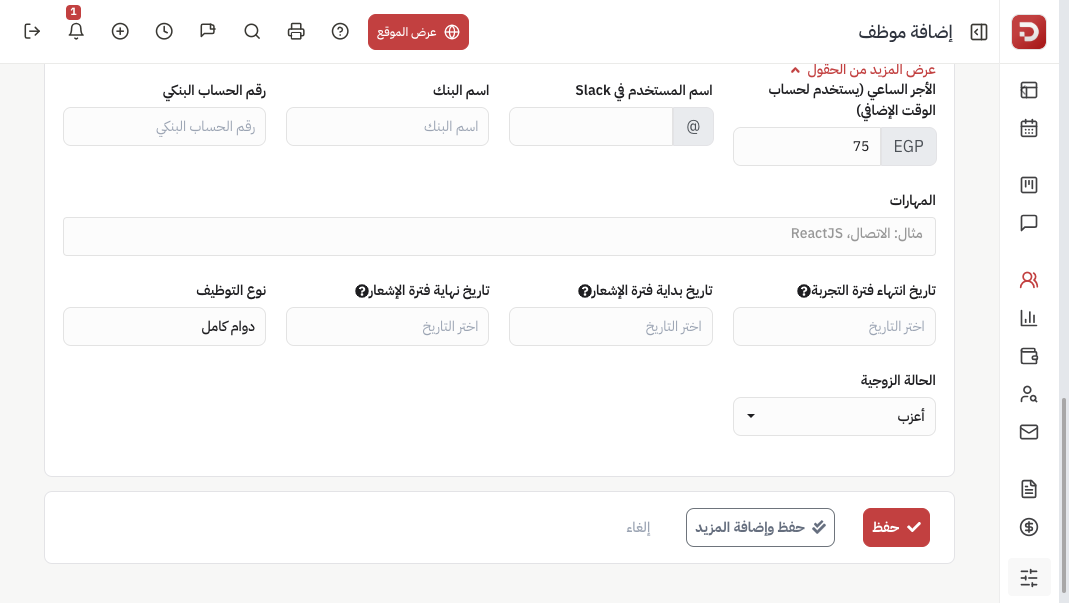
- Hourly rate: used to calculate overtime.
- Bank name and account number.
- Skills.
- Probation end date, notice period start and end: the employee shows up in the "On probation" and "Notice period" filters of the employees list.
- Employment type: full time, part time, on contract, internship, trainee.
- Marital status.
Save
Click Save to add the employee and go back to the list, or Save and add more to add another one right away.
An error under the email or employee ID field means that value already belongs to another employee.
What happens after saving?
- The employee appears in the list with a "New hire" badge.
- If login is allowed, they receive a welcome email with their login details.
- They sign in from the browser or the mobile app and follow their attendance, leave and requests.
- Next, set their salary from Payroll → Employee salary settings and their shift from Shift roster.
Another way: invite the employee
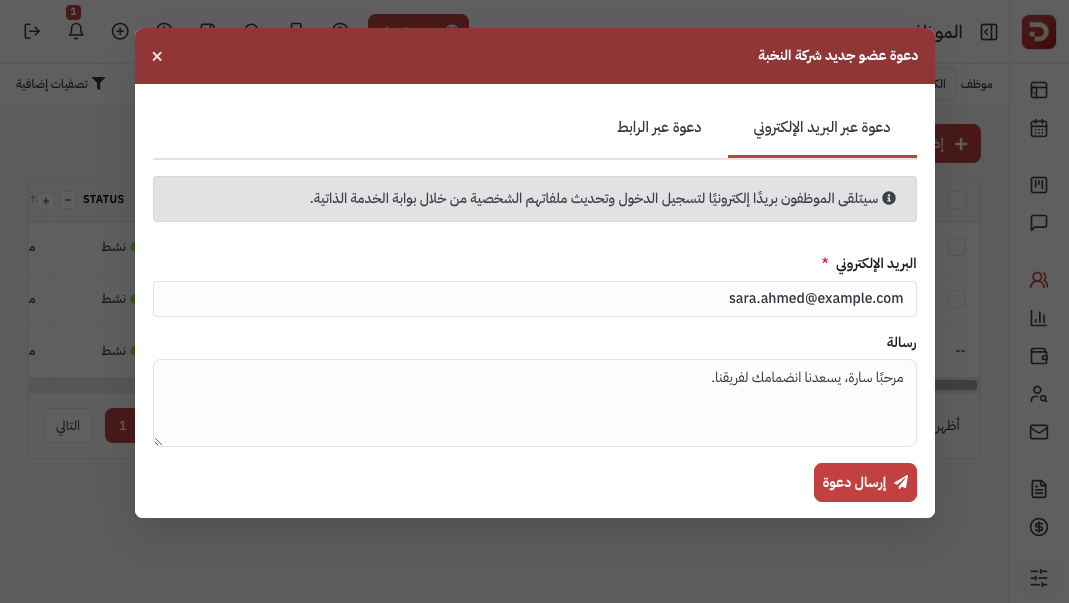
On the employees page click Invite employee, enter their email and a welcome message, then Send invite. The employee completes their own details. Use the Invite by link tab to share a join link instead of an email.
Common questions
The email is already taken?
Each email belongs to one account in the company. Search the list with status set to "All". The employee may be inactive, so activate them instead of adding them again.
The employee didn't get the welcome email?
Check the email address and ask them to look in their spam folder. You can also set a password from the employee's edit page and share it with them.
Can't find the department or designation?
Click "Add" next to the field to create it without leaving the form.