


Add official holidays
Add official holidays and weekly closed days so attendance treats those dates as holidays.
On this page
Who is this lesson for?
For HR: add official holidays and weekly days the office is closed.
Before you start
- Permission to add a holiday.
- Employees are added if you want to limit a holiday to a department, job title, or employment type.
Open Holiday
From the menu: HRM → HR → Holiday.
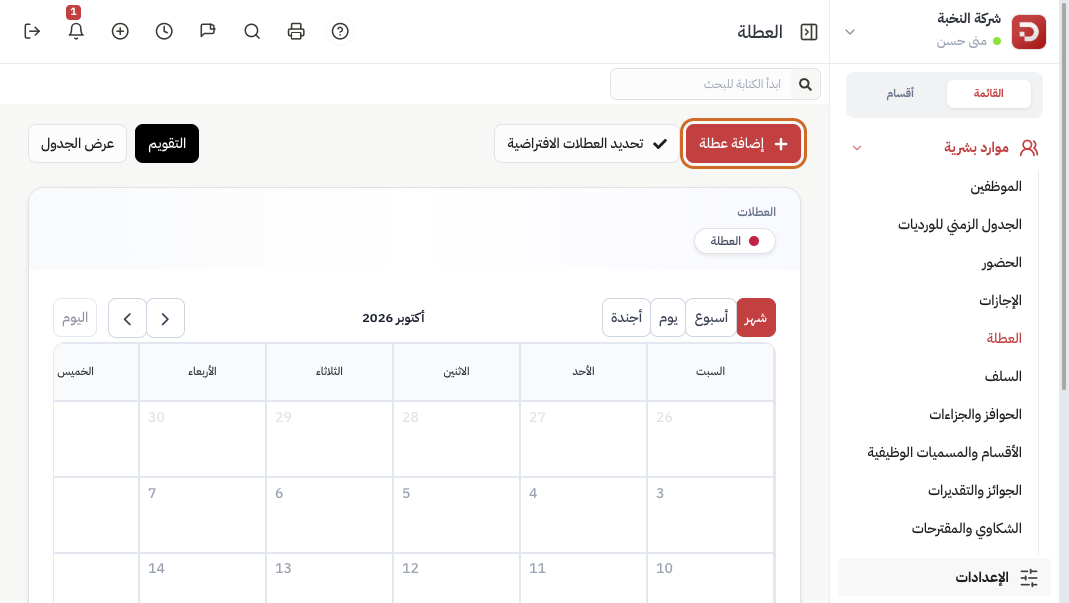
The calendar shows current holidays. Click Add Holiday.
Add a holiday
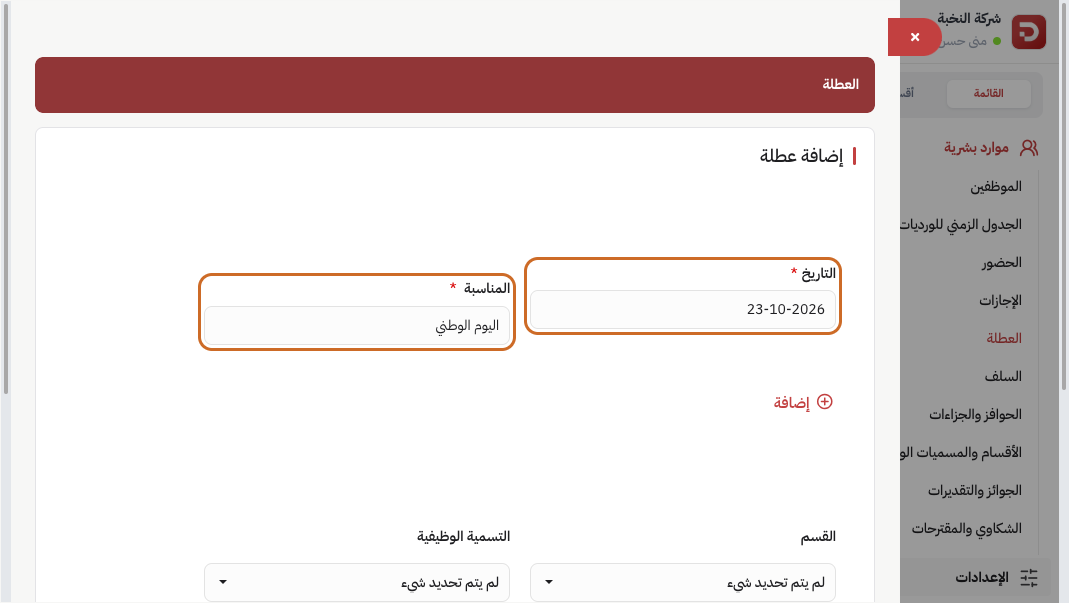
- Date and Occasion — for example National Day.
- Click Add to include more days in the same save.
- Department, Designation, and Employment type: leave empty for everyone.
Then Save.
Weekly closed days
On the same page click Mark Default Holidays.
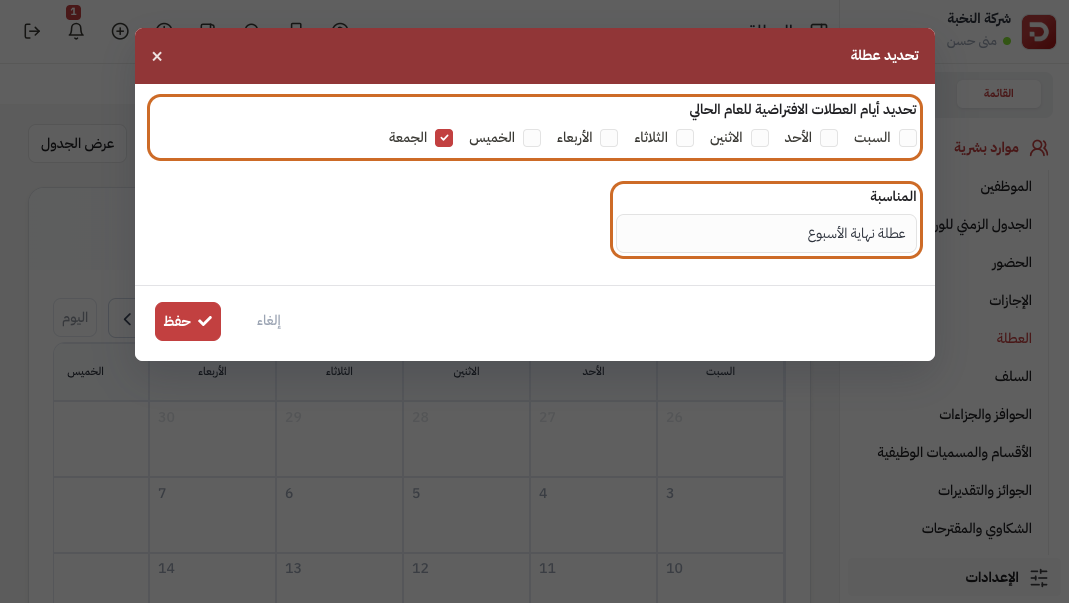
Select weekly closed days — for example Friday — enter the occasion, then Save. Every matching day in the current year is added.
Table view
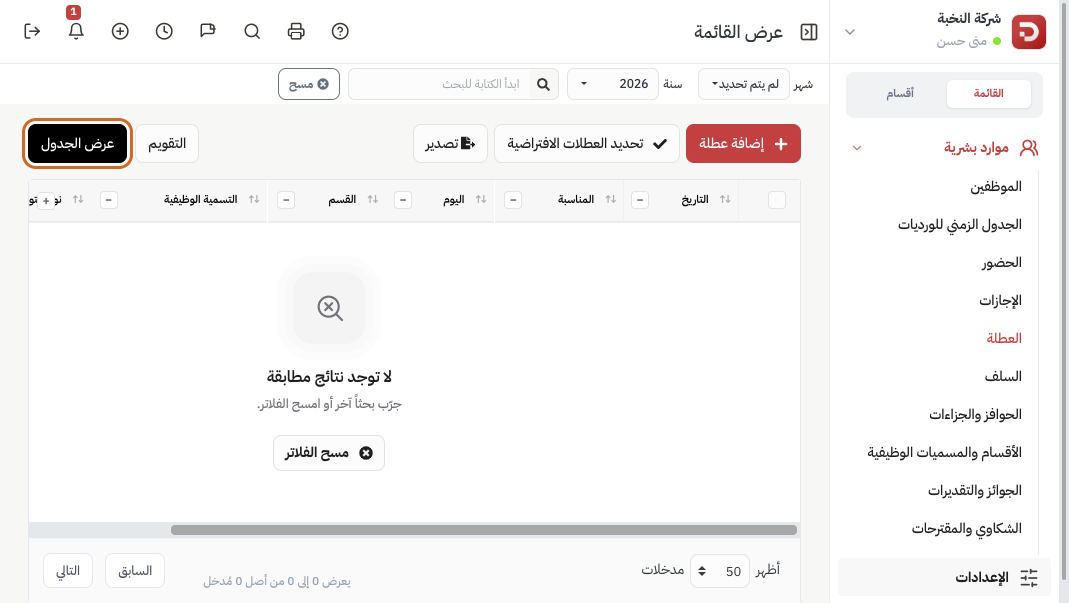
Switch to Table View to search by month, year, or occasion.
What happens after you save?
- The holiday appears on the calendar, and attendance marks that day as a holiday.
- In the app, the employee cannot clock in that day unless they have a shift.
Common questions
A holiday for some employees only?
Pick department, designation, or employment type. Empty = everyone.
Every Friday, or one day?
Mark Default Holidays for weekdays all year. Add Holiday for a specific date.
Someone clocked in on a holiday?
If they have a shift that day, clock-in is allowed.