


Add roles and set permissions
Create a role, copy permissions from an existing one or generate with AI, then assign it when you add an employee.
On this page
Who is this lesson for?
- HR manager or system admin: creates roles and decides what each person can see in the company.
- Management: a floor supervisor can see attendance and bookings, an accountant can see payroll, without extra access.
- The employee: signs in and only sees the menus and screens allowed for their role.
Before you start
- Permission to manage roles (usually the system admin).
- Agree practical roles: employee, salon supervisor, accountant — not admin access for everyone.
- Set up departments and job titles first. A role is access. A department is where they work.
Open the page
From the sidebar choose HR management system → HR → Roles & permissions. Or from Settings: Roles & permissions.
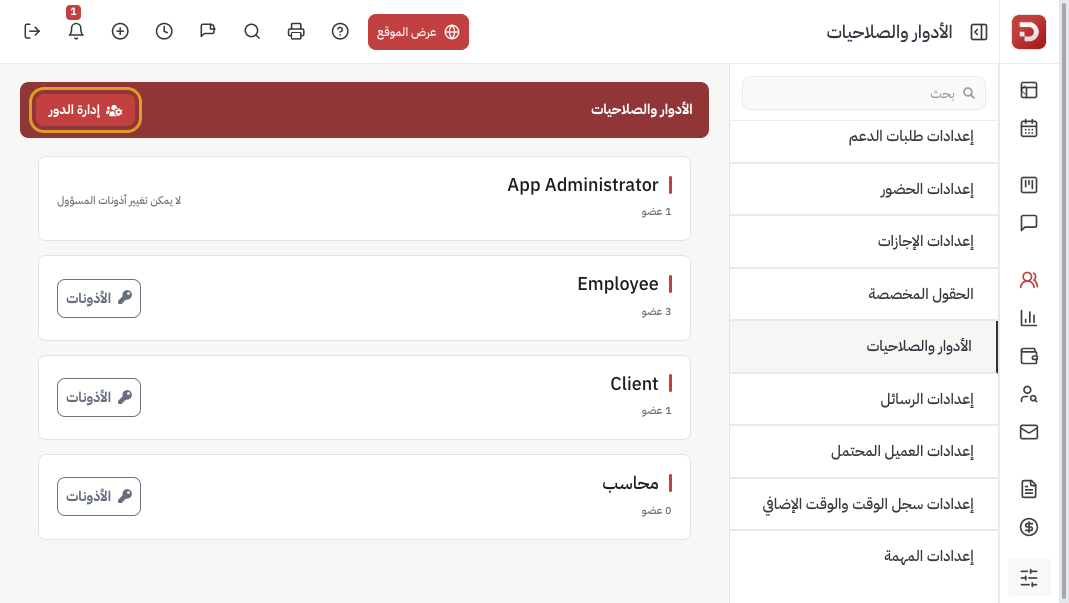
- App Administrator: full access. It cannot be changed.
- Employee and Client: default roles. They cannot be deleted. You can reset their permissions.
- Roles you add (for example Accountant) can be deleted if you no longer need them.
- The number under the name is how many people have that role.
Add a role
Click Manage role. Type the name. Optional: Import from role to copy an existing role (for example Employee) and then adjust it. Click Save.
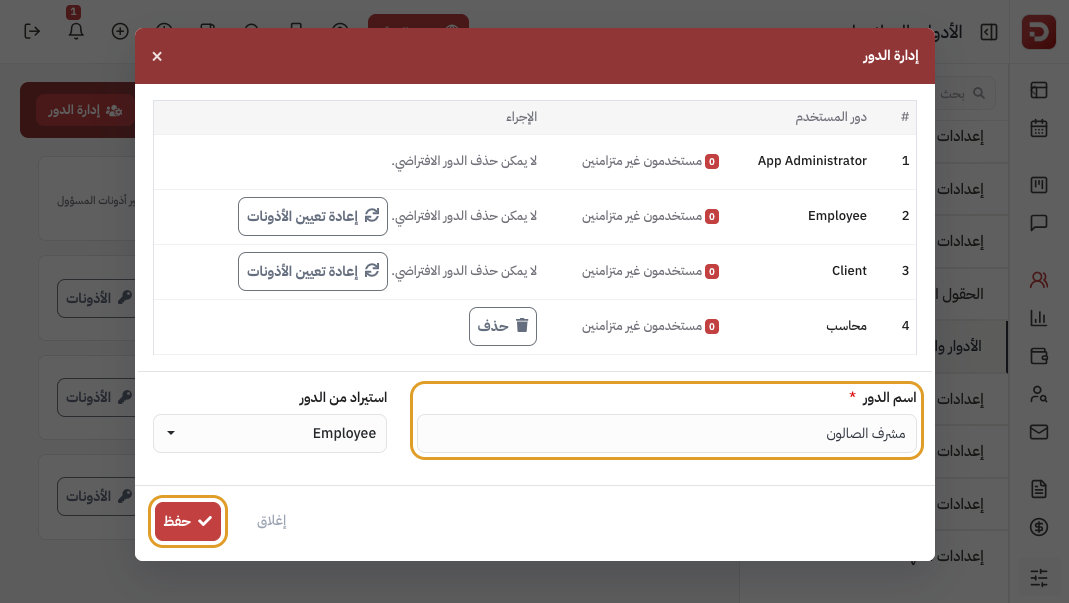
Without import, a new role starts with broad access. Safer: import from Employee, then raise only what a supervisor needs.
Set permissions
On the role card click Permissions. Each module has Add, View, Update and Delete. The choice saves as soon as you pick it, and it applies to everyone on that role.
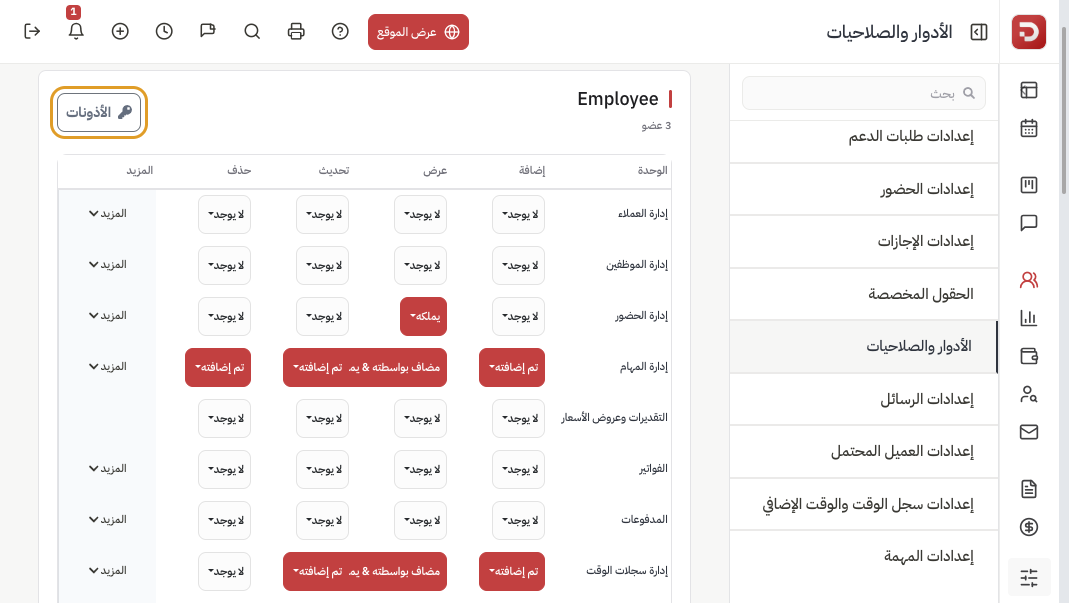
What the options mean:
- All: every record in the company.
- Added: only records they created.
- Owned: records assigned to them (their attendance, their tasks, …).
- Added & Owned: both.
- None: they cannot do this action.
More opens extra permissions for the same module (for example add a department or view designations).
Or create the role with AI (optional)
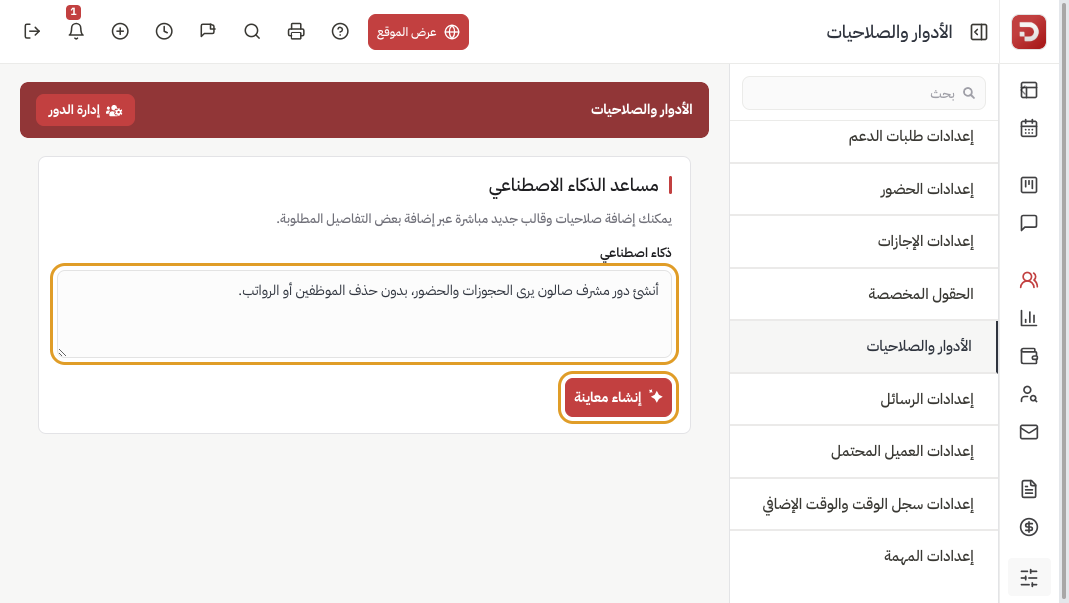
At the top of the page describe what you need in plain language, then click Generate preview. Review the suggested permissions and approve to apply. Nothing is saved before you approve.
Assign the role to the employee
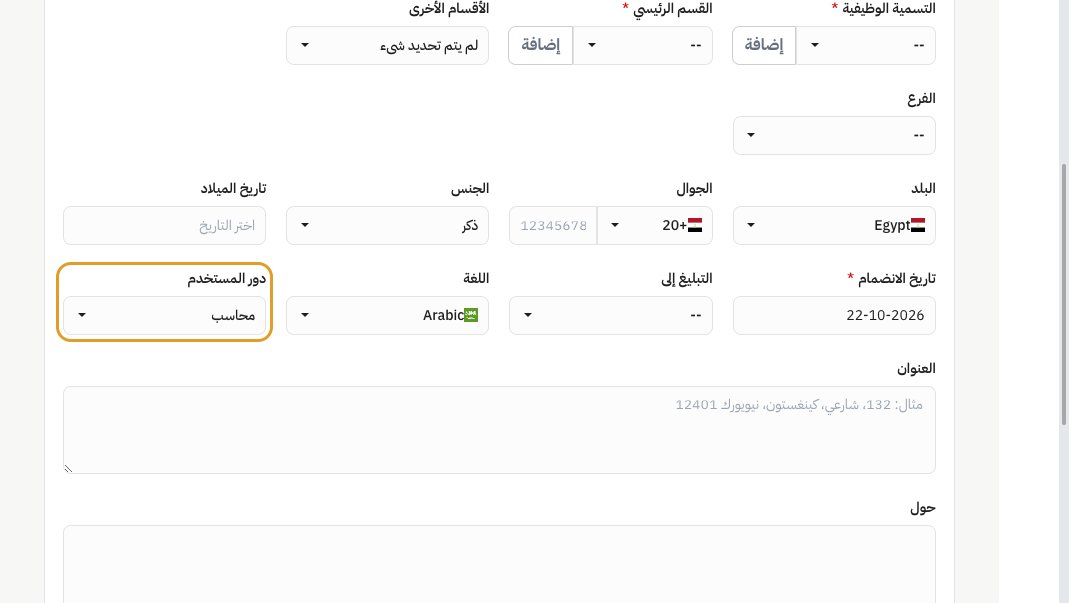
When you add an employee or edit their profile, choose User role. This is not the job title: the title is for the org tree, the role is what they can open in the system.
To change one person who already has a role, without changing everyone else on that role: open their profile, then the Permissions tab. The table starts from their current role. Full steps: Custom permissions for one employee.
What happens after you save?
- Anyone on the role sees menus according to the permissions, as soon as you change them.
- Giving App Administrator grants full access. Use it only for people who run the company.
- Web and the mobile app use the same account and the same permissions.
Common questions
Role vs job title?
The title is “Marketing specialist”. The role is what they can open. Several titles can share one role.
Can I change permissions for one person only?
Yes, if they already have a role. Open their profile → Permissions. Changes there apply to that person only, starting from their role. See Custom permissions for one employee.
I changed the role and one person did not update?
Their permissions may be customised. On the Permissions tab click Reset permissions to restore the role.
Why can’t I edit the administrator?
To protect the company. Create a supervisor role instead of using App Administrator. The Permissions tab on an admin profile cannot be changed either.
Can I delete Employee?
No. Default roles cannot be deleted. Add a new role, or edit Employee permissions.