


Follow attendance from the site, the app, and the map
See who is in, where they are, and their shift — monthly grid, live map, and the app.
On this page
Who is this lesson for?
- Manager or supervisor: sees who clocked in today, where they are, and their shift — from the site, the app, or the map.
- HR: reviews the monthly grid and the attendance report before payroll.
- The employee: clocks in themselves. How: Clock in from the app.
Before you start
- Permission to view attendance. For the team map: turn on Save clock-in location in Attendance settings.
- Assign shifts so late and absent follow today’s hours. Assignment: Shift roster.
- People clock in from the app or the web. Without a clock-in, the map has no pins.
Attendance on the site
From the menu: HR management system → HR → Attendance.
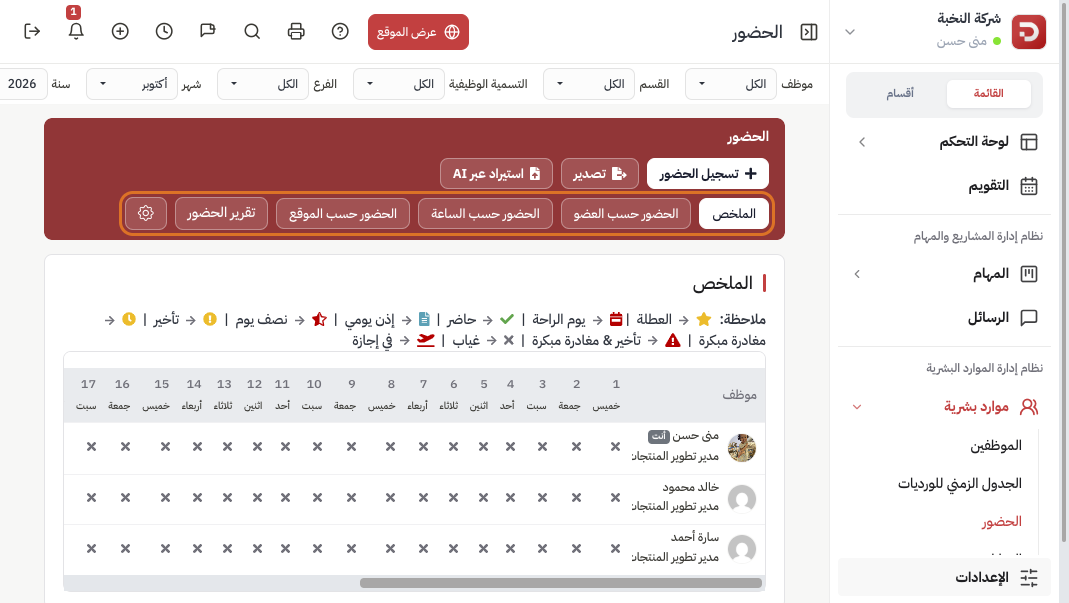
Each row is an employee, each column a day. The legend above the grid: present, late, absent, leave, day off.
On the same bar:
- Attendance by member: one person’s record.
- Attendance by hour: clock-in and clock-out times.
- Attendance by location: the map — next step.
- Attendance report: a period summary you can export.
Tap a day cell for details, or to mark attendance if your permission allows.
The map on the site
Click Attendance by location.
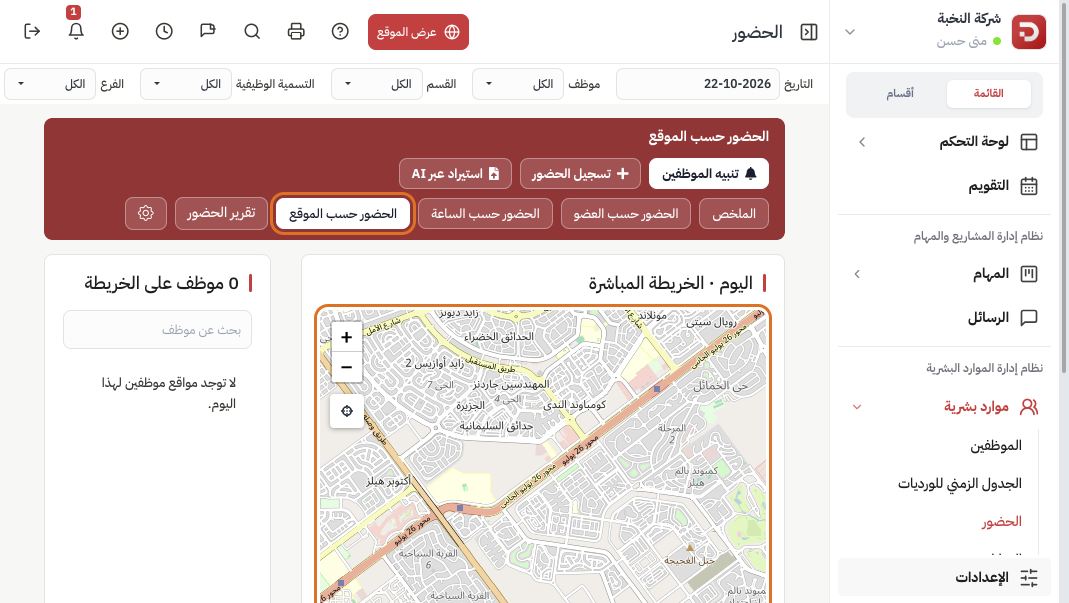
Today is Live map. Anyone who clocked in with a location gets a pin. The list beside the map: search by name and tap a person to jump to them.
Alert employees asks them to share their location now, for the duration set in location alert settings. Use it when you need it — nothing is sent on its own.
Change the date at the top for a past day. A day with no saved location stays empty.
Live tracking in the app
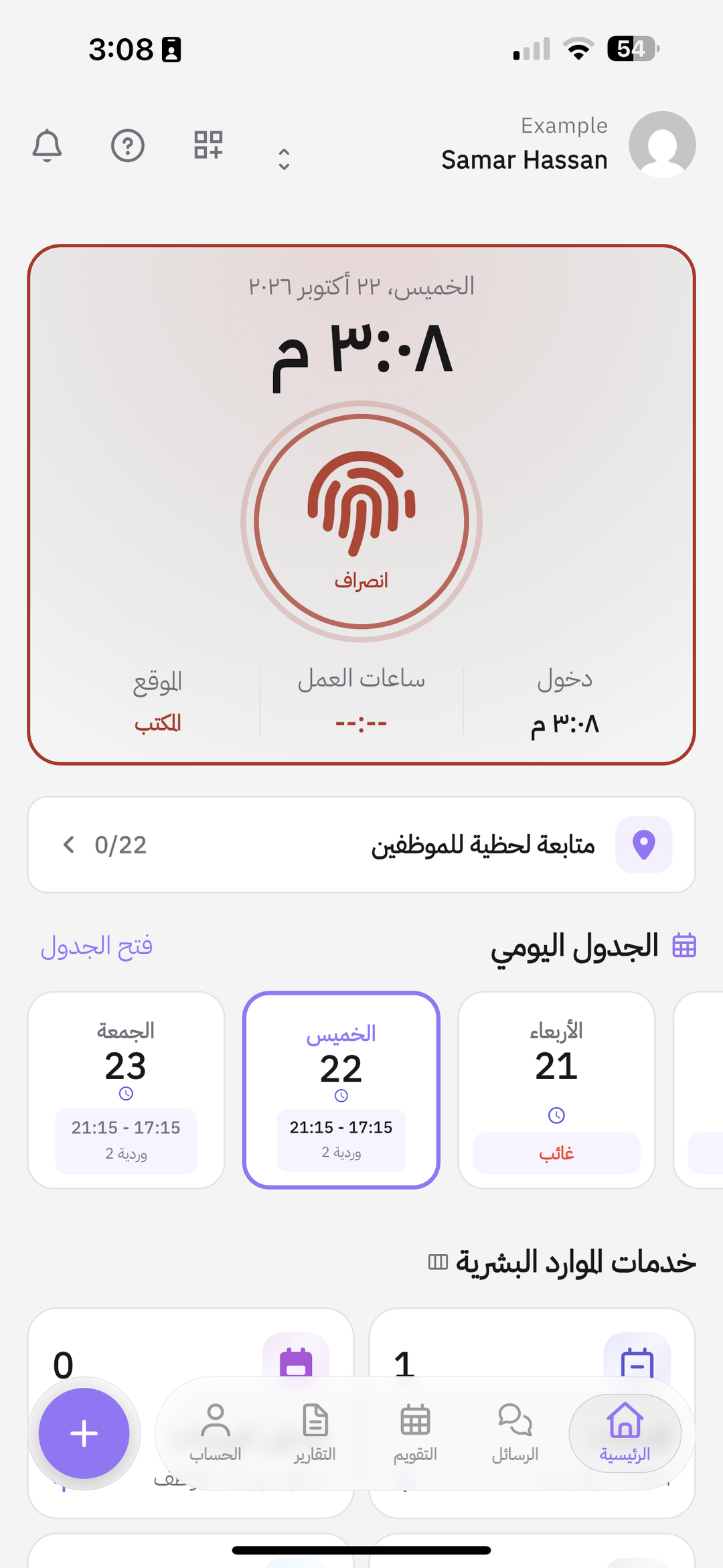
On Home, Live employee tracking shows how many people are on the map out of the team. Tap the row to open the map.
The map and the employee card
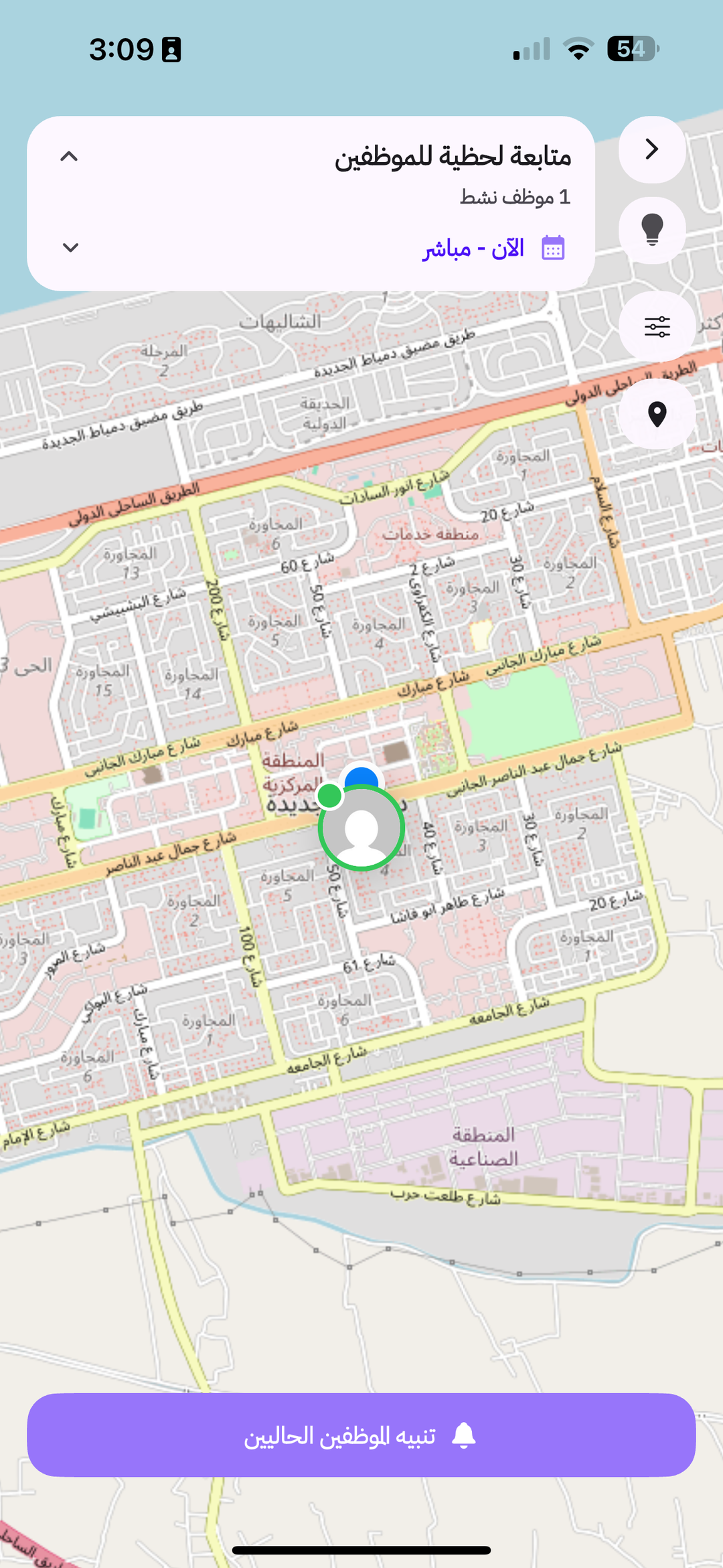
The title is Live employee tracking. You see how many are active, and Now — live for today. Tap a pin, or pull the card up from the bottom.
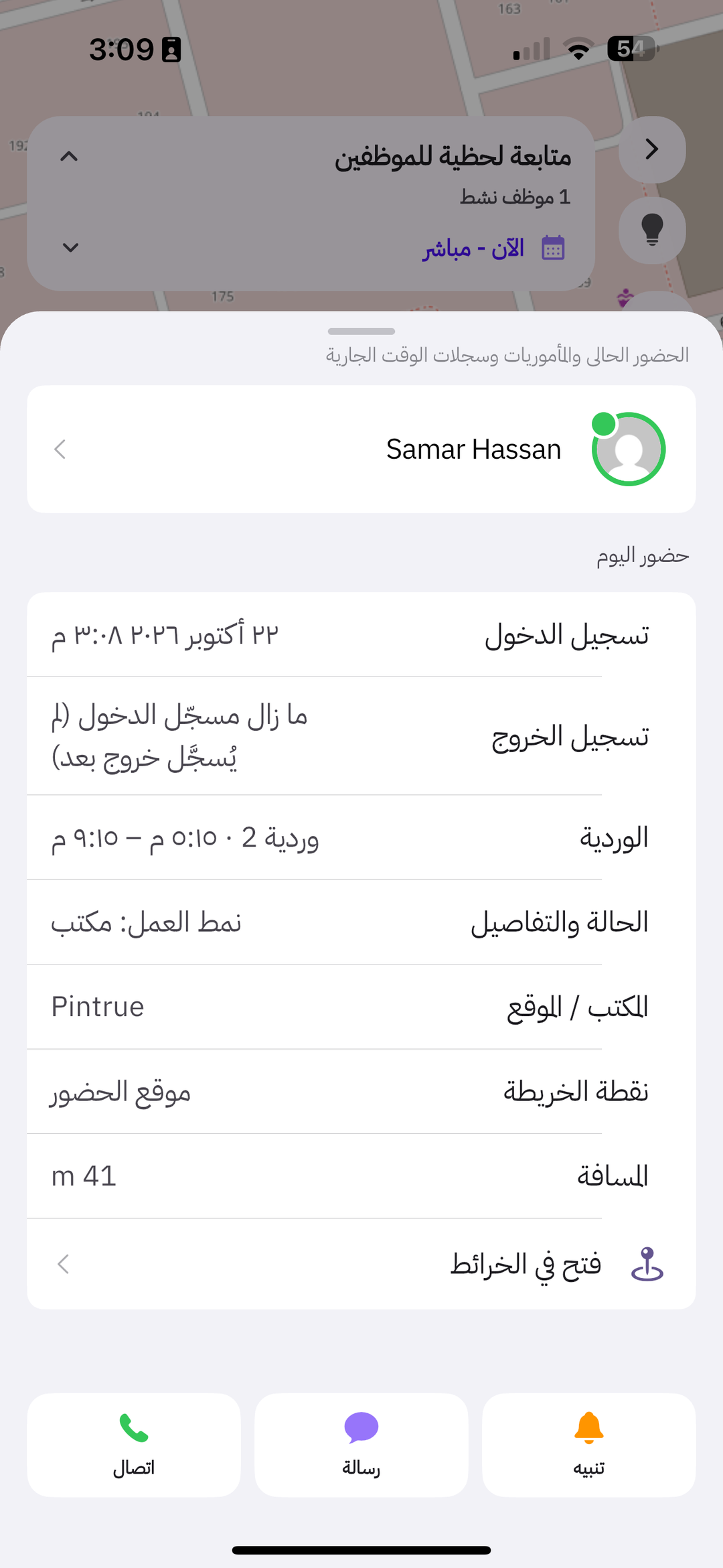
The card shows:
- Clock-in time, and Clock-out if they have left.
- The shift and its hours.
- Office or place, the map point, and distance when it is calculated.
- Call, Message, or Alert for that person. Alert current employees at the bottom of the map sends to everyone on the map.
Review shifts
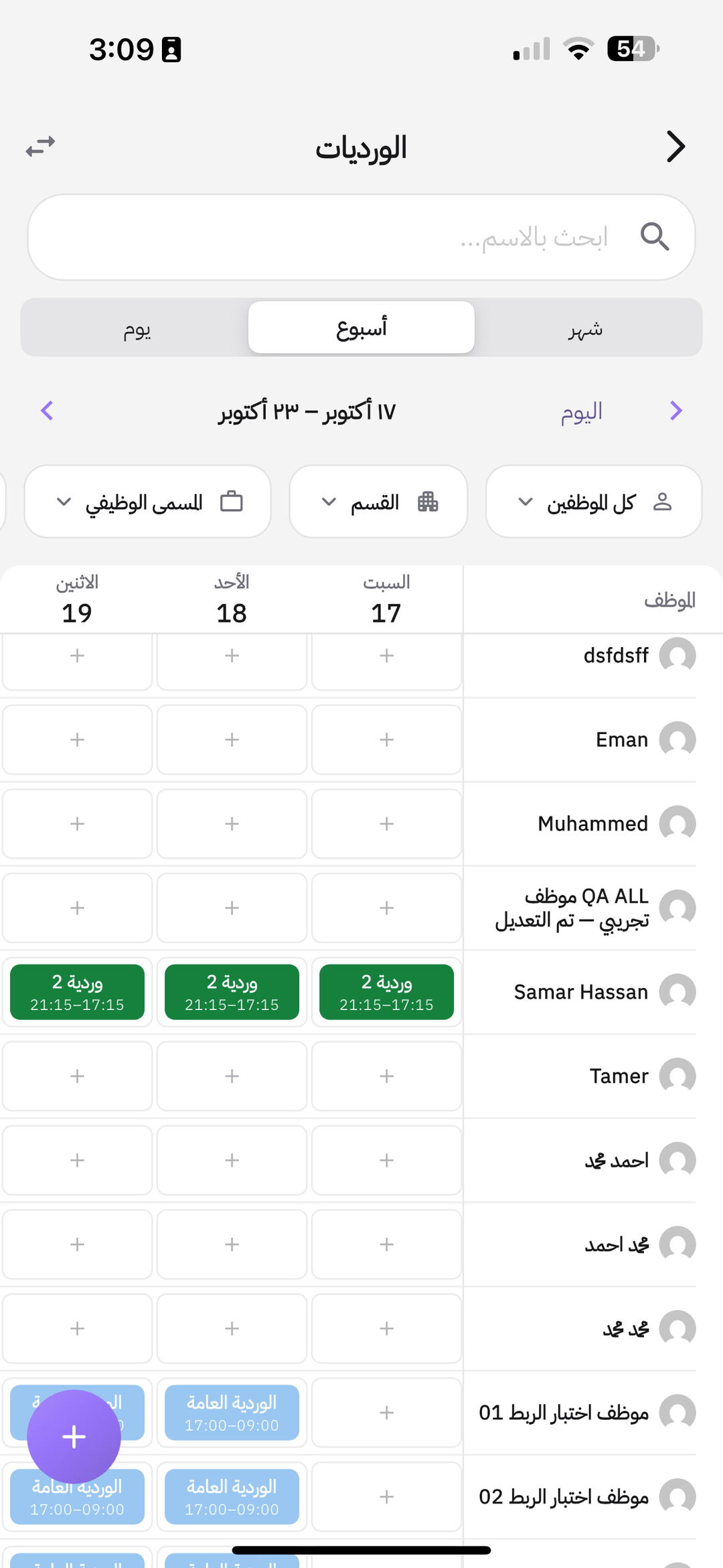
On Home, under HR services, tap Shift schedules. The Shifts screen: employee rows and week days. An empty cell is + to assign.
The same roster on the web: Assign shifts — every method.
What happens while you follow?
- Late and absent are measured against today’s shift.
- The map shows people who clocked in with a location that day. With no saved location it stays empty.
- The report gathers the period for payroll or review.
Common questions
The map is empty while the team is at work?
Turn on save clock-in location, and allow location when they clock in. A clock-in without a location has no pin.
I cannot see Attendance by location?
It appears after save clock-in location is on in attendance settings.
The number on Home is 0?
Nobody is on the map right now. Open the row for details, or check the attendance grid for the day.
The shift on the card is wrong?
Correct it on the shift roster.