


Import employees from a file or text
Add many employees at once: attach Excel, PDF, Word, a photo or CSV, or paste the list in the box, then review and import.
On this page
Who is this lesson for?
- HR manager or system admin: adds many employees at once instead of filling one form each time.
- Management: gets name, department, designation, branch and salary in one import when those details are in the data.
- The employee: gets an account after you confirm. They can sign in if a password was included, or you can invite them later.
Before you start
- You need permission to add employees.
- Have the list ready in any form: a file, or text you paste into the box.
- Each employee needs at least a name, email and employee ID. If one is missing, fill it in the preview before you import.
Open AI import
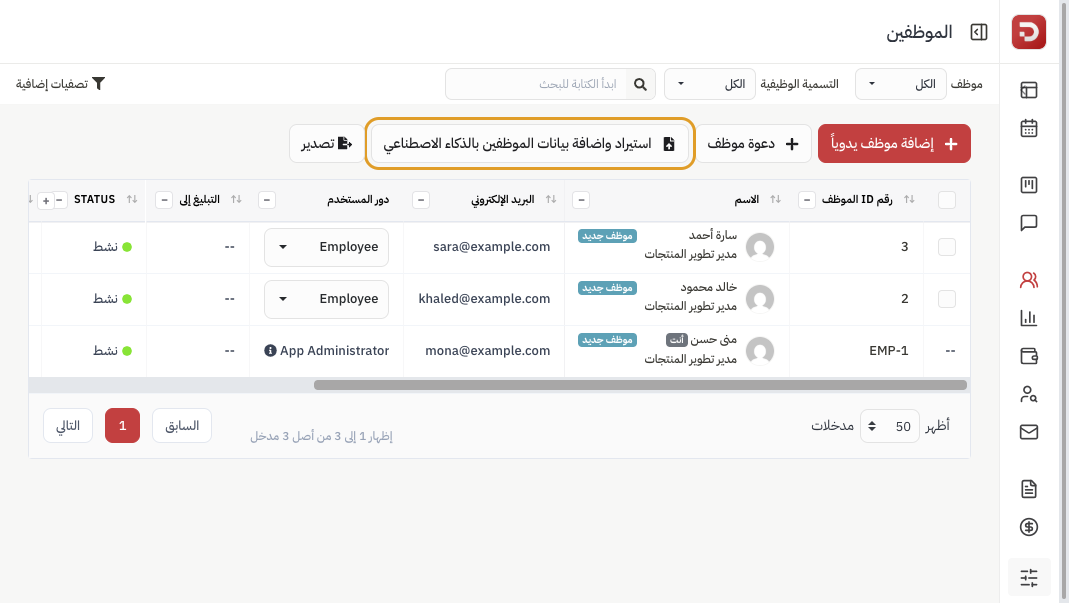
From the sidebar choose HR management system → HR → Employees, then click Import and add employee data with AI.
The import page
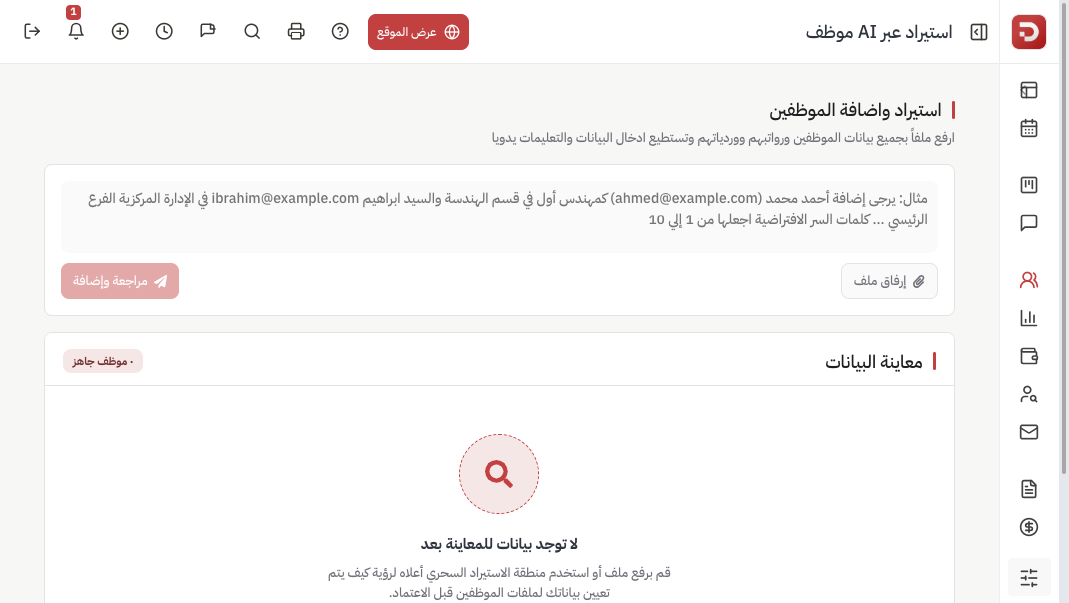
One box supports two methods. You can use either, or both:
- Attach a file: upload the list as it is.
- Type or paste text: describe the employees in the box, or add instructions on top of an attached file.
Accepted files: Excel (.xlsx / .xls), CSV, PDF, Word (.doc / .docx), text (.txt), and images (.png / .jpg / .jpeg / .webp). Maximum size 10 MB.
Data preview stays empty until you click Send and review.
Import from text
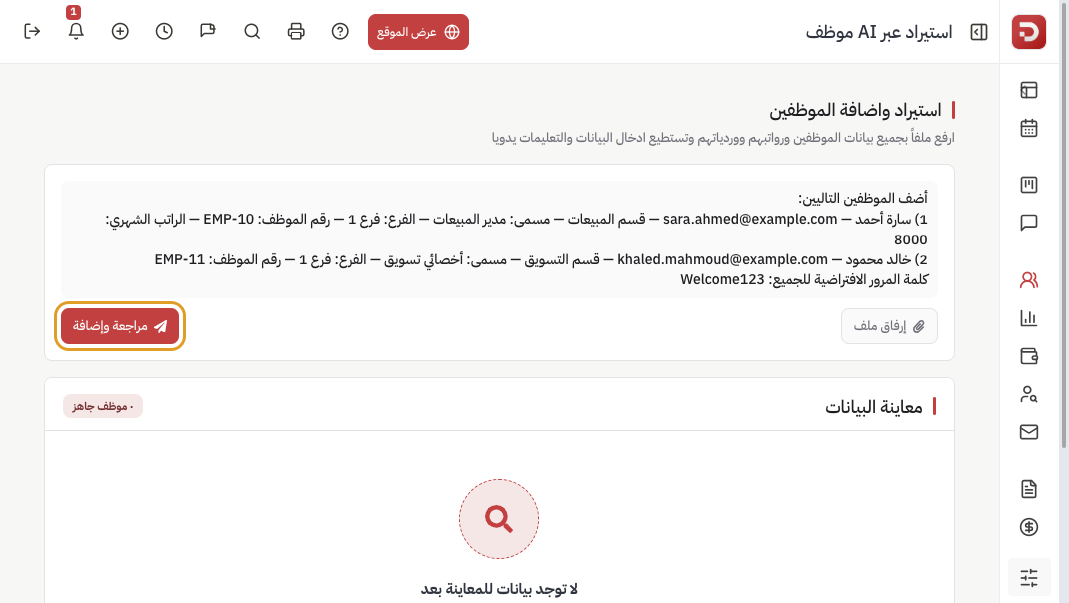
Type or paste the list in any clear form, for example:
Add Sara Ahmed, sara.ahmed@example.com, Sales, Sales Manager, Branch 1, EMP-10
Khaled Mahmoud, khaled.mahmoud@example.com, Marketing, Marketing Specialist, Branch 1, EMP-11
Password: Welcome123
You can include department, designation, branch, salary, shift and password. The system reads the text and maps the fields.
Click Send and review. Enter in the box does the same.
Import from a file
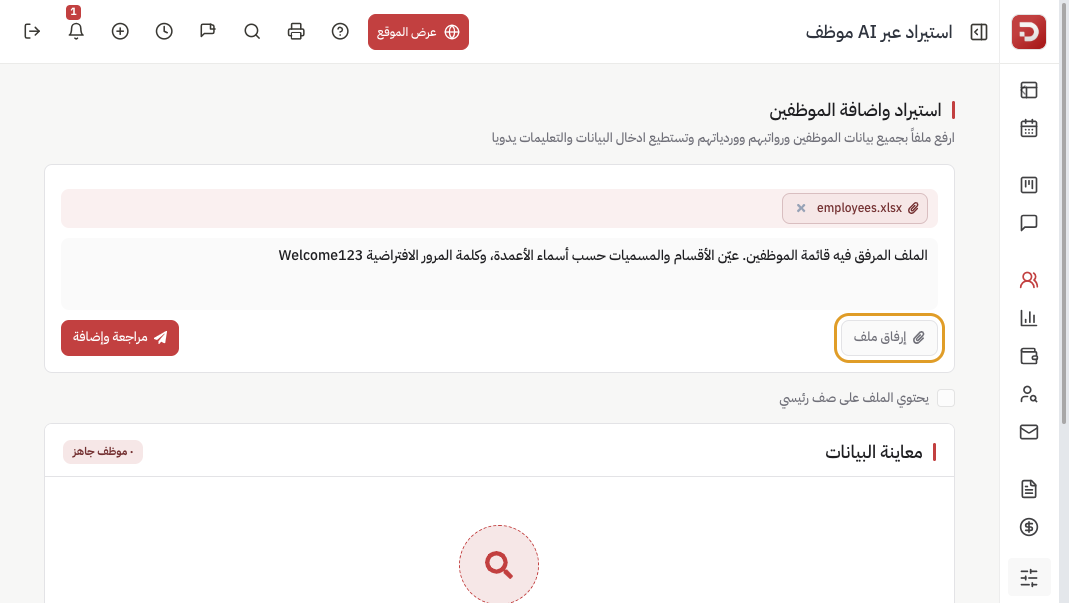
- Click Attach a file or drop the file on the box. The file name appears at the top; × removes it.
- Optional: add instructions in the box, such as “Map departments from the column, password Welcome123”.
- For Excel or CSV, The file contains a heading row appears. Turn it on when the first row is column titles.
- Click Send and review.
Review the preview, then import
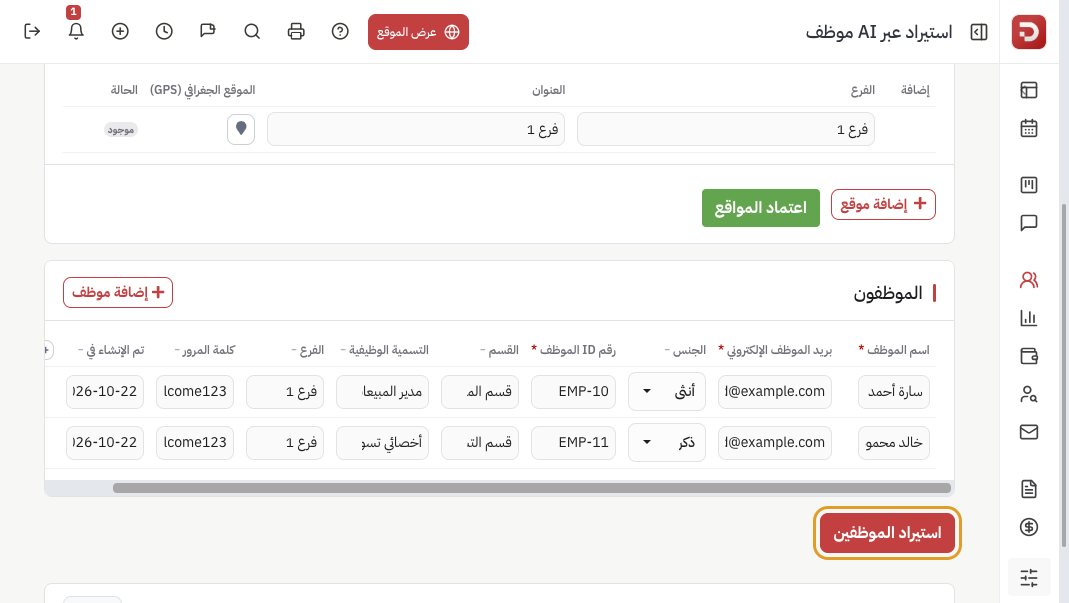
After analysis, cards appear for what was found. Review them from top to bottom:
- Branches / locations: new or existing. Check the name and address, then click Approve locations if new branches appeared.
- Shifts: if the file includes shifts, check times and days, then Approve shifts.
- New custom fields: unknown columns can become extra fields after you approve them.
- Employees: an editable table. Fields with * are required: name, email, employee ID. Fix empty or duplicate cells (email or ID already in use is highlighted in red). Add employee adds a row; the trash icon removes one.
- Shift schedules: if work days or periods were found, review them before saving.
When the table is correct, click Import employees. Nothing is saved until this click.
If you are asked to approve branches or shifts first, approve them or go back and review.
What happens after import?
- The employees appear in the employees list.
- Department, designation and branch are created if they were new and you approved them in the preview.
- A password from the text or file is used for login. Otherwise set it later from the employee edit page, or send an invite.
- Then set salary from Payroll → Employee salary settings if it was not in the data, and the shift from Shift roster.
Manual Excel import
After you attach an Excel or CSV file, Import manually appears. That path maps columns yourself, without AI analysis.
Common questions
What files work?
Any clear list: Excel, CSV, PDF, Word, a photo of a table or list, or text pasted in the box. Column order does not have to match a template.
Email or employee ID already used?
Change the value in the preview or delete the row. A row with an email or ID that already belongs to another employee is not imported.
Name, email or employee ID is missing?
Fill the cell in the preview table before you click Import employees.
The file was not read?
Try a smaller or clearer file, or paste the data in the box with a short instruction.