


Add departments and job titles
Build the company tree: departments and job titles, nest them, generate with AI, then assign them when you add an employee.
On this page
Who is this lesson for?
- HR manager or system admin: builds departments and job titles before adding or editing employees.
- Management: gets a clear company tree: who works where, under which title, and how many people sit in each branch.
- The employee: their department and job title show on their profile. Attendance, leave, payroll and reports filter on them.
Before you start
- Permission to edit departments or job titles (system admin, or a role that includes it).
- Agree names in the company: a department such as "Marketing", a job title such as "Marketing specialist" — not the other way around.
- If employees already exist, do not delete a department or title that still has people until you choose where they move.
Open the page
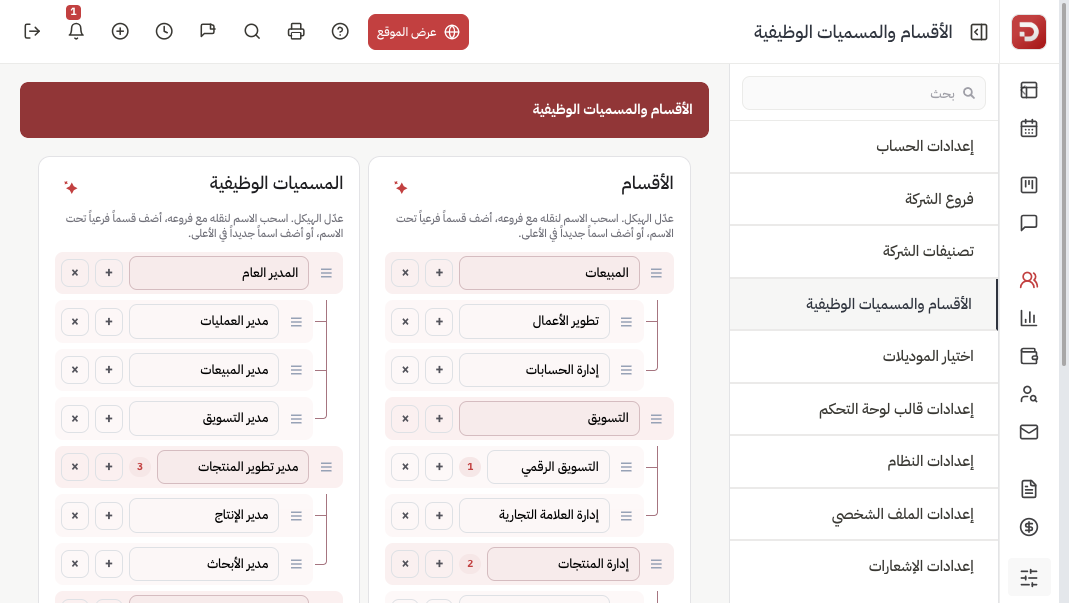
From the sidebar choose HR management system → HR → Departments & job titles.
You get two columns: Departments on one side and Job titles on the other. The number next to a name is how many employees are linked to it.
Add a department
At the bottom of the Departments column type the name, then click Add. Use the same field under Job titles.
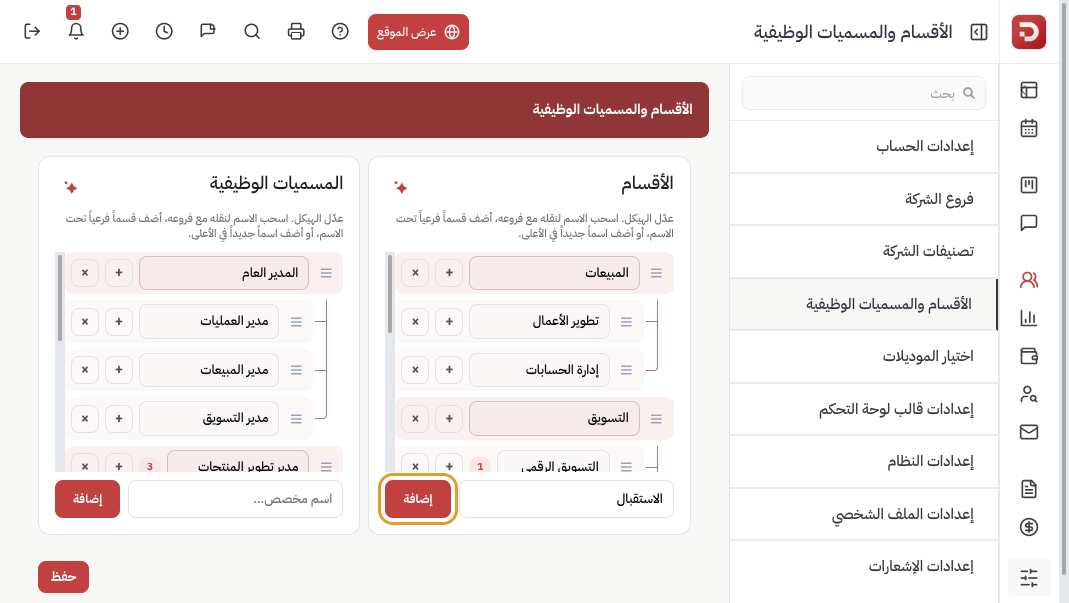
- The name is what appears on the employee form and in reports.
- Rename later by typing in the row.
- Nothing is stored for the company until you click Save at the bottom.
Add a child
Click + next to the parent, then type the child name. Drag a row by the handle to nest it under another name or to reorder it with its children.
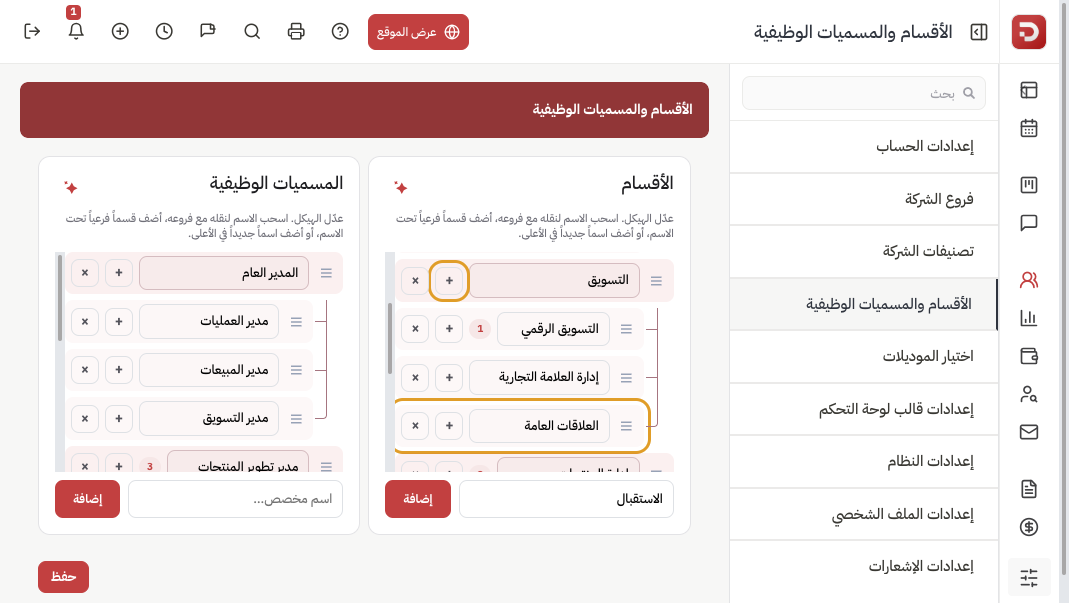
Job titles work the same way: a parent such as "Sales manager", with more specific titles under it if you need them.
Generate with AI (optional)
Click the AI icon at the top of a column. Write a short company description, paste names, or attach a file (Excel, PDF, image or document). Then click Generate suggestions.
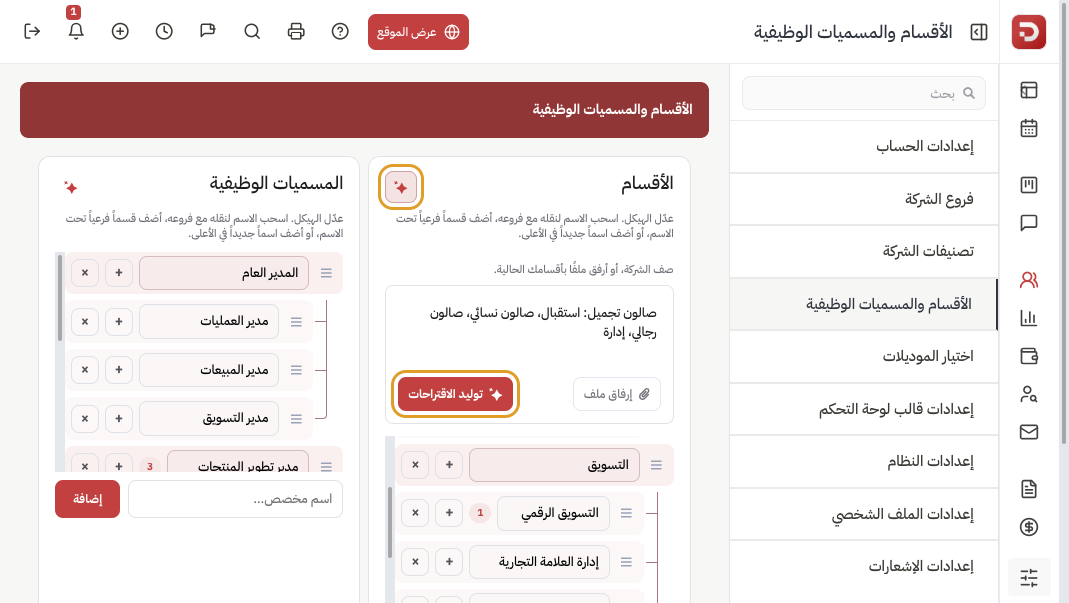
Review and edit the result before you save. The same button sits above the job titles column.
Save
Click Save. Leave without it and the new names are lost.
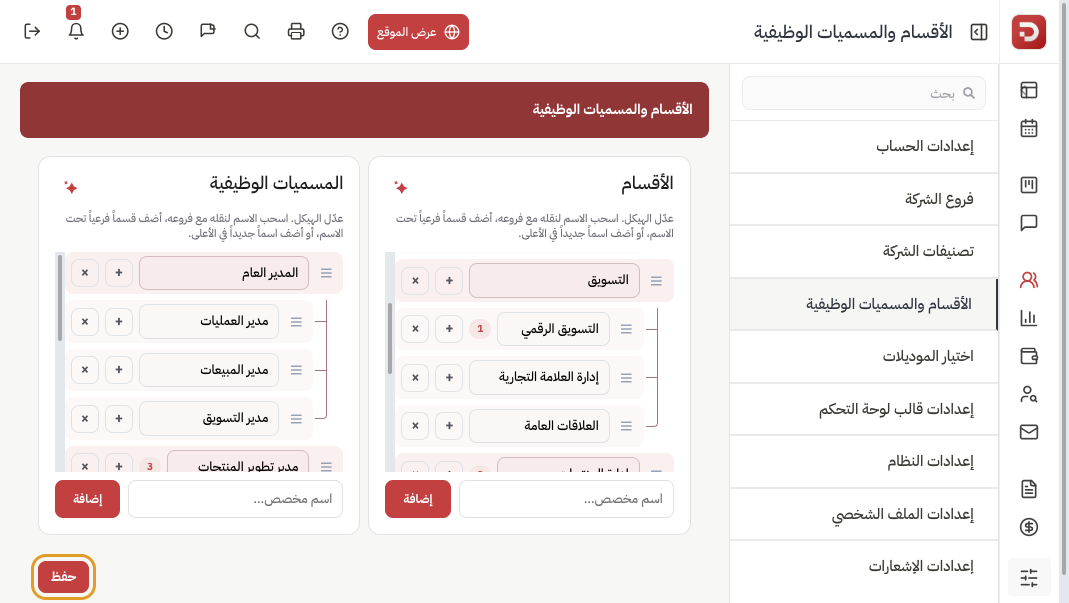
- To remove a name, click ×.
- If employees are assigned, the system asks where they should move first.
Assign them to the employee
When you add an employee or edit their profile, Designation and Main department are required. Use "Other departments" when someone works in more than one.
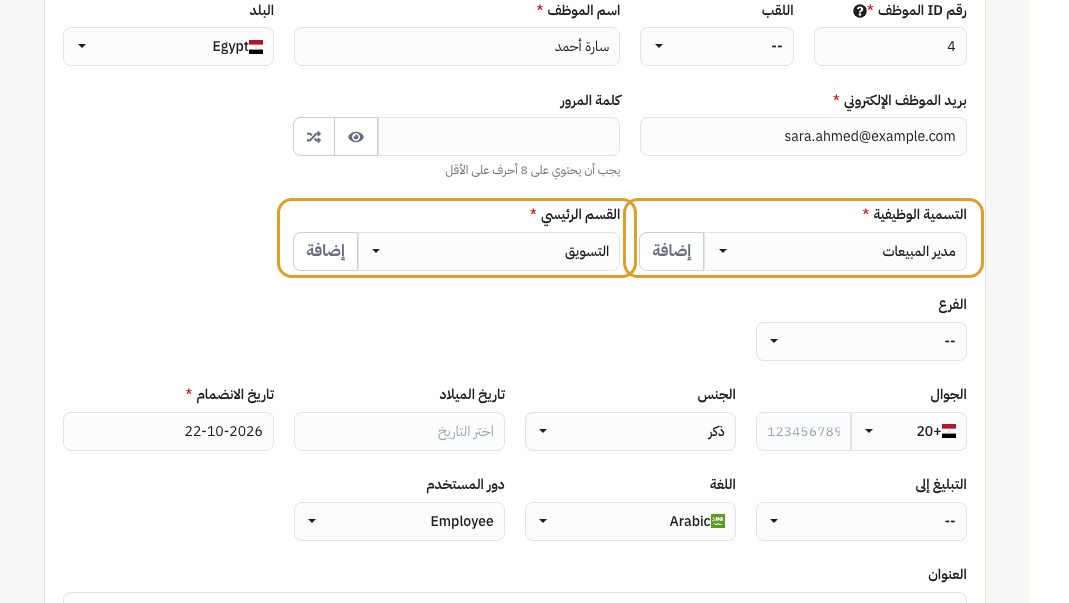
Forgot a single name? The Add button next to the field opens a quick form. For the full tree (children and order), come back to this page.
What happens after you save?
- The names appear in employee, attendance, leave, payroll and report filters.
- Linked employees keep their department or title unless you move them when deleting.
- AI employee import uses the same lists: see Import employees from a file or text.
Common questions
Department vs job title?
A department is where the person sits in the company (Marketing, Reception). A job title is the role (Marketing specialist, Reception manager). Every employee needs both.
Why won't a department delete?
People are still assigned. Move them in the window that opens, then delete.
Names disappeared after I left?
Save was not clicked. Add them again, then save.
Employee form or this page?
One quick name: Add next to the field. Full structure with children: this page.