


Create KPI templates
Build a reusable template: name, category, indicators, weights that add up to 100%, then publish.
On this page
Who is this lesson for?
For HR: define how the company measures people — before you assign a review cycle.
Before you start
- Permission to manage KPI templates.
- Know the role you will measure (sales, support, operations) and what “good” looks like.
Open Templates
From the menu: Employee KPI → Templates.
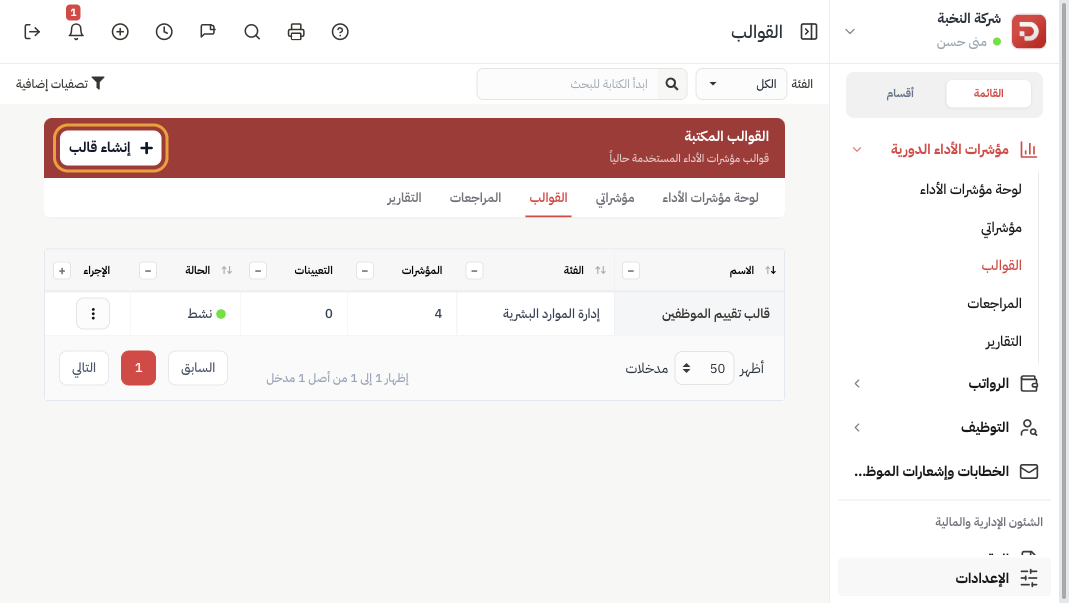
Each row is a published or draft template: name, category, number of indicators, and how many times it is assigned. Click Create Template.
Name the template
The header has Save as draft and Publish Template. At the top you see the weight bar — it must reach 100% before you can publish.
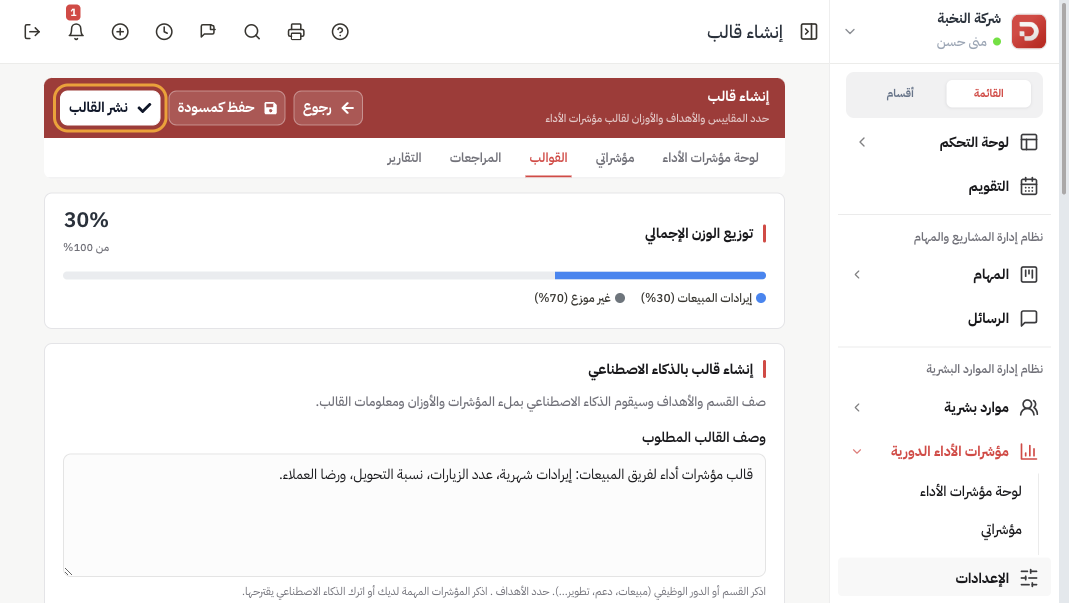
- Name: what managers will see when they assign the cycle — for example Employee evaluation template.
- Category: a group such as Human Resources or Sales. Used to filter the list.
- Description: a short note of what this template covers.
Optional: in Create with AI write a brief (role, goals, the metrics you care about) then generate. Review every indicator before you publish.
Add indicators
Scroll to Indicator settings. Click Add Indicator for each metric.
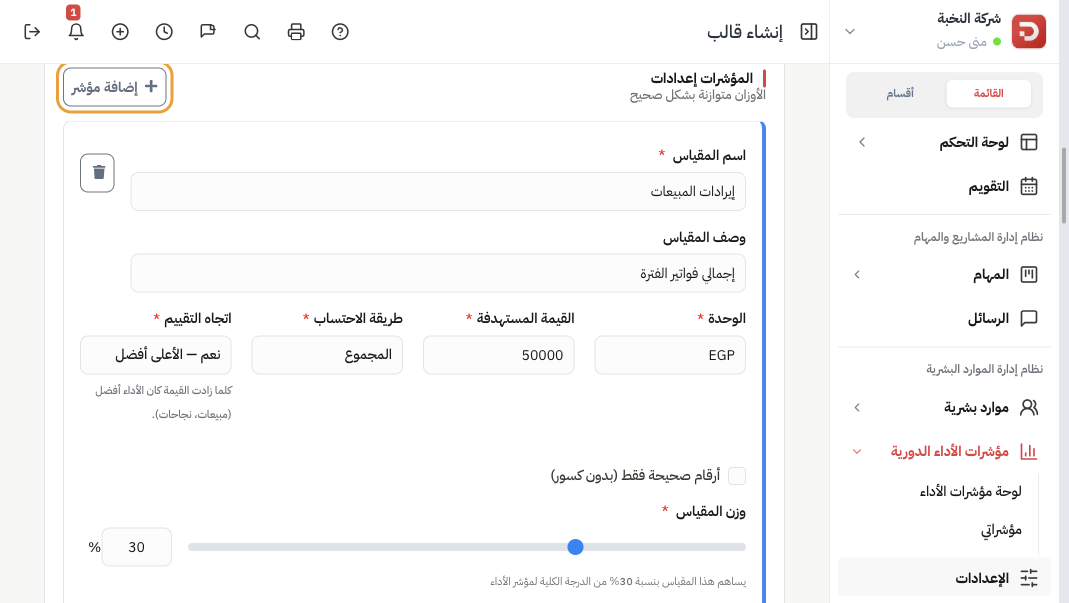
| Field | What it is |
|---|---|
| Metric name | What the reviewer will fill — Sales revenue, Completion rate, Complaints. |
| Description | Optional. Shown under the name on the review form. |
| Unit | EGP, %, #, hours — whatever the number means. |
| Target | The number that earns the full weight. Example: sales 50,000. |
| Calculation method | How the actual value is read. See the table below. |
| Score direction | Yes — higher is better for sales and completion. No — lower is better for complaints, cost, or errors. |
| Weight | Share of the total score. All indicators together must equal 100%. |
Example for a sales team (weights add to 100):
- Sales revenue — Sum — EGP 50,000 — 30%
- Average invoice — Average — 15%
- Visits — Count — 20%
- Conversion — Percentage — 20%
- Complaints — Count — lower is better — 10%
- Closing checklist — Yes / No — 5%
Publish
When the bar shows 100%, click Publish Template. Save as draft keeps it off the assign list until you publish.
Same from the app
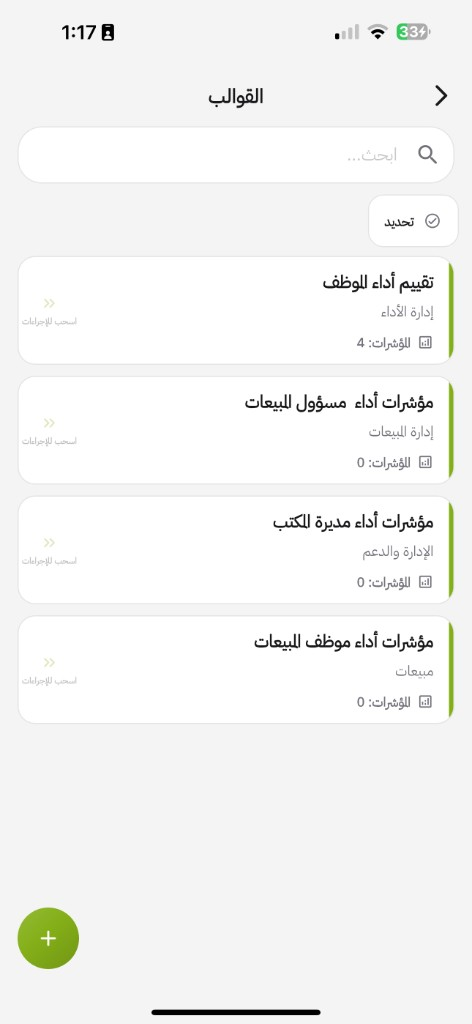
Open Templates. Each row shows the category and how many indicators. Tap + to add one.
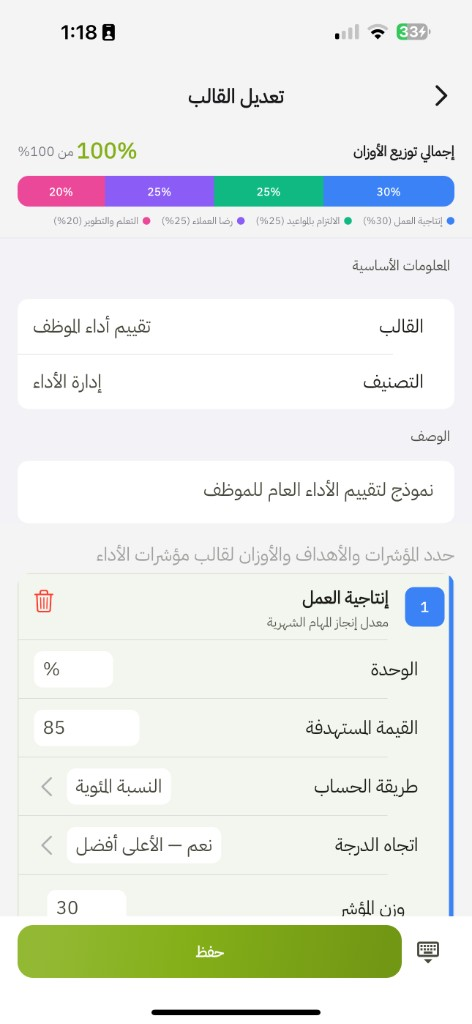
Open a template. Keep the weight bar at 100%. Set name, category, description, and each indicator, then Save.
Calculation methods
| Method | When to use it |
|---|---|
| Sum | A total for the period: revenue, cost. |
| Average | A typical value: average invoice, average handling time. |
| Count | How many times something happened: visits, closed deals, complaints. |
| Percentage | A rate out of 100: completion, conversion, satisfaction. |
| Yes / No | A checklist item. Yes is better unless you switch the direction (No is better — for example no violations). |
Tick Whole numbers only when decimals should not be entered (visit counts).
What happens after you publish?
- The template appears in the list as Active — on the site and in the app.
- You can assign it in a review cycle from Reviews, or use Assign on the template row.
Common questions
Publish is disabled?
Weights are not 100%. Add or change indicators until the bar is full.
Edit after people already used it?
New cycles use the new indicators. Reviews already submitted keep what was filled.