


Payroll slips — generate, view, edit, and status
Generate the period’s slips with every option explained, then view, edit, read late and half-day hints, and change status through to paid.
On this page
Who is this lesson for?
For HR: run the period’s payroll — generate slips, check late and half-day deductions, edit if needed, then change status through to paid.
Before you start
- Each employee has a salary, and Allow payroll generate is yes.
- Permission to add payroll (generate) and to edit payroll (view, edit, status).
- Attendance, leaves, and shifts are up to date if you will use attendance: clock-in settings, shifts, approved leave.
Open Payroll and pick the period
From the menu: Payroll → Payroll.
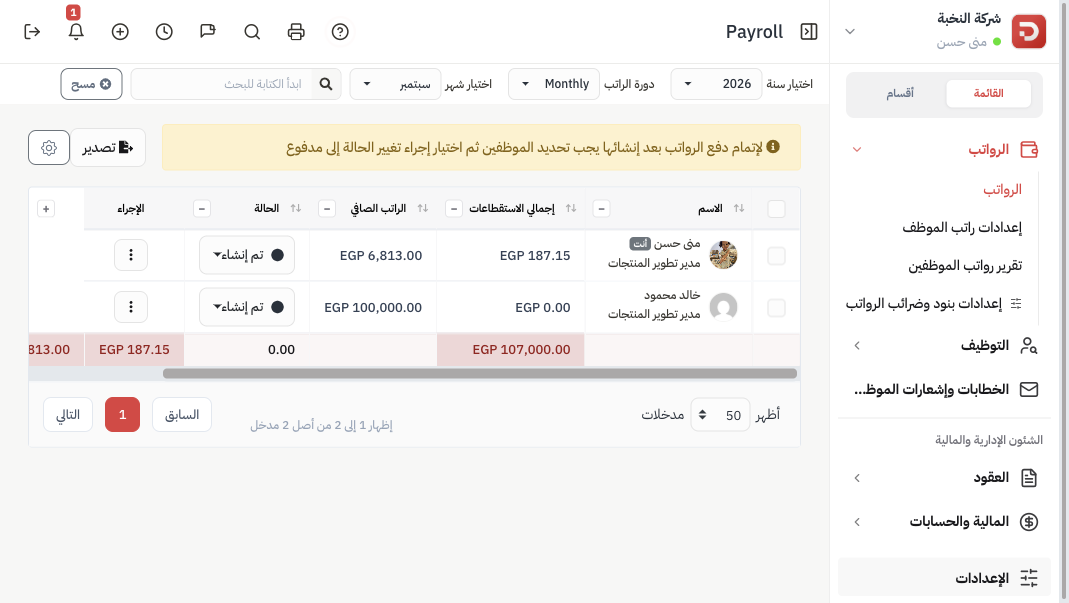
At the top choose year, salary cycle, and month. The table below shows slips already created for that period. The generate box applies to the same period.
Choose what to include
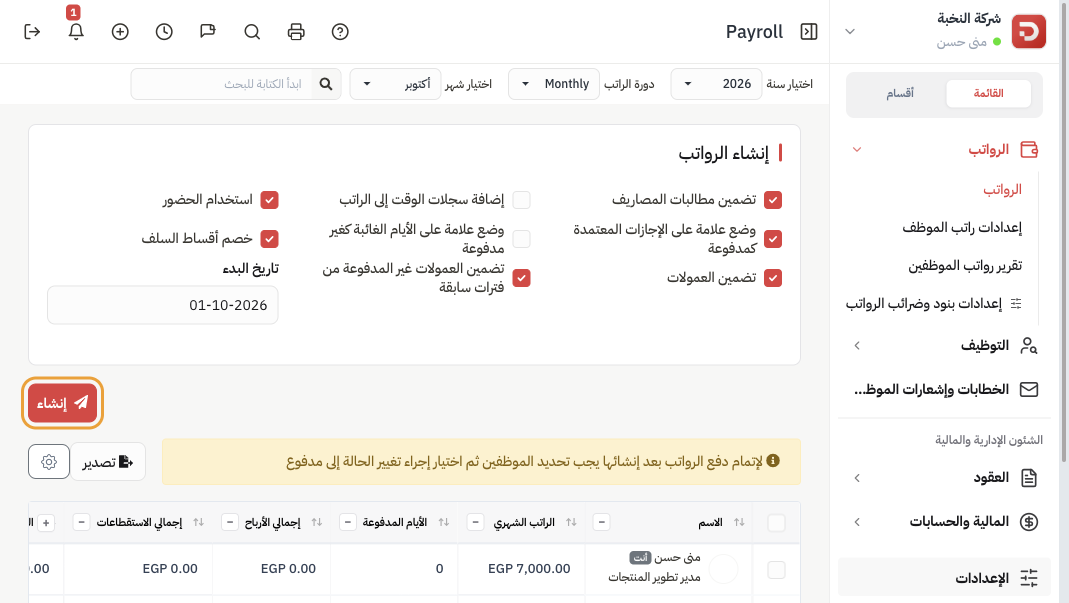
Each box changes what goes onto the slip. Example through this lesson: Sarah Ahmed, monthly CTC 8,000, 30-day period, 8-hour shift (480 minutes).
| Option | What it does |
|---|---|
| Include Expense Claims | Adds approved claimable expenses in this period (purchase date inside the period) as a reimbursement. They increase net pay; they are not a salary earning. Off: claims stay out of payroll. |
| Add timelogs to salary | Adds approved project time-log earnings as Time Logs. Off by default. Use when overtime or billable hours should sit on the slip. |
| Use Attendance | Pay follows clock-in, leaves, and holidays. Also prorates attendance-day components (transport 500; 20 of 30 ≈ 333). Off: the full period is paid, with no late, absence, or half-day deduction. The three boxes below appear only when this is on. |
| Mark Approved Leaves as Paid | Approved paid leave counts as a paid day (full = 1, half = 0.5). Unpaid leave types still reduce pay. Off: even approved paid leave is not added back. See request and approve leave. |
| Mark Absent Days as Unpaid | On: a working day with no attendance and no approved leave is unpaid. Off: those days stay paid — but a half-day without approved leave is then charged as late minutes (see half-day). Official holidays stay paid. |
| deduction Advances Cycle | Deducts the advance instalment due in this cycle (Salary Advances on the slip). Off: the instalment is not taken on this run. |
| Include commissions | Adds this period’s sales commission from the employee’s salary. Off: nothing is added, even if the salary has a commission row. |
| Include unpaid commissions from earlier periods | Also adds commission from earlier months that was never paid. Needs Include commissions on. |
| Start date | First day of a monthly period. Default is the 1st (1 Oct → 1–31 Oct). Pay 25th to 24th: set 25 (October then runs 25 Sep–24 Oct). Weekly cycles follow the month list, not this date. |
Generate
Click Generate. Employees in this cycle with a salary and Allow payroll generate = yes get a slip.
| Existing slip | What Generate does |
|---|---|
| None | Creates a new slip in Generated. |
| Generated | Rebuilds it. Edits on it are discarded. |
| Review, Locked, or Paid | Left as they are. Use Regenerate on the row or in bulk if you must rebuild those. |
Payroll tax (TDS) is added when tax is on in Salary components and tax — there is no extra box here.
View a slip
On the row open the menu → View. You see employee details, status, net pay, then earnings and deductions. Download saves the PDF.
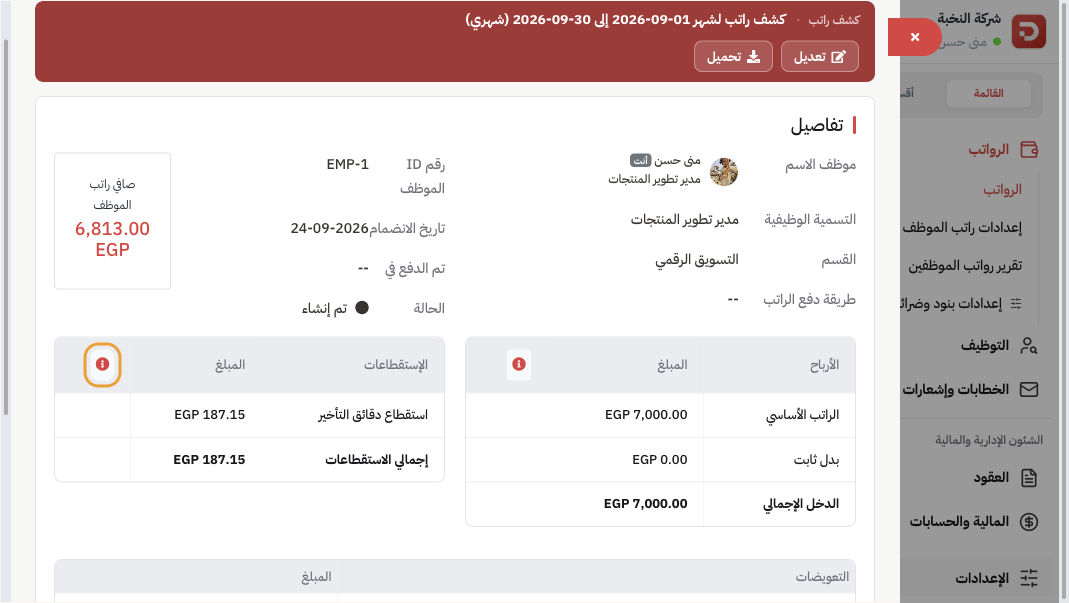
Net pay = gross earnings − total deductions + reimbursements (expense claims).
The list also shows pay days, earnings total, deductions total, and Total Late Days (days flagged late in the period, except a first-half leave day).
Late minutes and the hint
Late deduction needs Use Attendance on. Amount = late minutes × (day salary ÷ shift minutes) × the shift’s late price (default 2). Sarah: day salary 8,000 ÷ 30 ≈ 266.67; per minute ≈ 0.56; 15 minutes late × 0.56 × 2 ≈ 16.67.
Minutes that day are the larger of: late clock-in (when the day is flagged late), or minutes short of the required shift (early leave or missing hours). Then:
- No clock-out: if Missing Clock-out Penalty (minutes) is set in attendance settings, those minutes are added. If the penalty is 0, the day is treated as a full shift.
- If Subtract late mark from late minutes is on there, the shift’s allowed late minutes are removed first.
- Approved first-half leave: no late minutes that day.
- Approved second-half leave: only the first half is required; morning late still counts.
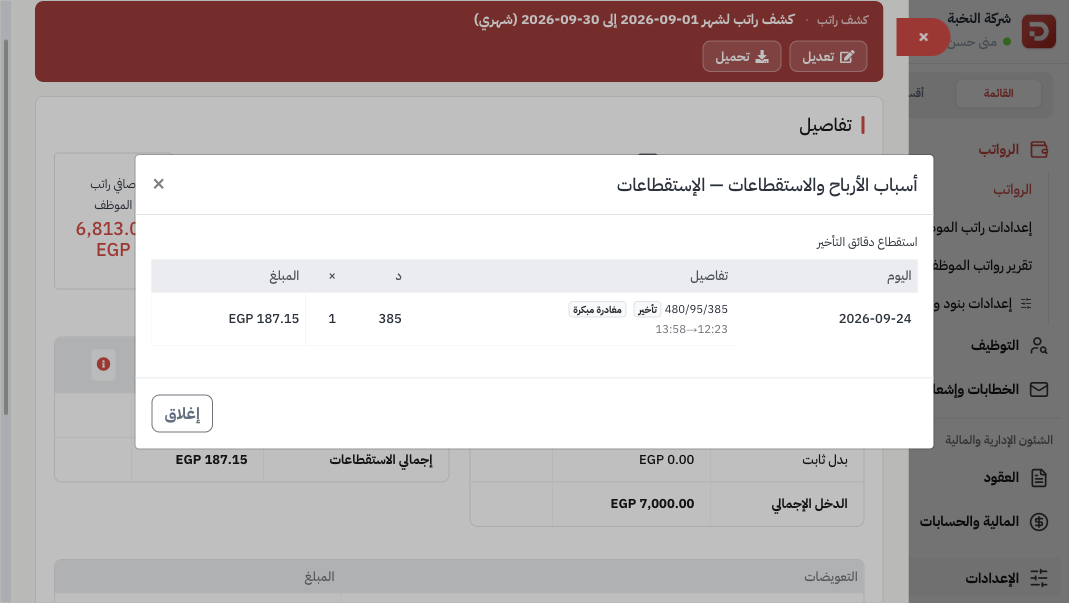
On View or Edit, click the info icon next to Earnings or Deductions (Reasons for earnings & deductions). The deduction table: day, info (required / worked / short minutes), minutes, × (late price), amount. Badges: Late, Early leave, Half day. Clock-in → clock-out times appear under the row.
When a half-day is charged
A clock-in marked half-day counts as 0.5 present. Then:
| Case | What is charged |
|---|---|
| With approved half-day leave | The missing half is leave. Paid type: 0.5 paid day. Unpaid type: 0.5 unpaid. No extra late-minute penalty for that half. |
| Without leave, and Mark Absent Days as Unpaid is off | The missing half is late minutes: 0.5 × shift minutes (240 on an 8-hour shift) × per-minute salary × late price. Sarah ≈ 266.67. The hint shows Half day and 0.50×240. |
| Without leave, and Mark Absent Days as Unpaid is on | That half is unpaid absence, not a late-minute line. |
Edit a slip
Menu → Edit. Use this after generate, while status is Generated or Review, to fix amounts before employees see a final slip.
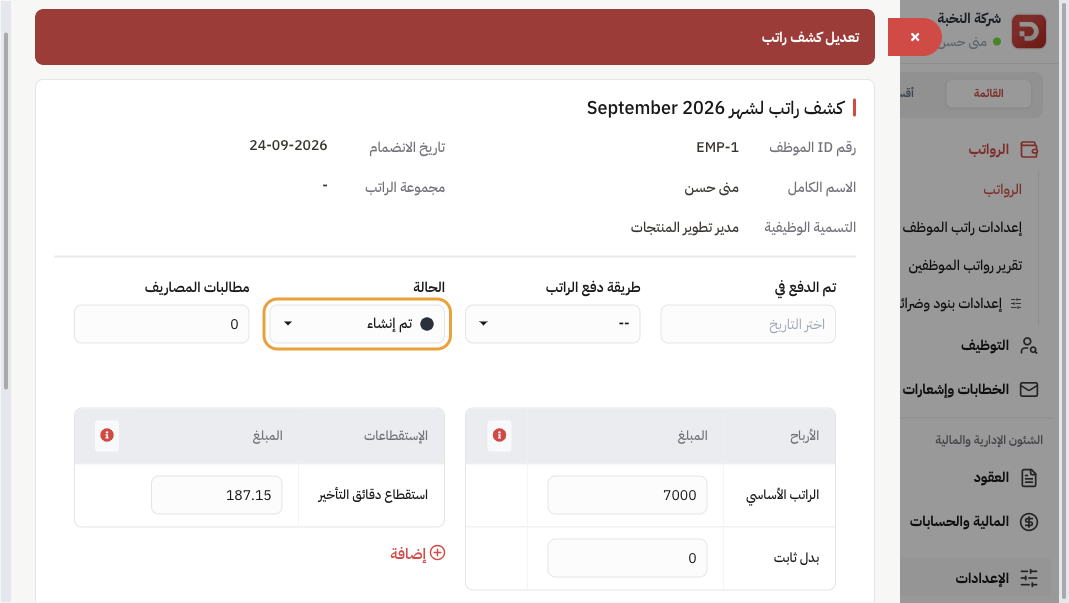
- Change earning and deduction amounts. Basic pay stays 100% of CTC (read-only). Fixed allowance stays auto.
- Add an extra earning (bonus) or extra deduction (penalty) with a name and amount.
- Expense claims, paid on, and payment method.
- Status on the same form — except Paid: once paid, status stays Paid here.
The same info icon opens the late / half-day hint. Save. Regenerating later discards these edits.
Change status
After Generate the status is Generated — the slip is calculated, not paid. Change it from the list on the row, select several employees then Change status, or from Edit.
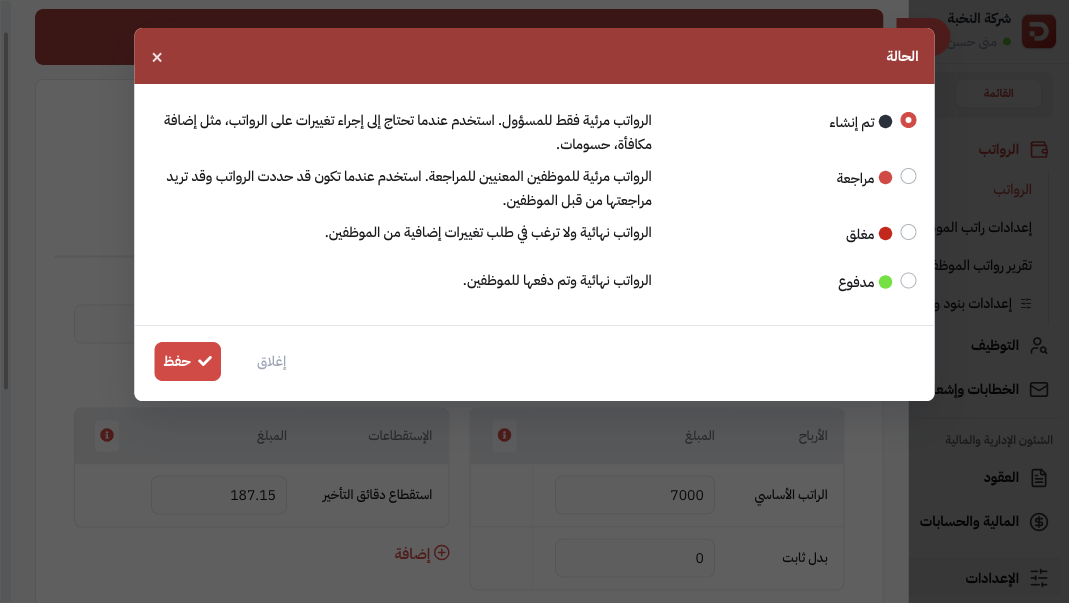
| Status | When to use it |
|---|---|
| Generated | Admin only. Default after Generate — not paid yet. Use while you still change bonuses, deductions, or regenerate. You can delete this slip. |
| Review | Visible to that employee. Use when the numbers are ready for the employee to check, and you may still edit. Not deleted from the list. |
| Locked | Final for the employee — no further change requests. Still unpaid. Generate will not overwrite it; use Regenerate if you must rebuild. |
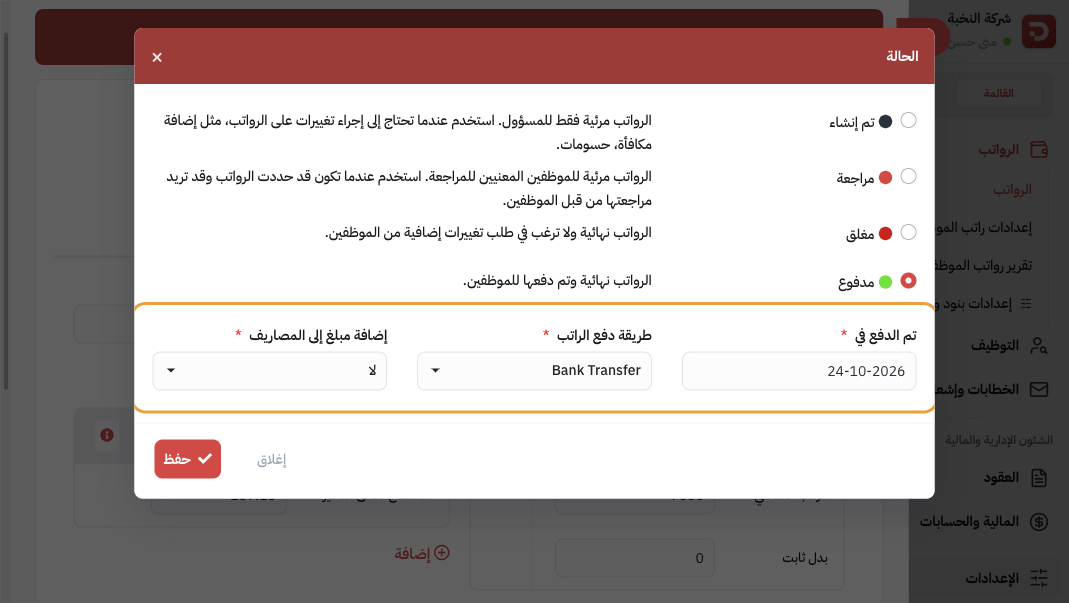
| Paid | Paid to the employee. Required: Paid on and Salary payment method. Optional Add amount to expenses. Status cannot be changed away from Paid on the edit form. Regenerating a paid slip restores advances taken on it and reverses the linked expense. |
Regenerate and delete
- Regenerate on the row or in bulk: same include-options as generate. Edits on that slip are discarded. Confirm first.
- Delete: only while status is Generated (row menu or bulk when every selected row is Generated).
What happens after generate?
- Each included employee has a Generated slip for that period.
- View the hint for late and half-days, edit if needed, then Review → Locked or Paid.
Common questions
Someone missing from the run?
They need a salary, Allow payroll generate = yes, and the same cycle as the filter. Joining date after the period end also skips them.
Generate did not rebuild a slip?
Review, Locked, and Paid are kept. Use Regenerate on that row.
No late line on the slip?
Use Attendance must be on. Check the info icon on deductions. Late price and late mark live on the shift and in attendance settings.
Half-day deducted twice?
If Mark Absent Days as Unpaid is off, the half-day without leave is the late-minute line only — not also an unpaid day.
Commission is empty?
Add a commission row on the salary, then turn Include commissions on when you generate.
Transport not prorated?
The component must be variable by attendance days, and Use Attendance on.