


KPI reports
Filter by dates, cycle, department, or employee, then export PDF or CSV.
On this page
Who is this lesson for?
For HR and managers: see how a cycle scored after reviews are submitted.
Before you start
At least one review in the period is submitted or completed. Cycles that do not affect overall evaluation stay out of these averages.
Open Reports
From the menu: Employee KPI → Reports.
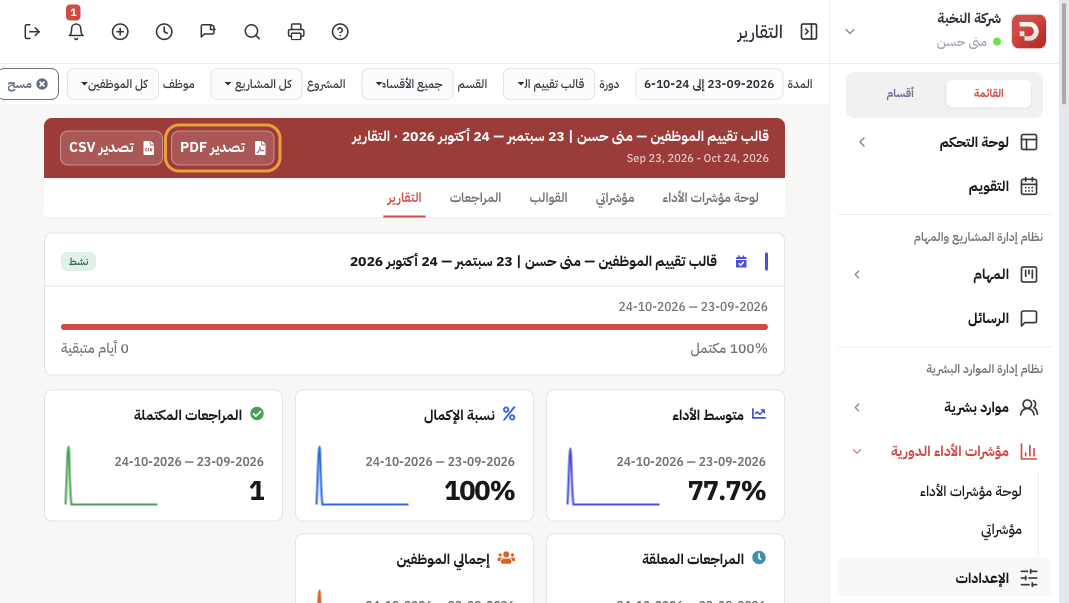
Filter:
- Duration — the date range.
- Cycle — one cycle, or all.
- Department / Project / Employee — narrow the people.
More filters: metric type (template) and comparison with the previous period.
The header shows completion %, average performance, completed reviews, and pending reviews for that filter.
Read the breakdown
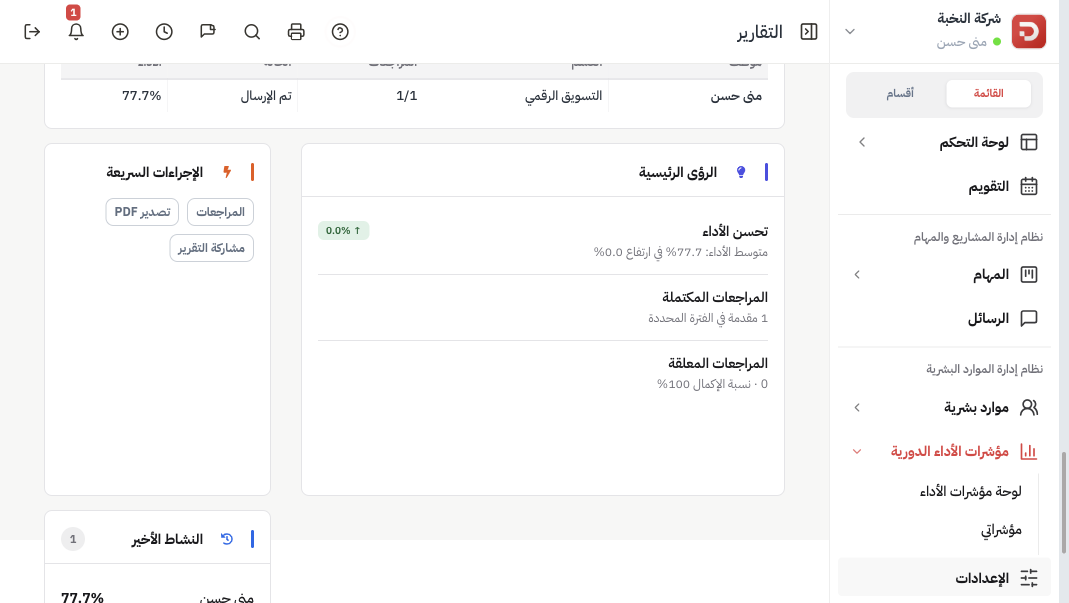
Further down: performance by department, indicator trend, each metric in the period, then the employee list (name, department, submitted / total, status, score). Key insights summarize the average, how many reviews are done, and what is still pending.
Export
Click Export PDF or Export CSV. The file uses the same filters. Share report copies a link for someone who can already open Reports.
What happens after you filter?
- Charts and the employee table follow the dates and cycle you picked.
- Open a name to see that person’s KPI profile. Open Reviews to jump back to the list for the same dates.
Common questions
Average is empty?
No submitted review in this duration, or the cycle does not affect overall evaluation.
Someone missing?
They were not on the cycle, or their review is still pending. Widen Duration or pick All cycles.