


Add an employee salary
Open Employee Salary, add a salary, and fill the details: cycle, CTC, group, earnings, and deductions.
On this page
Who is this lesson for?
For HR: set each employee’s salary before you generate payroll.
Before you start
- Permission to manage employee salary.
- The employee is already added.
- Optional: reusable components and groups in Salary components and tax.
Open Employee Salary
From the menu: Payroll → Employee Salary.
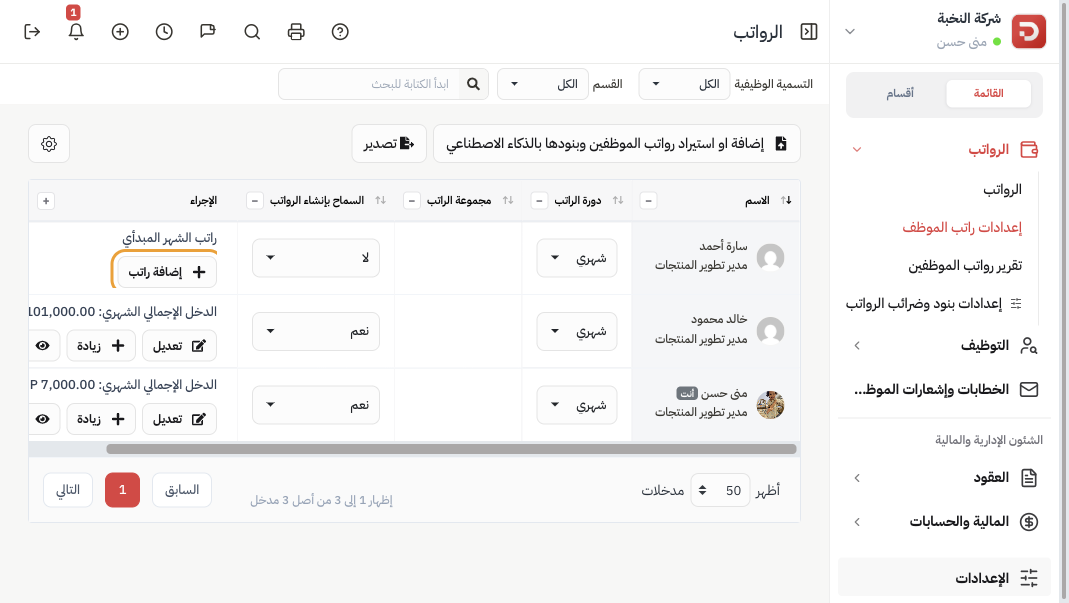
Employees without a salary show Add Salary. Employees who already have one show Edit, Increment, and salary history.
Add the salary
On the employee’s row click Add Salary.
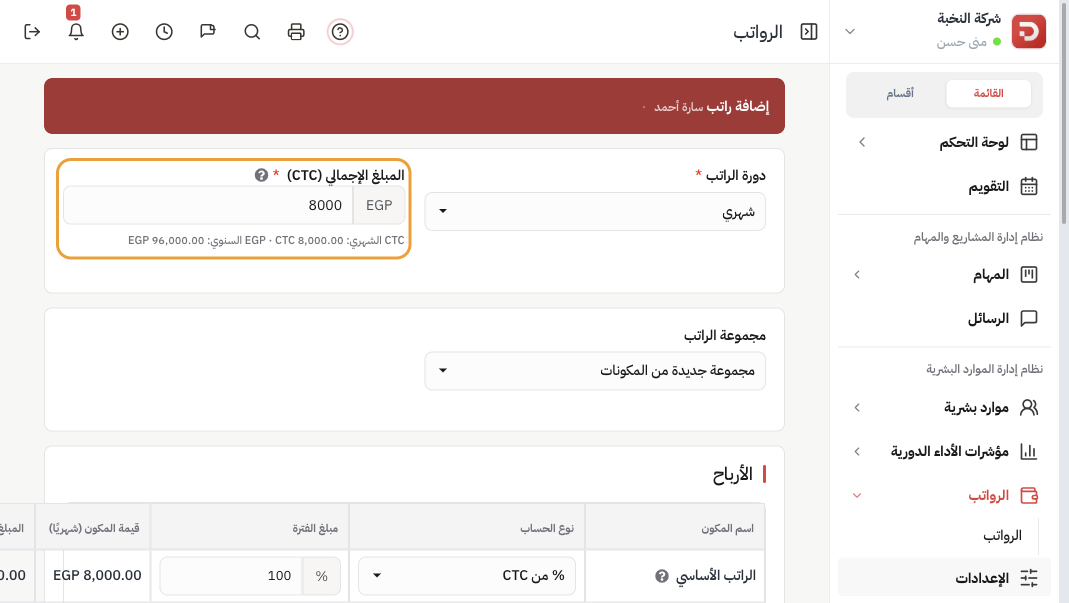
| Field | What it is |
|---|---|
| Salary cycle | Monthly, weekly, every two weeks, or semi-monthly. The pay period follows the cycle automatically. |
| CTC (Cost To Company) | The total salary cost to the company for this cycle, before deductions. Use the ? next to the field. Example: 8,000 for a monthly cycle. |
| Salary group | A saved set of components, or a new group for this employee. It sits under cycle and CTC. |
| Basic pay | Always 100% of CTC. Extra named earnings (housing, transport) are rows in the earnings table and are added on top. |
| Fixed allowance | What remains of CTC after basic pay. With basic at 100%, this is 0. |
Earnings, deductions, then save
Example: Sarah Ahmed, monthly cycle, CTC 8,000. Basic pay is 8,000 (100% of CTC).
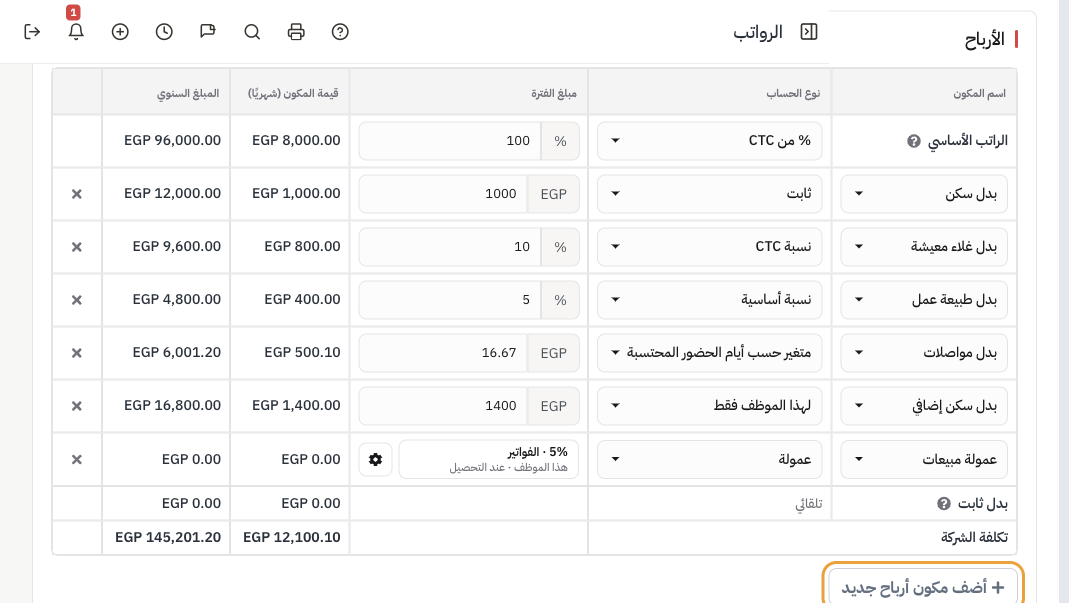
In Earnings click Add new earning component. Choose a saved name or keep the row and set the type and amount:
- Housing allowance — Fixed — 1,000
- Cost of living — CTC Percent — 10% → 800
- Representation — Basic Percent — 5% → 400
- Transport allowance — Variable by attendance days — 16.67 a day → about 500 a month
- Extra housing — This employee only — 1,400
- Sales commission — Commission — no amount in the row
Cost to company at the bottom becomes about 12,100. Commission is added later when you generate payroll.
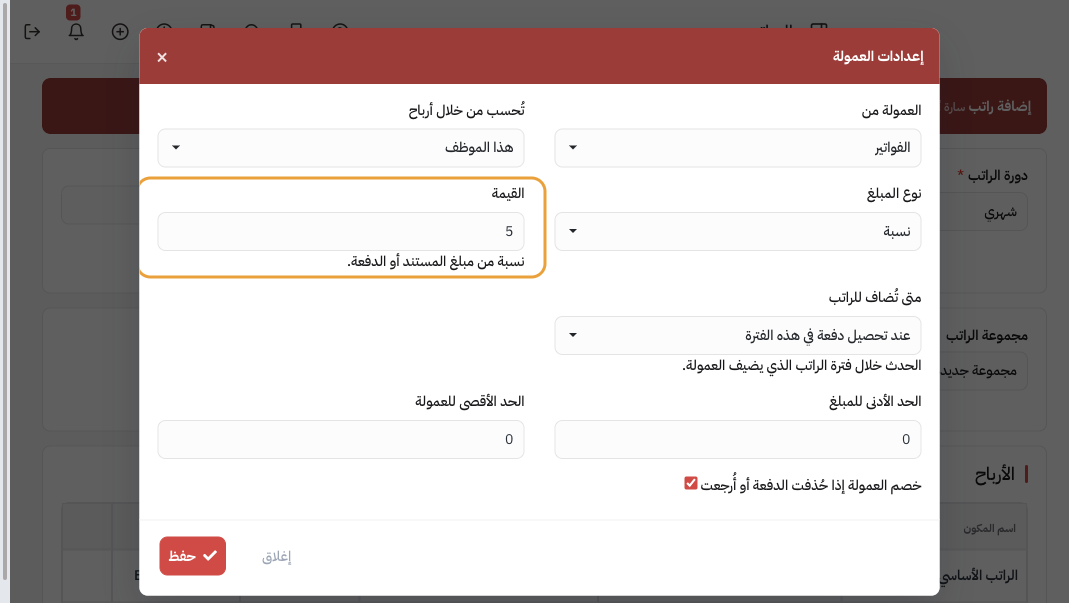
For commission, open the settings icon on the row: 5% on this employee’s invoices.
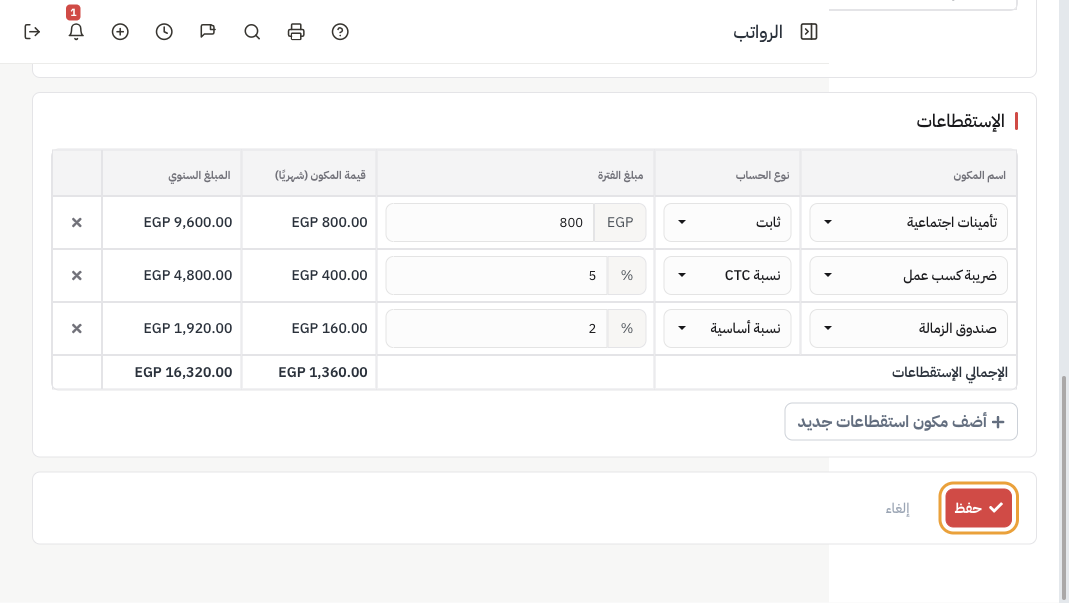
In Deductions click Add new deduction component:
- Social insurance — Fixed — 800
- Payroll tax — CTC Percent — 5% → 400
- Staff fund — Basic Percent — 2% → 160
Deductions total 1,360. Cost to company stays 12,100 — deductions come out of the employee.
When the numbers look right, click Save.
Turn on Allow payroll generate on the list when this employee should be included in the next payroll run.
Component types
Each extra row is an earning or a deduction. Earnings are added on top of CTC. Deductions come out of the employee and do not increase cost to company. Pick a saved component from Salary components and tax, or click Add new earning component / Add new deduction component. Examples use Sarah’s CTC 8,000.
| Type | How it is calculated |
|---|---|
| Basic Salary | Always 100% of CTC. Already on the form — do not add this row. CTC 8,000 → basic 8,000. Named earnings are added on top. |
| Fixed Allowance | What remains of CTC after basic. With basic at 100%, this is 0. Housing and transport are extra earning rows, not taken from this amount. |
| Fixed | The same amount every cycle. Transport 500 earning → cost to company 8,500. Social insurance 800 deduction → deductions 800; cost to company does not increase. |
| CTC Percent | A percent of CTC. 10% of 8,000 = 800. If CTC later becomes 10,000, this becomes 1,000 without editing the row. |
| Basic Percent | A percent of basic pay. Basic is 100% of CTC, so 10% of basic is also 800 when CTC is 8,000. Use when the amount is a share of basic, not of CTC. |
| Variable by attendance days | The period amount is the daily rate (transport 16.67 → about 500 a month). When you generate payroll with attendance on, 20 of 30 days ≈ 333. If attendance is off, the full month is used. |
| This employee only | An amount you type for this person only. Example: housing is 1,000 for the team (Fixed). Sarah gets 1,400 — add a housing row, pick This employee only, and type 1,400. The rest stay at 1,000. If everyone gets the same figure, use Fixed and save it in Salary components and tax. |
| Commission | Extra pay from the employee’s sales — it is added to what they receive, not taken off. Do not type an amount. Open the settings icon on the row and choose what to pay on (their invoices, payments, bookings, orders, or converted leads) and whether it is a percent or a fixed amount each time. The figure appears on the slip when you generate payroll with Include commissions on. Same setup for a team: save it in Salary components and tax. |
What happens after you save?
- The row shows monthly gross pay instead of Add Salary.
- You can edit the structure, add an increase, or generate payroll.
Common questions
Several employees at once?
Use Add salaries with AI.
Change the amount later without rebuilding the structure?
Use Increment, not Edit.
Same allowances for a whole team?
Save them once in Salary components and tax, put them in a group, then pick the group here.