


Custom fields
In Settings → Custom Fields add a field to a module, set its type and options, then Save. Unique and Use as login apply to Client text or number fields.
On this page
Who is this lesson for?
- Company admin: adds fields that appear on company forms.
- Employees and clients: do not open this page. They fill the fields on the record.
Before you start
- You need permission to manage custom fields.
Open Custom Fields
From the menu: Settings → Custom Fields.
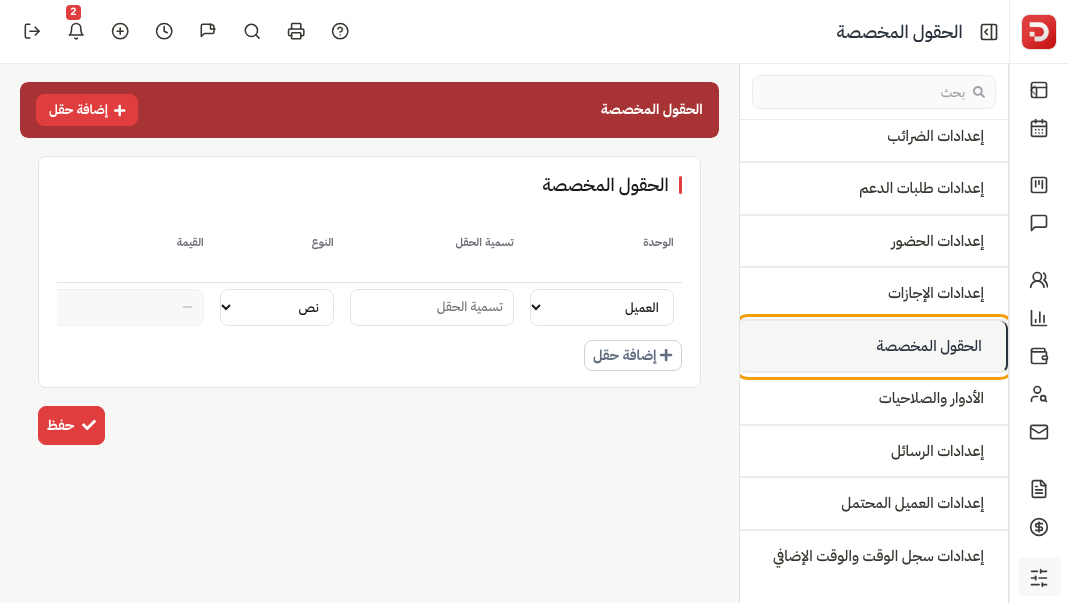
The row
Each row is one field. The table is wide — scroll it to see every column.
| Column | What it is |
|---|---|
| Module | The form: Client, Employee, Project, Task, Invoice, Payment, Estimate, Expense, Lead, Deal, Product, Ticket, Contract, and the rest in the list. |
| Field Label | The name people see, for example National ID. |
| Type | How they enter the value. |
| Value | Choices for Select, Radio or Check Box, separated by commas. Other types stay empty. |
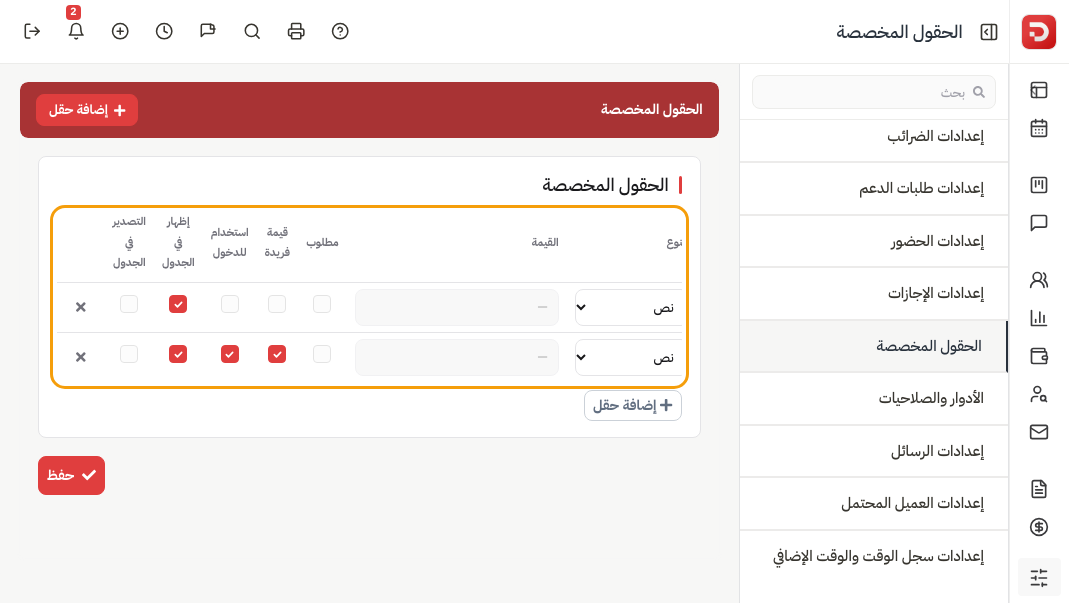
| Required | Must be filled when someone saves the record. |
| Unique | Each client must have a different value. Client + Text or Number only. |
| Use as login | Clients can sign in with this field and a password. Same limit: Client + Text or Number. Unique turns on with it. |
| Show in table view | The field appears as a column on that module’s list. |
| Allow export in table view | The field is included when the list is exported. |
The × at the end of the row removes that field after you Save.
Add Field
Click Add Field (toolbar or under the table). A new row appears.
Example: Module Client, Field Label National ID, Type Text, Unique and Use as login on.
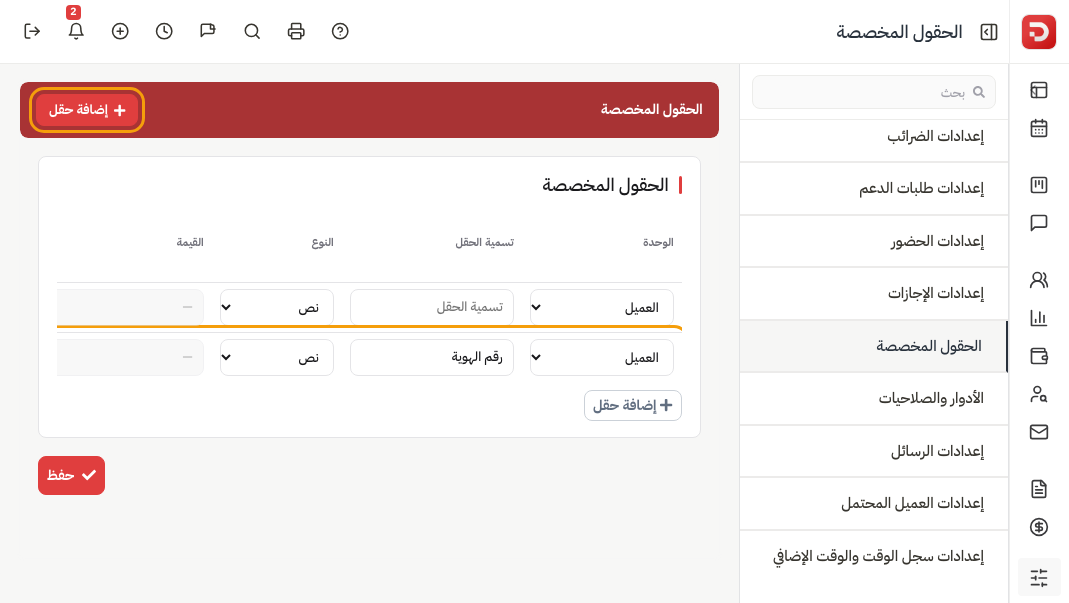
Then Save.
Types
| Type | When to use it |
|---|---|
| Text | A short line, such as National ID. |
| Number | A number only. |
| Password | A hidden value. |
| Text Area | A longer note. |
| Select | One choice from a list. Put the choices in Value, separated by commas. |
| Radio | One choice, shown as buttons. Same Value list. |
| Check Box | More than one choice. Same Value list. |
| Date | A date. |
| Files | An attached file. |
| Location | A point on the map. |
What happens after you save?
- The field appears on add and edit for that module.
- If Show in table view is on, it appears on the list.
- If Unique is on for a Client field, two clients cannot share the same value.
- If Use as login is on, the client can sign in with that value and a password.
Common questions
Unique and Use as login are off?
They work only on Client with type Text or Number.
Cannot make the field unique?
Some clients already share the same value. Fix the duplicates first.
Same Field Label twice?
Not on the same module.
Next: A dashboard for each role.