


Salary advances — add and repay from payroll
Add an advance, split it into instalments, and see when each instalment is taken from the salary.
On this page
Who is this lesson for?
For HR: give an employee money now, then recover it from salary in equal instalments.
Before you start
- Permission to add salary advances.
- The employee has a salary if you will recover it from payroll.
Open Salary advances
From the menu: HR → Salary advances.

Each row: name, amount, returned amount, number of instalments, instalments already recovered, employee. Filter by duration and status. Click Add new Advance.
Fill the advance

| Field | What it is |
|---|---|
| Advance name | What you will see on the list and on the slip — example: Emergency advance. |
| Amount | The full sum given to the employee. Example: 2,000. |
| Cycles count | How many payroll runs recover it. 4 → four equal instalments. 1 → the full amount on the next payroll. |
| Payment date | The day the money was given. It does not pick which month the first instalment falls in. |
| Employee | Who receives the money and whose later slips are deducted. |
| Pay with bank account | Optional. If you choose a company account, the full amount is taken from that account when the advance is approved — that is the company paying the employee, not the salary deduction. |
| Description / file | Optional note or attachment. |
Example through this lesson: Sarah Ahmed, 2,000, 4 instalments → 500 each run.
Save. If you add it as admin it is approved immediately. If the employee requests it, it stays pending until you approve (or reject) from the row.
Only approved advances with a remaining amount are deducted from payroll. Pending and rejected are not.
Read remaining and repayment history
Open the row.

You see instalments, payment date, bank, status, and who approved. Repayment history stays empty until a slip for this employee is marked Paid with this instalment on it. The list already shows amount 2,000 and returned 0.
Same from the app

Open Salary advances. Search and filter. A pending row shows orange. Tap +.

Fill name, amount, instalments, and employee, then Save. Admin save is approved. An employee request stays pending.
Approve from the app

Open a pending row. Approve or Reject. You can also link a bank, edit, or delete. Only approved advances are deducted from payroll.
When is an instalment taken?
Not on the payment date. On the next payroll you generate with this box on:
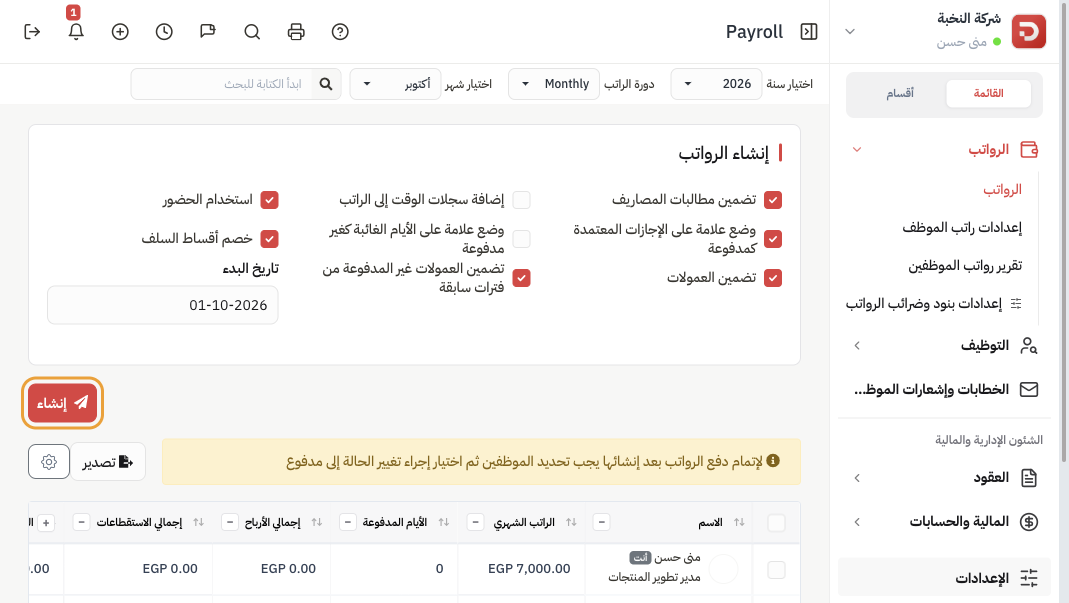
On Payroll → Payroll keep deduction Advances Cycle checked (it is on by default), then Generate. Details of generate: generate payroll.
| What you do | What happens |
|---|---|
| Generate with the box on | Each approved advance with remaining amount adds one instalment as a deduction on the slip (amount ÷ instalments, or the remainder if smaller). 2,000 ÷ 4 = 500. The name of the advance is the deduction line. Net pay drops by that amount immediately. |
| Generate with the box off | This run does not take an instalment. Remaining stays as it is. Turn the box on next time. |
| Slip status is still Generated / Review / Locked | The 500 is on the slip, but remaining is still 2,000 and repayment history is still empty. |
| You mark the slip Paid | Returned amount becomes 500, remaining 1,500. A row appears in repayment history with that date. The next generate takes another 500 — and so on, four paid runs to finish 2,000. |
| Last run (remaining smaller than one instalment) | Only what is left is taken — not a full extra instalment. |
| Regenerate a Paid slip | That instalment is put back on remaining, and the history row is removed. Then generate calculates again from the restored remaining. |
Two approved advances on the same person: each adds its own instalment on the same slip.
The payroll salary report has a Salary Advances column for the instalment on that slip.
What happens after you save?
- The advance is on the list. Admin-created rows are approved.
- Nothing is taken from salary until you generate payroll with the box on, then mark that slip Paid for remaining to drop.
Common questions
The first instalment did not wait for next month?
Correct. It is taken on the next generate with the box on — even later the same month. Payment date is only when the money was given.
History is empty after generate?
Change the slip to Paid. Until then the deduction is on the slip only.
I generated twice without paying?
The slip still shows one instalment from remaining. Remaining does not drop twice. Pay the slip, then the next generate takes the next instalment.
Employee requested it and nothing was deducted?
Approve it first. Pending advances are skipped.