


Set Task Settings
In Settings → Task Settings name the task board columns, set due-date reminders, and choose which task fields the client can see.
On this page
Who is this lesson for?
- Company admin: names the task columns, sets reminders, and chooses what a client sees on a task.
- Employees: move tasks across these columns. They do not open this page.
- Clients: see only the fields you leave checked.
Before you start
- You need permission to manage Task Settings.
- Finish Project Settings first if Board is not selected yet.
Open Task Settings
From the menu: Settings → Task Settings.

The header has Add column. Save is at the bottom of the page.
Task board
Edit the names and colours. Mark the default for new tasks.

| Column | What it is |
|---|---|
| Name | The column on the board, for example To Do or Doing. Rename to match your team. |
| Color | The colour of that column. |
| Default | Where a new task starts. Only one default. |
| Refused | Failed or archived tasks. One refused column. Not on Completed. |
Press Add column for a new row. Reorder with the arrows.
Two columns have no delete mark and cannot be removed:
- Completed: change the name and colour only.
- The first column: cannot be deleted. Change the name.
For a failed or archived task, tick Refused on one other column and rename it if you want.
Send Reminder
Remind the assignee about the task due date and the start date.

| Field | What it is |
|---|---|
| Send task reminder before X days of due date | Days before the due date. 0 turns this reminder off. |
| Send task reminder on the day of due date | Yes or No. |
| Send task reminder after X days of due date | Days after the due date if the task is still open. 0 turns this reminder off. |
| Send task reminder on the day the task begins | Yes or No. |
| Taskboard Default Length | How many tasks load on the board before Load more. |
Sections visible to client
Each checked field appears to the client on the task. Uncheck a field to hide it.
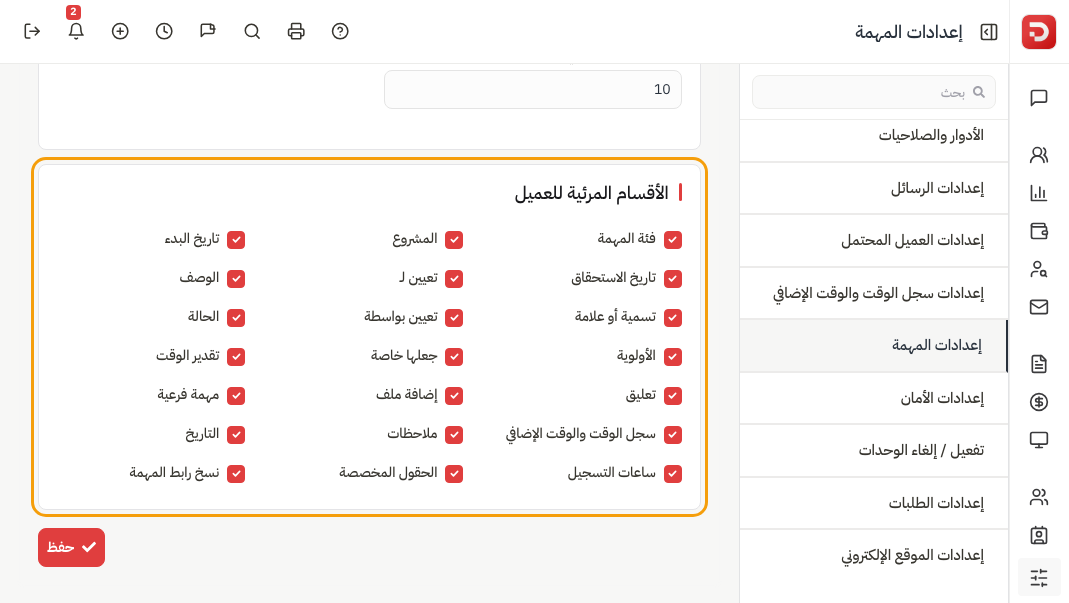
Fields include task category, project, start date, due date, assigned to, description, label, assigned by, status, priority, make private, time estimate, comment, add file, sub task, time logs, notes, history, hours logged, custom fields, and copy task link.
Then Save.
What happens after you save?
- The board uses these column names and colours.
- New tasks start in the default column.
- Reminders follow the days and Yes/No you set.
- The client sees only the checked fields.
Common questions
Why is there no delete on two columns?
Completed and the first column stay. Rename them. Add or delete the others.
What is Refused?
Failed or archived. One column, not Completed.
The client still sees a field?
Open this page and uncheck it, then Save.
Next: Time Log Settings.