


Use Gantt
On the board open Gantt. Switch Day, Week, Month and Period. On the app use Calendar: Day, Multi-day or Month.
On this page
Who is this lesson for?
- Company admin and employees: plan task dates on Gantt.
- Clients: see the same chart if they can open that project.
Before you start
- You already open the projects and tasks board.
- A task needs a start date or a due date to appear as a bar.
Open Gantt
On the board, the Gantt tab.

A bar follows the start and due dates. Drag it to move the dates. Drag a bar to another status group to change status. From List, click the status on the row. Plus on a status adds a task.
Day, Week, Month, Period

| Scale | What it shows |
|---|---|
| Day | Hours in a day. |
| Week | Days in a week. |
| Month | Days in a month. |
| Period | A range you pick from Duration. |


The arrows move Day, Week and Month. Today jumps to today. Period uses the dates from Duration.
The app
On the app open Calendar. Day, Multi-day or Month is the time view.

Day
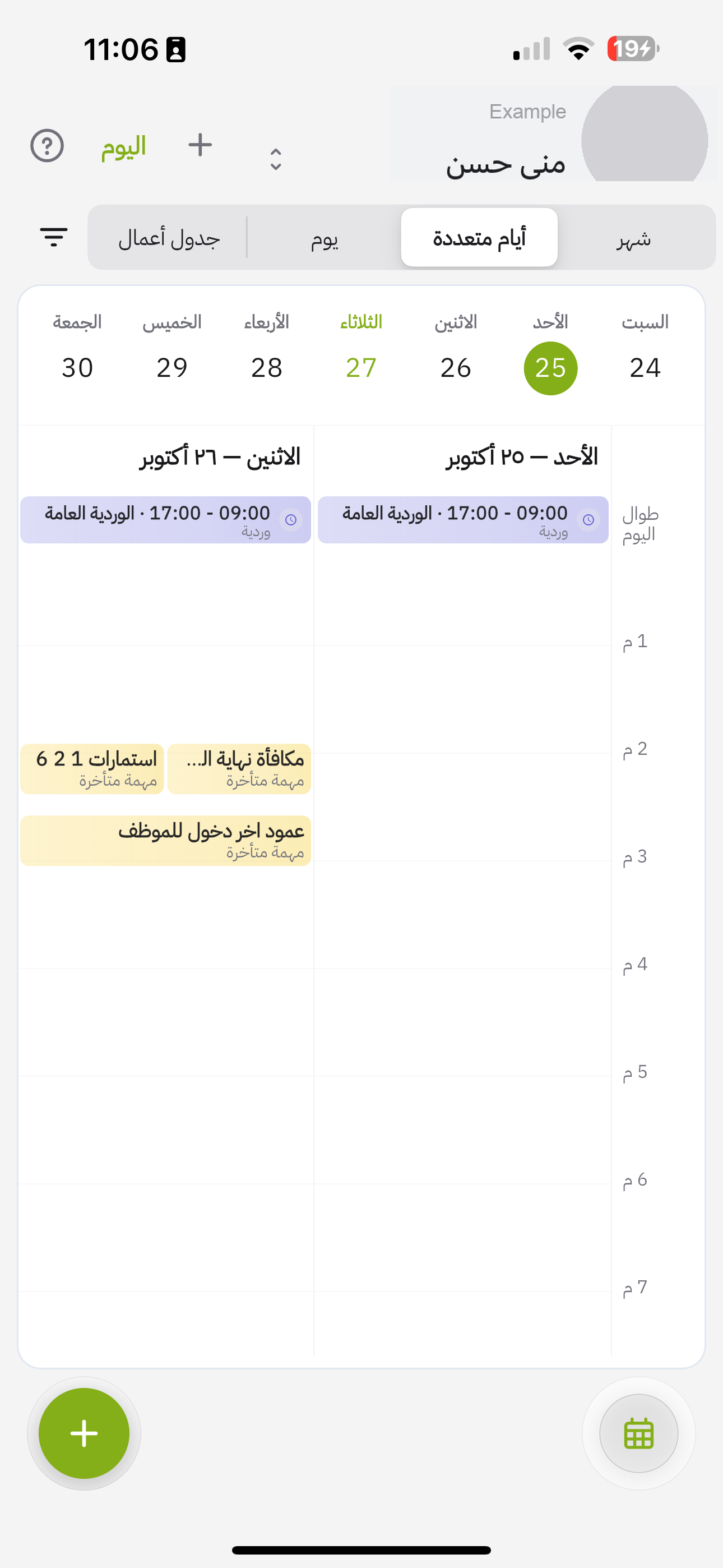
Multi-day

Month
What happens after?
- Date changes on Gantt update the task.
- Calendar on the phone shows the same dated work.
Common questions
The chart is empty?
Give the task a start date or a due date.
How do I change status on Gantt?
Drag the bar to another status group. From List click the status on the row.
No Gantt tab?
You need permission to view the Gantt chart.