

Build your first workflow
Start from Templates or New workflow, Test it, then Publish and Activate.
On this page
Who is this lesson for?
Anyone with Manage Automation. To put one live you also need Publish Automation.
Before you start
- Automation and automated workflows is on for the company.
- You can manage workflows. To put one live you also need Publish Automation.
Open Workflows
From the menu: Automation and automated workflows → Workflows.

Start from Templates or New workflow
To start faster, open the Templates tab and click Use template on a card. A draft workflow is created. See Use template.
To start empty, click New workflow, type the Workflow name, then Open builder.
Set Trigger and steps
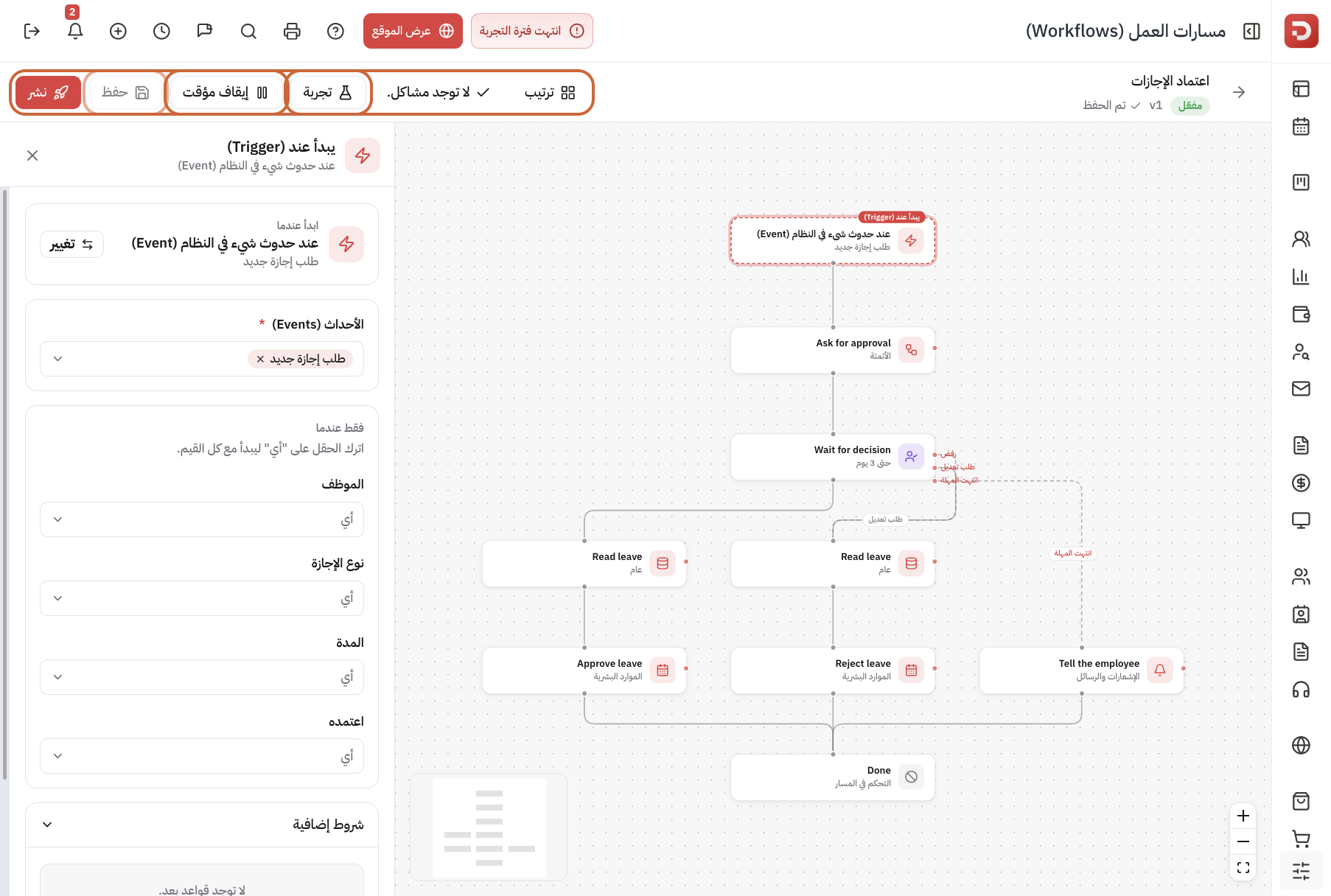
The first block is Trigger — Choose how the workflow starts. Then Add step: an action, Flow control, or Waits. See Open builder.
Test
Use Test in the builder. Tests use sample data and do not change anything. Check Run history.
Publish and Activate
Save the draft, click Publish, then Activate. Until Status is Active, nothing runs on live data. See Publish, Activate, Pause.
What happens after?
- When the start condition is met, a run appears in Run history.
- If a step waits for a person, they see it under Approval requests.