

Approve or Reject from Approval requests
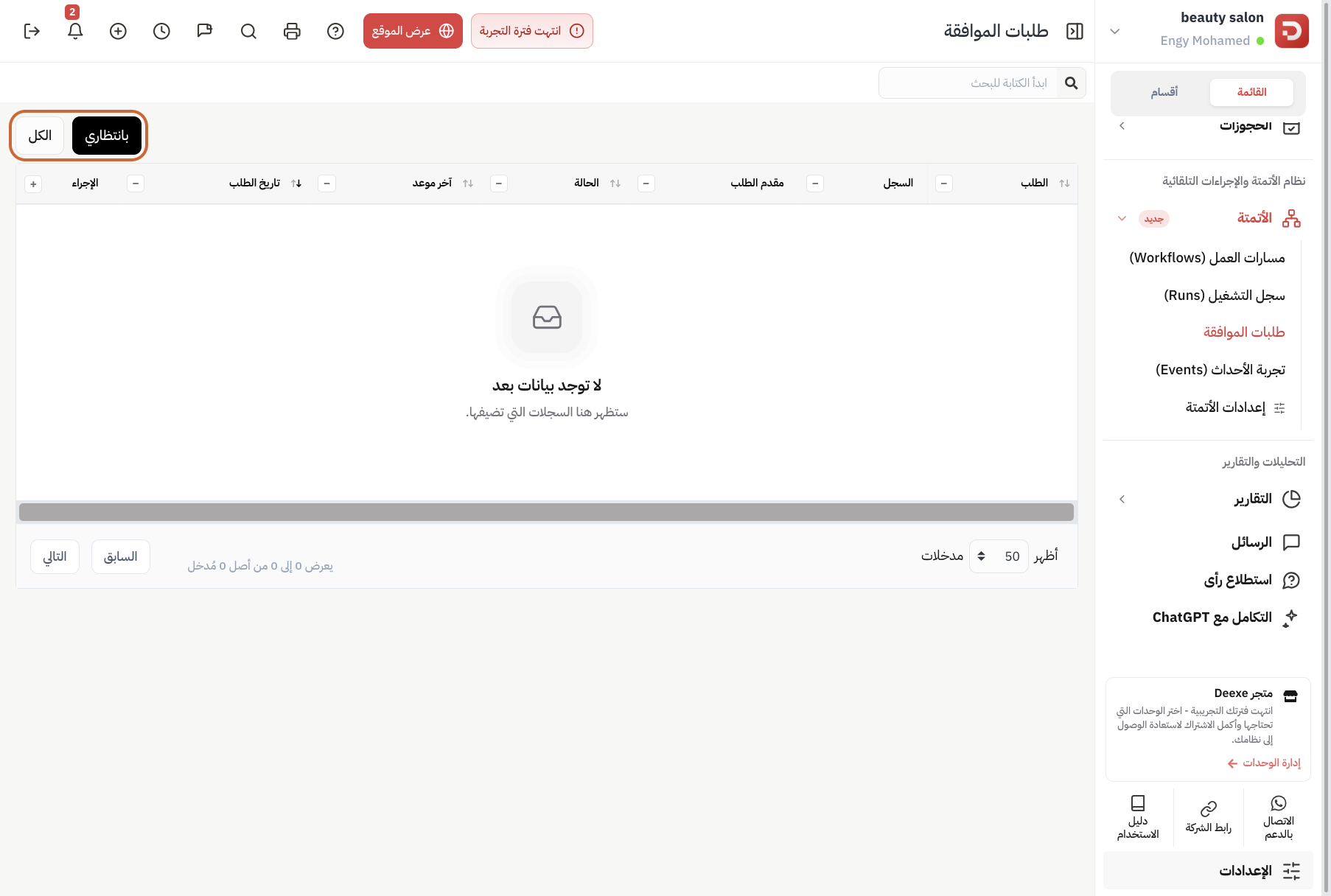
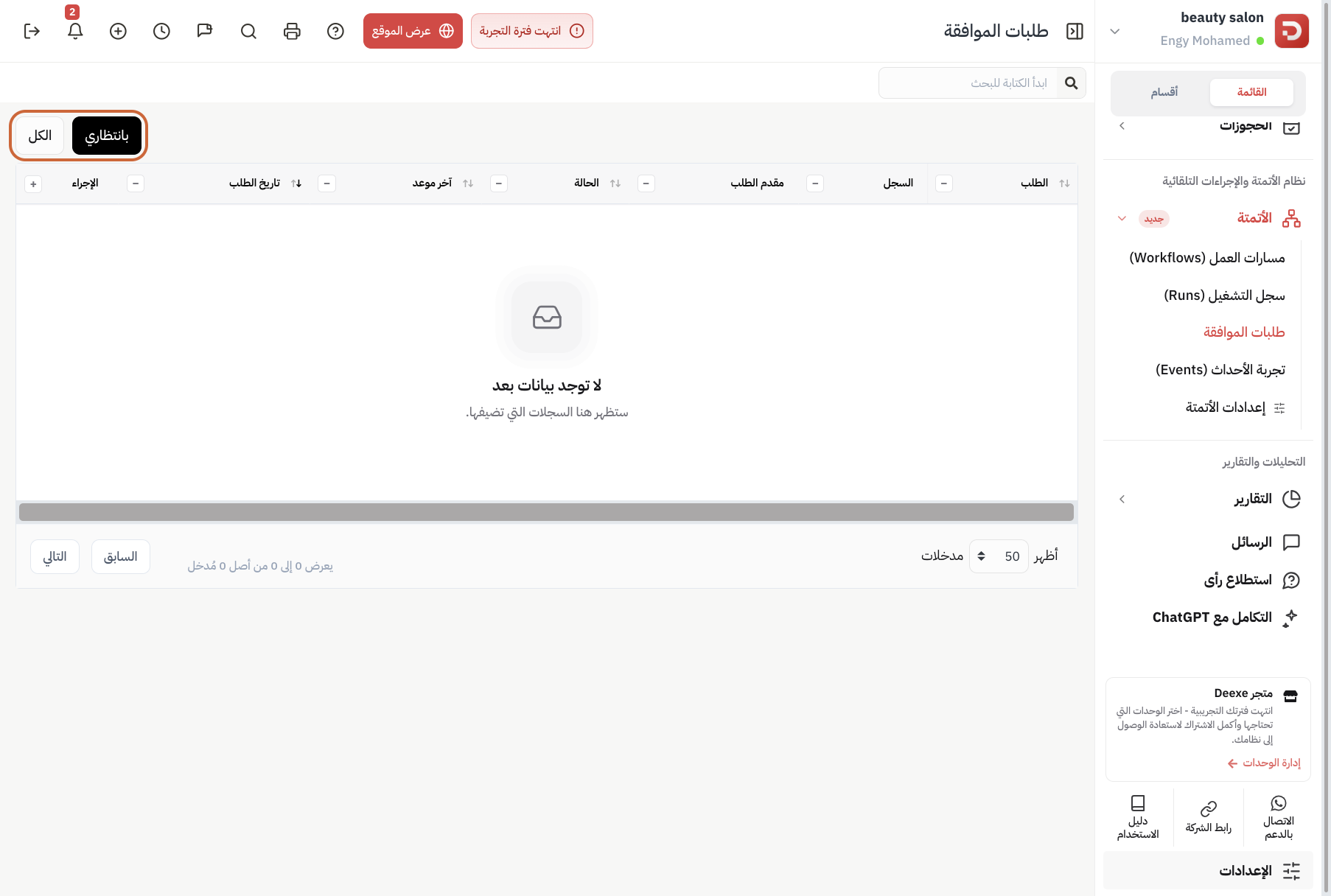
When a workflow waits for a person, the request appears under Approval requests. Use Waiting for me, then Approve, Reject, or Request changes.
Who is this lesson for?
The person named as approver, and anyone with Decide Automation Approvals.
Open Approval requests
Menu: Automation and automated workflows → Approval requests. Use Waiting for me. A number on the menu means something is waiting for you.
Decide
Open the request. Click Approve, Reject, or Request changes (when the step allows). Reason is required when you reject or ask for changes. After you decide, the workflow continues on that path.
If nobody answers
The wait can time out. The workflow then follows the timeout path. Timeouts are set on Wait for approval in Open builder.